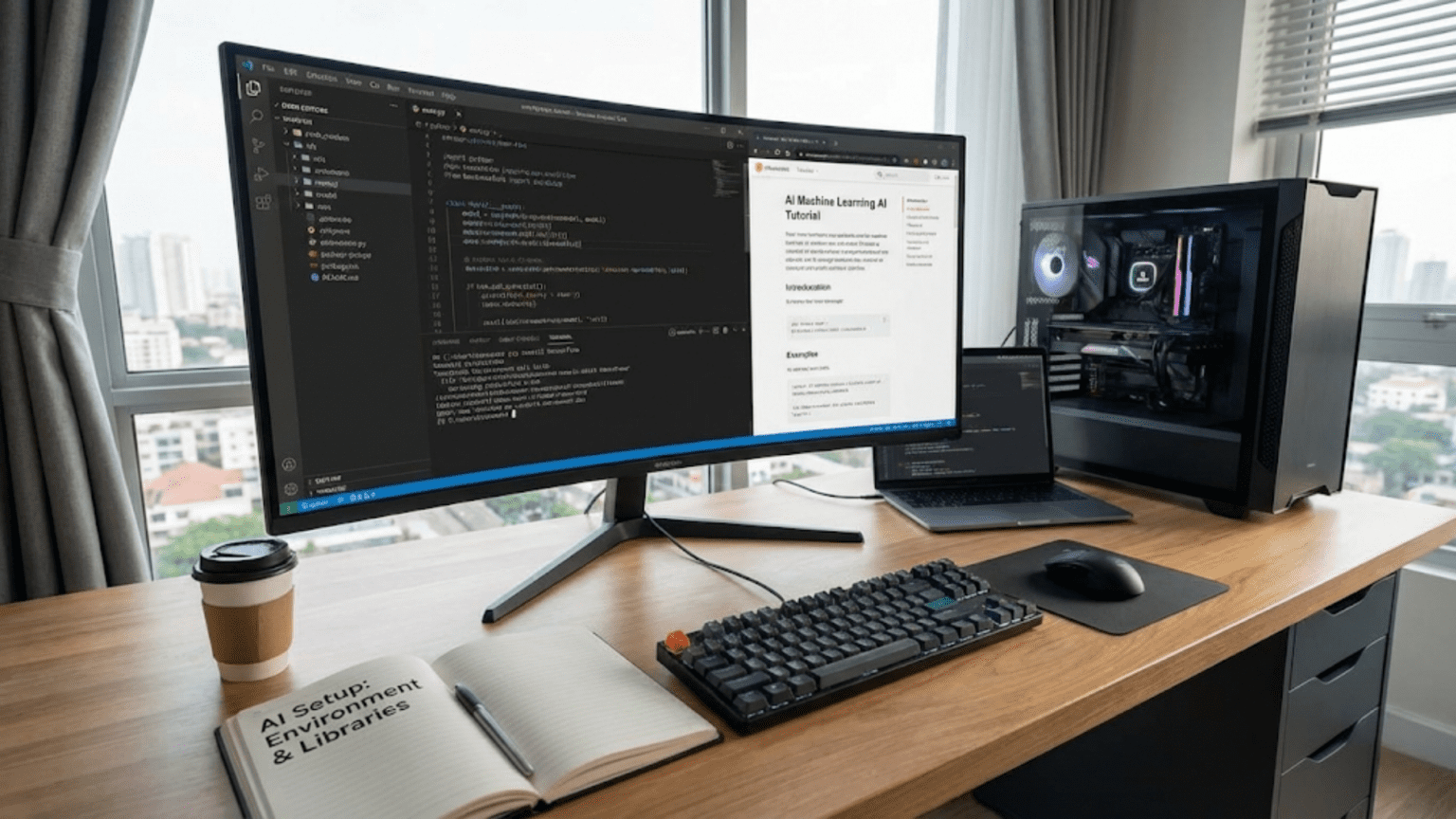
You’ve decided to start your journey into artificial intelligence and machine learning. You’re excited, motivated, and ready to build your first AI model. But before you can train neural networks or implement machine learning algorithms, you need to set up your development environment—the collection of software tools that will power your AI work.
Setting up an AI development environment can seem daunting at first. There are multiple installation methods, various package managers, different frameworks to choose from, and potential compatibility issues to navigate. For beginners, the sheer number of tools and options can be overwhelming. Should you use Anaconda or pip? Do you need a GPU? What’s the difference between TensorFlow and PyTorch? How do you install everything correctly?
This comprehensive guide will walk you through setting up a complete AI development environment step by step. We’ll cover everything from installing Python to configuring GPU support, explaining each choice along the way. By the end, you’ll have a fully functional environment ready for AI development, whether you’re working on simple machine learning projects or advanced deep learning applications.
Understanding What You Need
Before diving into installation, let’s understand the components of an AI development environment and why each matters.
Core Components
Python: The programming language that runs your AI code. You’ll need Python 3.8 or newer—most AI libraries have dropped support for older versions.
Package Manager: Tools like pip or conda that install and manage libraries. They handle dependencies automatically, ensuring compatible versions of different packages.
Essential Libraries:
- NumPy for numerical computing
- Pandas for data manipulation
- Matplotlib for visualization
- Scikit-learn for traditional machine learning
- TensorFlow or PyTorch for deep learning
Development Interface: Where you’ll write and run code—either Jupyter notebooks for interactive work or an IDE (Integrated Development Environment) for larger projects.
Version Control: Git for tracking code changes and collaborating with others.
Optional but Recommended Components
Virtual Environments: Isolated spaces for different projects, preventing version conflicts between projects with different requirements.
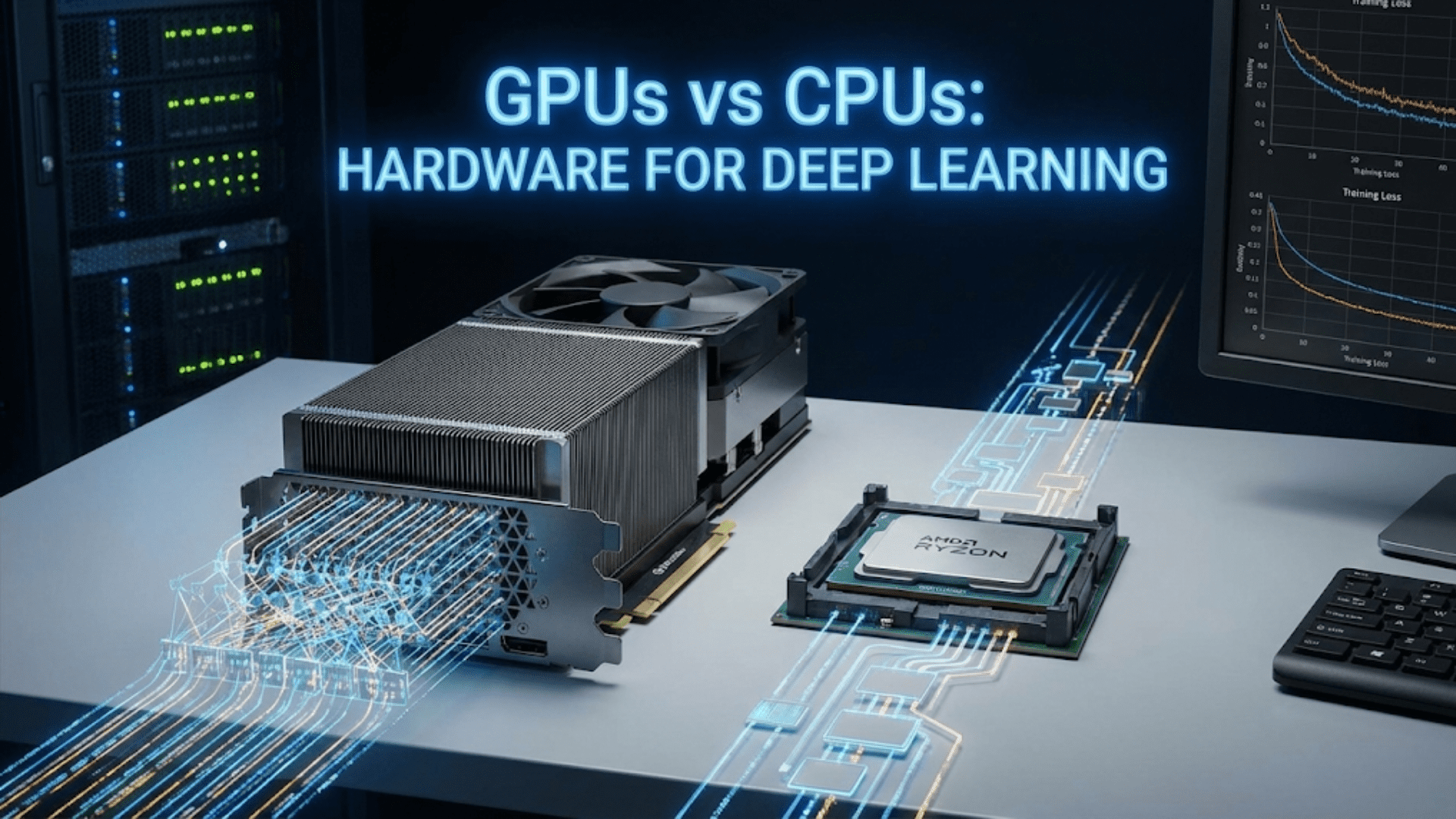
GPU Support: CUDA and cuDNN for accelerating deep learning on NVIDIA GPUs (if you have a compatible GPU).
IDE/Code Editor: VS Code, PyCharm, or Spyder for more sophisticated development beyond notebooks.
Cloud Platform Access: Google Colab or Kaggle Kernels for GPU access without local hardware (we’ll cover this as an alternative approach).
Method 1: The Anaconda Approach (Recommended for Beginners)
Anaconda is a Python distribution specifically designed for data science and machine learning. It includes Python, a package manager (conda), and pre-installed essential libraries. This is the recommended approach for beginners because it simplifies installation and reduces compatibility issues.
Step 1: Download and Install Anaconda
For Windows:
- Visit the Anaconda website: https://www.anaconda.com/download
- Download the Windows installer (64-bit recommended)
- Run the installer
- Choose “Install for Just Me” unless you have a specific reason to install for all users
- Accept the default installation location or choose a location without spaces in the path
- Important: Check the box to “Add Anaconda to my PATH environment variable” even though the installer warns against it. This makes Anaconda easier to use from the command line.
- Click through the remaining options and complete installation
- This process takes 5-10 minutes depending on your system
For macOS:
- Visit https://www.anaconda.com/download
- Download the macOS installer (graphical installer recommended)
- Open the downloaded .pkg file
- Follow the installation wizard
- Accept the license agreement
- Install to the default location
- The installer will automatically configure your PATH
- Complete the installation
For Linux:
- Download the Linux installer from https://www.anaconda.com/download
- Open terminal and navigate to your downloads folder
- Run:
bash Anaconda3-2024.XX-X-Linux-x86_64.sh(replace with your actual filename) - Press Enter to review the license, then type “yes” to accept
- Press Enter to confirm the installation location or specify a different path
- Type “yes” when asked to initialize Anaconda3
- Close and reopen your terminal
Step 2: Verify Anaconda Installation
Open a new terminal (or Anaconda Prompt on Windows) and run:
conda --versionYou should see output like conda 23.X.X. If you see this, Anaconda is installed correctly.
Check Python installation:
python --versionYou should see Python 3.XX.X (where XX is 8 or higher).
Step 3: Update Anaconda
Before installing additional packages, update Anaconda itself:
conda update conda
conda update anacondaType ‘y’ when prompted to proceed. This ensures you have the latest versions of all base packages.
Step 4: Create a Virtual Environment for AI Projects
Virtual environments let you maintain separate sets of packages for different projects. This prevents version conflicts and keeps your projects organized.
Create an environment named “ai_env” (you can choose any name):
conda create --name ai_env python=3.11This creates a new environment with Python 3.11. Type ‘y’ when prompted.
Activate the environment:
conda activate ai_envYour command prompt should now show (ai_env) at the beginning, indicating the environment is active.
To deactivate when you’re done:
conda deactivateAlways activate your AI environment before working on projects. This ensures you’re using the right packages.
Step 5: Install Essential Machine Learning Libraries
With your environment activated, install the core libraries:
conda install numpy pandas matplotlib seaborn scikit-learn jupyterThis single command installs:
- NumPy: Numerical computing
- Pandas: Data manipulation
- Matplotlib & Seaborn: Visualization
- Scikit-learn: Machine learning algorithms
- Jupyter: Interactive notebooks
Type ‘y’ to proceed. This may take several minutes as conda resolves dependencies and installs packages.
Step 6: Install Deep Learning Frameworks
You’ll need at least one deep learning framework. You can install both—they can coexist peacefully.
Installing TensorFlow:
conda install tensorflowAlternatively, use pip within your conda environment:
pip install tensorflowInstalling PyTorch:
Visit https://pytorch.org to get the installation command specific to your system. For most systems with no GPU:
conda install pytorch torchvision torchaudio cpuonly -c pytorchFor systems with NVIDIA GPU (we’ll cover GPU setup later):
conda install pytorch torchvision torchaudio pytorch-cuda=11.8 -c pytorch -c nvidiaStep 7: Install Additional Useful Libraries
Install libraries you’ll frequently need:
pip install opencv-python pillow nltk spacy requests beautifulsoup4This installs:
- OpenCV and Pillow: Image processing
- NLTK and spaCy: Natural language processing
- Requests and BeautifulSoup: Web scraping and APIs
Step 8: Launch Jupyter Notebook
Test your installation by launching Jupyter:
jupyter notebookThis opens Jupyter in your default web browser. You’ll see a file browser showing your current directory.
Create a new notebook: Click “New” → “Python 3”
Test your installation by running this code in a cell:
import numpy as np
import pandas as pd
import matplotlib.pyplot as plt
import sklearn
import tensorflow as tf  # or import torch if you installed PyTorch

print("NumPy version:", np.__version__)
print("Pandas version:", pd.__version__)
print("Scikit-learn version:", sklearn.__version__)
print("TensorFlow version:", tf.__version__)

# Create a simple plot to test matplotlib
plt.plot([1, 2, 3, 4], [1, 4, 9, 16])
plt.ylabel('y-axis')
plt.xlabel('x-axis')
plt.title('Test Plot')
plt.show()

print("All libraries loaded successfully!")If this runs without errors and displays a plot, congratulations! Your AI environment is working.
Method 2: The Pip and Virtual Environment Approach
If you prefer a lighter-weight setup without Anaconda’s full distribution, you can use Python’s built-in virtual environment tools and pip.
Step 1: Install Python
For Windows:
- Visit https://www.python.org/downloads/
- Download the latest Python 3.11 or 3.12 installer
- Run the installer
- Critical: Check “Add Python to PATH” at the bottom of the installer window
- Click “Install Now”
- Wait for installation to complete
For macOS:
Python comes pre-installed on macOS, but it’s often an older version. Install a newer version:
- Install Homebrew if you don’t have it: Visit https://brew.sh and follow instructions
- Run:
brew install python@3.11
For Linux:
Most Linux distributions include Python 3. Check your version:
python3 --versionIf you need a newer version:
sudo apt update
sudo apt install python3.11 python3-pip python3-venv(Commands vary by distribution; adjust for your system)
Step 2: Create a Virtual Environment
Navigate to where you want to create your project folder:
cd ~/Projects  # or wherever you keep projects
mkdir ai_projects
cd ai_projectsCreate a virtual environment:
python -m venv ai_envThis creates a folder named ai_env containing an isolated Python installation.
Activate the environment:
On Windows:
ai_env\Scripts\activateOn macOS/Linux:
source ai_env/bin/activateYour prompt should now show (ai_env).
Step 3: Upgrade pip
Before installing packages, upgrade pip itself:
pip install --upgrade pipStep 4: Install Core Libraries
Install essential packages one by one or in groups:
pip install numpy pandas matplotlib seaborn scikit-learn jupyterStep 5: Install Deep Learning Frameworks
For TensorFlow:
pip install tensorflowFor PyTorch, get the appropriate command from https://pytorch.org based on your system.
Step 6: Create a Requirements File
Document your installed packages for reproducibility:
pip freeze > requirements.txtThis creates a file listing all installed packages and versions. Others can recreate your environment by running:
pip install -r requirements.txtMethod 3: Using Google Colab (No Local Installation Required)
If you don’t want to install anything locally, or if you need GPU access without purchasing expensive hardware, Google Colab provides a free, cloud-based solution.
Setting Up Google Colab
- Visit https://colab.research.google.com
- Sign in with your Google account
- Click “New Notebook” to create a new notebook
- You now have a Jupyter notebook environment in your browser with:
- Python pre-installed
- Most major libraries already available
- Free GPU access (limited time per session)
- Free TPU access for certain workloads
Advantages of Google Colab
- No installation required: Start coding immediately
- Free GPU access: Train deep learning models faster
- Pre-installed libraries: TensorFlow, PyTorch, scikit-learn already available
- Easy sharing: Share notebooks like Google Docs
- Cloud storage: Integrates with Google Drive
Limitations of Google Colab
- Session timeout: Sessions terminate after inactivity
- Limited resources: Free tier has usage limits
- Internet required: Can’t work offline
- File management: Handling large datasets can be awkward
Using Colab Effectively
Install additional packages as needed:
!pip install package_nameThe ! prefix runs shell commands from notebook cells.
Enable GPU:
- Click “Runtime” menu
- Select “Change runtime type”
- Choose “GPU” from Hardware accelerator dropdown
- Click “Save”
Verify GPU access:
import tensorflow as tf
print("GPU Available:", tf.config.list_physical_devices('GPU'))Mount Google Drive for persistent storage:
from google.colab import drive
drive.mount('/content/drive')This lets you access files in your Google Drive from Colab.
Setting Up GPU Support (For Local Installations)
If you have an NVIDIA GPU and want to accelerate deep learning training, you’ll need to install CUDA and cuDNN.
Prerequisites
- NVIDIA GPU with CUDA Compute Capability 3.5 or higher
- Check your GPU compatibility: https://developer.nvidia.com/cuda-gpus
Step 1: Install NVIDIA Drivers
Windows:
- Visit https://www.nvidia.com/Download/index.aspx
- Select your GPU model
- Download and install the latest driver
Linux:
ubuntu-drivers devices
sudo ubuntu-drivers autoinstallReboot after installation.
Step 2: Install CUDA Toolkit
Visit https://developer.nvidia.com/cuda-downloads
Select your operating system and follow the installation instructions. For TensorFlow 2.10+, CUDA 11.8 is recommended. For PyTorch, check the PyTorch website for the required CUDA version.
Important: The CUDA version must be compatible with your deep learning framework version.
Step 3: Install cuDNN
- Visit https://developer.nvidia.com/cudnn (requires free NVIDIA account)
- Download cuDNN matching your CUDA version
- Extract the archive
- Copy files to your CUDA installation directory:
- Copy
bincontents to CUDA’sbinfolder - Copy
includecontents to CUDA’sincludefolder - Copy
libcontents to CUDA’slibfolder
- Copy
Step 4: Verify GPU Setup
Test TensorFlow GPU support:
import tensorflow as tf
print("Num GPUs Available:", len(tf.config.list_physical_devices('GPU')))Test PyTorch GPU support:
import torch
print("CUDA Available:", torch.cuda.is_available())
print("GPU Name:", torch.cuda.get_device_name(0) if torch.cuda.is_available() else "No GPU")If you see your GPU listed, GPU acceleration is working!
Setting Up an IDE for Larger Projects
While Jupyter notebooks are excellent for exploration and learning, larger projects benefit from a full IDE.
Visual Studio Code (Recommended)
Installation:
- Download from https://code.visualstudio.com
- Install for your operating system
- Launch VS Code
Setup for Python AI Development:
- Install the Python extension:
- Click Extensions icon (left sidebar)
- Search “Python”
- Install the Microsoft Python extension
- Install Jupyter extension:
- Search “Jupyter”
- Install the Jupyter extension by Microsoft
- Select your Python interpreter:
- Press
Ctrl+Shift+P(orCmd+Shift+Pon Mac) - Type “Python: Select Interpreter”
- Choose your conda environment or virtual environment
- Press
- Install useful extensions:
- Pylance (Python language server)
- Python Indent
- autoDocstring
- GitLens (for Git integration)
Using VS Code for AI Development:
- Create
.pyfiles for scripts - Create
.ipynbfiles for notebooks (works within VS Code) - Use integrated terminal for running scripts
- Built-in Git integration for version control
- Debugging support with breakpoints
PyCharm (Alternative)
PyCharm is a powerful Python IDE, available in free (Community) and paid (Professional) versions.
Installation:
- Download from https://www.jetbrains.com/pycharm/download/
- Install the Community Edition (free)
- Launch PyCharm
Configuration:
- Create or open a project
- Configure interpreter: File → Settings → Project → Python Interpreter
- Select your virtual environment or conda environment
- Install packages from the interpreter settings if needed
PyCharm provides:
- Advanced code completion
- Integrated testing
- Database tools (Professional edition)
- Scientific mode for data science
Version Control with Git
Version control is essential for any development work, letting you track changes, collaborate, and revert mistakes.
Installing Git
Windows:
- Download from https://git-scm.com/download/win
- Run installer with default options
- This installs Git Bash, a Linux-like terminal for Windows
macOS:
Git is often pre-installed. Check with:
git --versionIf not installed, run:
brew install gitLinux:
sudo apt install gitBasic Git Setup
Configure your identity:
git config --global user.name "Your Name"
git config --global user.email "your.email@example.com"Using Git with Your AI Projects
Initialize a repository in your project folder:
cd ~/ai_projects
git initCreate a .gitignore file to exclude files you don’t want tracked:
# Python
__pycache__/
*.py[cod]
*$py.class
*.so
.Python
env/
venv/
ai_env/

# Jupyter Notebook
.ipynb_checkpoints

# Data files (often too large for Git)
*.csv
*.h5
*.pkl
data/

# Model files
*.h5
*.pb
models/Add and commit your code:
git add .
git commit -m "Initial commit"GitHub for Backup and Collaboration
- Create a GitHub account at https://github.com
- Create a new repository on GitHub
- Connect your local repository:
git remote add origin https://github.com/yourusername/your-repo-name.git
git branch -M main
git push -u origin mainNow your code is backed up on GitHub and can be shared with others.
Organizing Your AI Development Workspace
Good organization saves time and prevents frustration.
Recommended Directory Structure
ai_projects/
├── datasets/
│   ├── raw/
│   ├── processed/
│   └── external/
├── notebooks/
│   ├── exploratory/
│   └── final/
├── src/
│   ├── data/
│   ├── features/
│   ├── models/
│   └── visualization/
├── models/
│   ├── saved_models/
│   └── checkpoints/
├── reports/
│   └── figures/
├── requirements.txt
└── README.md
Explanation:
datasets/: Store data here (use .gitignore to avoid committing large files)notebooks/: Jupyter notebooks for exploration and analysissrc/: Python scripts and modules for reusable codemodels/: Saved trained modelsreports/: Documentation and visualizationsrequirements.txt: List of dependenciesREADME.md: Project description and setup instructions
Best Practices
Keep notebooks clean: Use notebooks for exploration, then move polished code to scripts.
Separate concerns: Data processing, model training, and evaluation in separate modules.
Document your work: Add comments, docstrings, and maintain a README.
Version control regularly: Commit frequently with meaningful messages.
Use relative paths: Makes code portable across different systems.
Maintain a project journal: Document decisions, experiments, and results.
Testing Your Complete Setup
Create a test project to verify everything works together.
Create a Test Notebook
- Launch Jupyter:
jupyter notebook - Create new notebook: “New” → “Python 3”
- Name it “environment_test”
Run Comprehensive Tests
# Test 1: Import all major libraries
print("Testing library imports...")
import numpy as np
import pandas as pd
import matplotlib.pyplot as plt
import seaborn as sns
import sklearn
from sklearn.datasets import load_iris
from sklearn.model_selection import train_test_split
from sklearn.ensemble import RandomForestClassifier
print("✓ All basic libraries imported successfully")

# Test 2: Deep learning frameworks
print("\nTesting deep learning frameworks...")
try:
    import tensorflow as tf
    print(f"✓ TensorFlow {tf.__version__} available")
    print(f"  GPUs available: {len(tf.config.list_physical_devices('GPU'))}")
except ImportError:
    print("✗ TensorFlow not installed")

try:
    import torch
    print(f"✓ PyTorch {torch.__version__} available")
    print(f"  CUDA available: {torch.cuda.is_available()}")
except ImportError:
    print("✗ PyTorch not installed")

# Test 3: Data manipulation
print("\nTesting data manipulation...")
data = load_iris()
df = pd.DataFrame(data.data, columns=data.feature_names)
df['target'] = data.target
print(f"✓ Loaded Iris dataset: {df.shape}")
print(df.head())

# Test 4: Visualization
print("\nTesting visualization...")
plt.figure(figsize=(10, 6))
sns.scatterplot(data=df, x='sepal length (cm)', y='sepal width (cm)',
                hue='target', palette='viridis')
plt.title('Iris Dataset Visualization')
plt.show()
print("✓ Visualization working")

# Test 5: Machine learning pipeline
print("\nTesting machine learning pipeline...")
X = data.data
y = data.target
X_train, X_test, y_train, y_test = train_test_split(X, y, test_size=0.2, random_state=42)

model = RandomForestClassifier(n_estimators=100, random_state=42)
model.fit(X_train, y_train)
accuracy = model.score(X_test, y_test)
print(f"✓ Trained Random Forest model: {accuracy:.2%} accuracy")

# Test 6: Simple neural network (if TensorFlow available)
try:
    from tensorflow import keras
    from tensorflow.keras import layers

    print("\nTesting neural network...")
    nn_model = keras.Sequential([
        layers.Dense(10, activation='relu', input_shape=(4,)),
        layers.Dense(3, activation='softmax')
    ])
    nn_model.compile(optimizer='adam', loss='sparse_categorical_crossentropy',
                     metrics=['accuracy'])
    history = nn_model.fit(X_train, y_train, epochs=50, verbose=0,
                           validation_split=0.2)
    nn_accuracy = nn_model.evaluate(X_test, y_test, verbose=0)[1]
    print(f"✓ Trained neural network: {nn_accuracy:.2%} accuracy")
except Exception as e:
    print(f"✗ Neural network test failed: {e}")

print("\n" + "="*50)
print("ENVIRONMENT SETUP VERIFICATION COMPLETE")
print("="*50)
print("\nYour AI development environment is ready!")If all tests pass, your environment is fully functional.
Troubleshooting Common Issues
“Command not found” or “Module not found”
Problem: Terminal doesn’t recognize conda, python, or imports fail in notebooks.
Solutions:
- Verify PATH is set correctly during installation
- Restart terminal/command prompt
- Ensure virtual environment is activated
- Reinstall Anaconda or Python with PATH option checked
Package Installation Fails
Problem: pip install or conda install produces errors.
Solutions:
- Update pip:
pip install --upgrade pip - Update conda:
conda update conda - Check internet connection
- Try alternative installation method (pip instead of conda or vice versa)
- Clear cache:
pip cache purgeorconda clean --all
Jupyter Won’t Start
Problem: jupyter notebook command fails or browser doesn’t open.
Solutions:
- Verify Jupyter is installed:
pip install jupyter - Try specifying browser:
jupyter notebook --browser=chrome - Check firewall settings
- Try different port:
jupyter notebook --port=8889
Import Errors Despite Installation
Problem: Library installed but imports fail in notebooks.
Solutions:
- Verify correct environment is activated
- Install in correct environment: activate first, then install
- Restart Jupyter kernel: Kernel → Restart
- Check Python version compatibility
GPU Not Detected
Problem: TensorFlow or PyTorch doesn’t detect GPU.
Solutions:
- Verify CUDA and cuDNN versions match framework requirements
- Update GPU drivers
- Check GPU compatibility at NVIDIA’s website
- Reinstall framework with GPU support explicitly
- Test with:
nvidia-smicommand to verify GPU is visible to system
Version Conflicts
Problem: Installing new packages breaks existing ones.
Solutions:
- Use virtual environments to isolate projects
- Pin package versions in requirements.txt
- Create fresh environment for incompatible requirements
- Use conda instead of pip (or vice versa) for better dependency resolution
Maintaining Your Environment
Your AI development environment requires ongoing maintenance.
Regular Updates
Update packages periodically:
With conda:
conda update --allWith pip:
pip list --outdated
pip install --upgrade package_nameClean Up Unused Packages
Remove packages you no longer need:
With conda:
conda clean --allWith pip:
pip uninstall package_nameManage Multiple Projects
Create separate environments for different projects:
conda create --name project1 python=3.11
conda create --name project2 python=3.10Switch between them:
conda activate project1
# Work on project 1
conda deactivate
conda activate project2
# Work on project 2Back Up Your Environment
Export environment for reproducibility:
With conda:
conda env export > environment.ymlRecreate on another machine:
conda env create -f environment.ymlWith pip:
pip freeze > requirements.txtRecreate:
pip install -r requirements.txtNext Steps After Setup
With your environment ready, what’s next?
1. Learn Python Fundamentals
If you’re not proficient in Python, start there:
- Variables, data types, control flow
- Functions and modules
- Object-oriented programming basics
- File I/O and error handling
2. Master NumPy and Pandas
These are fundamental to all AI work:
- Array operations in NumPy
- DataFrames in Pandas
- Data cleaning and preprocessing
- Basic statistics and aggregations
3. Understand Data Visualization
Visualization is crucial for understanding data and results:
- Basic plots with Matplotlib
- Statistical visualizations with Seaborn
- Interactive plots with Plotly
4. Start with Scikit-learn
Learn machine learning fundamentals:
- Load and split datasets
- Train classification and regression models
- Evaluate model performance
- Apply preprocessing and feature engineering
5. Explore Deep Learning
Once comfortable with basics, dive into neural networks:
- TensorFlow/Keras tutorials
- PyTorch tutorials
- Build simple neural networks
- Understand training, validation, and testing
6. Work on Projects
Apply your knowledge to real projects:
- Start with Kaggle datasets
- Replicate tutorials but with your own data
- Build something that interests you personally
- Document and share your work
Conclusion: Your Foundation Is Ready
Setting up an AI development environment is your first concrete step into artificial intelligence. While the process involves multiple components and potential complications, following this guide step-by-step ensures you have a solid, functional foundation for AI development.
You now have Python installed, essential libraries ready, deep learning frameworks configured, development tools set up, and a organized workspace prepared. Whether you chose Anaconda for simplicity, pip and virtual environments for control, or Google Colab for cloud-based convenience, your environment is ready for AI work.
Remember that your development environment will evolve as you progress. You’ll install new libraries, discover new tools, configure additional features, and possibly switch between different setups depending on project requirements. That’s normal and healthy—your environment should grow with your skills and needs.
The technical setup is complete, but your journey is just beginning. The real work—and the real excitement—comes from using these tools to build, experiment, learn, and create. Your properly configured environment removes technical obstacles, letting you focus on understanding AI concepts, implementing algorithms, and solving real problems.
Every AI practitioner, from beginners to experts at top companies, uses environments similar to what you’ve just created. You’re using professional tools and workflows from day one. The difference between you and experienced practitioners isn’t the tools—it’s experience, knowledge, and practice. All of those come with time and effort.
So open that first Jupyter notebook, import your libraries, load some data, and start experimenting. Your AI development environment is ready. Your learning journey awaits. Welcome to the world of artificial intelligence development!