Your Control Center for Hardware Management
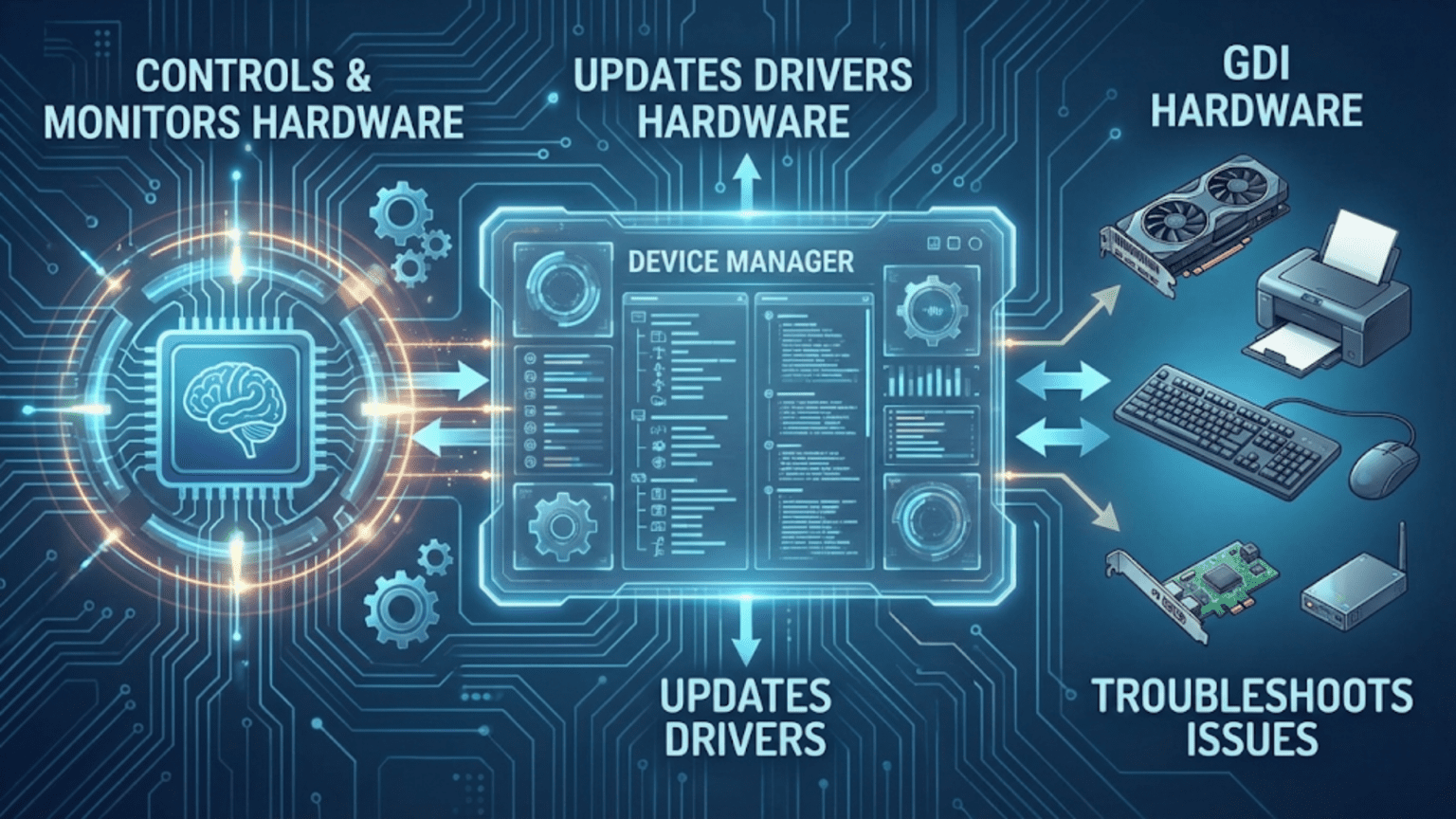
Every computer contains dozens of hardware devices working together to create the complete computing experience you rely on. Your processor executes instructions, your memory stores data, your storage devices preserve files, your graphics card displays images on screen, your network adapter connects you to the internet, and countless other components each play specialized roles. Managing all these diverse devices so they work together harmoniously represents a significant challenge that operating systems solve through sophisticated hardware management systems. At the user-facing level, Windows provides a tool called Device Manager that serves as your window into this hardware management, showing you every device your operating system recognizes and providing control over how those devices work. Understanding Device Manager reveals not just how to use this specific tool but also the broader principles of how operating systems discover, configure, and manage the hardware that makes your computer functional.
Device Manager essentially provides a graphical interface to the operating system’s device and driver management subsystems, translating complex hardware relationships and driver configurations into visual representations that users can understand and manipulate. When you open Device Manager, you see a hierarchical tree showing all the devices installed in your system organized by category. This simple visualization conceals tremendous complexity because each device shown represents successful cooperation between physical hardware, device drivers, operating system services, and configuration databases. When everything works correctly, you never need to think about Device Manager. However, when hardware problems occur, when devices stop working, or when you want to update drivers or change device settings, Device Manager becomes an essential diagnostic and management tool that helps you understand what is happening with your hardware and take corrective action.
The importance of Device Manager extends beyond just being a troubleshooting utility. It serves as educational software that reveals your computer’s hardware configuration in detail, showing exactly what devices are present, what drivers are being used, and how resources are allocated. This visibility helps you understand your computer better and makes informed decisions about hardware upgrades or driver updates. It also provides reassurance that your hardware is recognized and functioning correctly, or alternatively alerts you to problems before they cause failures. Learning to use Device Manager effectively transforms it from a mysterious technical tool that only experts understand into an accessible resource that helps you maintain your computer’s health and resolve common hardware-related issues yourself without requiring professional technical support.
What Device Manager Shows You: Understanding the Interface
Opening Device Manager presents a organized view of your computer’s hardware that might initially seem overwhelming but follows a logical structure designed to make finding specific devices straightforward. Understanding how this interface organizes information helps you navigate it effectively and locate the devices you need to examine or configure.
The hierarchical tree structure organizes devices into categories that group similar types of hardware together. You will find categories like Disk drives containing your hard drives and SSDs, Display adapters showing your graphics cards, Network adapters listing network interfaces, Audio inputs and outputs for sound devices, and many others. This categorization mirrors how operating systems think about device types, grouping devices that use similar interfaces and driver models. Expanding each category reveals the specific devices of that type installed in your system, showing brand names and model numbers that identify exactly what hardware you have.
Each device entry in the tree contains detailed information accessible through its properties dialog. Right-clicking a device and selecting Properties opens a multi-tabbed window showing everything the operating system knows about that device. The General tab provides overview information including the device name, type, manufacturer, and current status showing whether the device is working properly or experiencing problems. The Driver tab shows which driver is currently installed for the device, including the driver version, date, and provider, and provides buttons for updating, rolling back, or uninstalling the driver. The Details tab exposes technical properties like hardware IDs, compatible IDs, and class GUIDs that identify the device to the operating system and driver installation systems. The Resources tab shows hardware resources like memory addresses, IRQ lines, and I/O ports that the device uses.
Status indicators provide at-a-glance information about device health. Devices working normally appear with standard icons and no special markings. Devices experiencing problems display yellow warning triangles indicating the operating system detected issues like missing drivers or resource conflicts. Disabled devices show down arrows indicating they are present but not currently active. These visual indicators help you quickly identify problematic devices without examining each one individually.
The View menu offers different ways of organizing the device list. The default Devices by type view groups devices into categories as described above. Devices by connection shows how devices connect to the computer through buses and controllers, revealing the physical hardware topology. Resources by type and Resources by connection show how system resources like memory addresses and interrupts are allocated among devices. Hidden devices can be revealed through the View menu, showing devices that are not currently connected but have drivers installed, which is useful when troubleshooting devices that have been removed or are intermittently connected.
The Action menu provides operations you can perform on the entire device tree. Scan for hardware changes asks the operating system to check for newly connected devices or devices that were previously hidden, useful after installing new hardware or after the system fails to automatically detect a device. Add legacy hardware launches a wizard for manually installing older devices that do not support automatic detection. These actions give you control over the device discovery and installation process when automatic mechanisms fail or when working with unusual hardware.
How Device Manager Helps: Practical Uses
Device Manager serves multiple practical purposes that help you understand, configure, and troubleshoot your computer’s hardware. Learning these uses transforms Device Manager from mysterious technical utility into valuable everyday tool.
Identifying hardware allows you to discover exactly what devices are installed in your computer without physically opening the case. If you need to know what graphics card you have, what network adapter is installed, or what brand of storage devices you use, Device Manager provides definitive answers. This information is essential when seeking driver updates, checking hardware compatibility with software you want to install, or troubleshooting problems that might be hardware-specific. The detailed properties available for each device include model numbers, firmware versions, and hardware IDs that precisely identify devices even when names alone might be ambiguous.
Troubleshooting device problems becomes much easier with Device Manager because it clearly shows which devices are having issues and often provides information about what specifically is wrong. The yellow warning triangle immediately identifies problematic devices without requiring you to guess which hardware might be causing system issues. Examining the properties of flagged devices usually reveals error messages or codes indicating what problem the operating system detected, whether that is a missing driver, resource conflict, disabled device, or hardware failure. These clues guide troubleshooting by focusing attention on the specific component and issue rather than requiring trial and error across the entire system.
Updating device drivers is one of Device Manager’s most common uses because drivers significantly affect how well devices perform and whether they work at all. The Driver tab in device properties shows the currently installed driver version and provides an Update Driver button that searches for better drivers either automatically through Windows Update or manually from driver files you have downloaded. This functionality is crucial when devices misbehave because outdated drivers often cause problems, when new drivers provide performance improvements or additional features, or when you need specific driver versions for compatibility with particular software. The ability to see exactly which driver version is installed helps you verify that updates succeeded and troubleshoot cases where specific driver versions cause problems.
Rolling back problematic drivers provides an escape route when driver updates cause new problems. Sometimes newer drivers introduce bugs or incompatibilities that make devices work worse than they did with older drivers. The Roll Back Driver button returns to the previously installed driver version, undoing the update and hopefully resolving the problems the new driver caused. This rollback capability makes driver updates less risky because you know you can revert if the update goes badly, though it requires that Windows retained the previous driver rather than deleting it.
Disabling devices allows you to temporarily turn off hardware without physically removing it, useful for troubleshooting resource conflicts, testing whether specific devices cause system problems, or conserving power. Disabling a device through Device Manager tells the operating system to stop using that hardware and unload its driver, as if the device were physically disconnected. This can help isolate problems where you suspect a specific device is causing issues but want to test without opening the computer case. Devices can be re-enabled just as easily, making this a non-destructive way to experiment with hardware configurations.
Uninstalling devices and drivers completely removes them from the system, more thorough than just disabling. This is appropriate when you have physically removed hardware and want to clean up leftover drivers, when drivers are so corrupted that reinstalling from scratch is necessary, or when you want to force the operating system to re-detect a device and go through fresh installation. Uninstalling combined with rebooting or scanning for hardware changes causes the operating system to rediscover the device and attempt fresh driver installation, which often resolves stubborn problems that updating or rolling back drivers could not fix.
Device Drivers: The Critical Connection
Device Manager’s usefulness centers heavily on managing device drivers because these software components form the critical link between operating system and hardware. Understanding what drivers do and why they matter helps you use Device Manager more effectively.
Drivers translate between the generic interfaces the operating system uses and the specific commands that individual hardware devices understand. Each device has unique characteristics, capabilities, and control interfaces defined by its design and manufacturer. The operating system cannot know details of every possible device, so it provides generic categories like “graphics card” or “network adapter” with standard interfaces defining how such devices should work from the operating system’s perspective. Drivers implement these standard interfaces while internally handling whatever hardware-specific operations are necessary to make particular devices conform to the standard behavior. This allows the operating system to work with any graphics card through the same interface while each card’s driver handles its unique capabilities and control mechanisms.
Driver quality profoundly affects device performance, stability, and features. Well-written drivers make devices work reliably and efficiently, exposing all their capabilities to the operating system and applications. Poorly written drivers cause crashes, poor performance, missing features, or subtle bugs that make devices unreliable. Because drivers run in privileged kernel mode with unrestricted hardware access, driver bugs can crash the entire system rather than just the misbehaving driver. This makes driver quality a critical concern and explains why operating systems like Windows implement driver signing that verifies drivers come from known publishers and have been tested for basic quality standards.
Driver updates serve multiple purposes including fixing bugs in previous versions, adding support for new features or capabilities, improving performance through optimization, and ensuring compatibility with new operating system versions or other updated software. Hardware manufacturers continue developing driver updates long after devices ship, gradually improving how well they work. Installing these updates can resolve problems you have been experiencing, improve how well devices perform, or enable new features that were not available when you first got the device. However, updates also occasionally introduce new problems, which is why the ability to roll back updates is important.
Signed versus unsigned drivers reflects Microsoft’s effort to improve system stability and security. Signed drivers have digital signatures from verified publishers, providing assurance about the driver’s source and that it has passed basic compatibility testing. Windows prefers signed drivers and warns about or blocks unsigned drivers depending on security settings. This signing helps prevent malware from installing malicious fake drivers and reduces the likelihood of buggy drivers causing system problems. However, it also creates challenges for legitimate drivers from small manufacturers or for older hardware where drivers predate the signing infrastructure.
Common Device Manager Tasks
Learning to perform common Device Manager tasks helps you handle routine hardware management and troubleshooting without needing professional technical support.
Checking if a device is working properly involves finding the device in Device Manager’s tree and examining its icon and properties. Devices working correctly have normal icons with no warnings and their General properties tab shows “This device is working properly” in the device status section. If you have doubts about whether specific hardware is functioning, checking Device Manager provides quick verification. Devices with problems display warning triangles or error symbols and their status messages describe detected issues. This quick visual check can confirm suspicions that particular hardware is faulty or conversely rule out hardware as the source of problems you are experiencing.
Updating drivers starts with right-clicking the device you want to update and selecting Update Driver from the context menu. Windows offers two options: searching automatically for updated driver software, which checks Windows Update and online repositories for newer drivers, or browsing your computer for driver software, which installs drivers you have already downloaded from manufacturer websites. Automatic searching works well for common devices where Microsoft includes current drivers in Windows Update. Manual installation is necessary for devices where manufacturers provide better drivers than Windows includes or when you need specific driver versions for particular purposes. After installation completes, verifying the driver version changed confirms the update succeeded.
Viewing device details for troubleshooting or documentation requires opening device properties and examining the various tabs. The General tab shows status and basic information. The Details tab provides technical identifiers like hardware IDs that uniquely identify the device, useful when searching online for driver downloads or compatibility information. The Resources tab shows memory addresses, I/O ports, and interrupts the device uses, helpful when diagnosing resource conflicts where multiple devices try to use the same system resources. Taking screenshots of these details or writing down key information helps when seeking technical support or researching compatibility.
Disabling unnecessary devices can reduce resource usage and eliminate potential sources of problems. If your laptop has Bluetooth that you never use, disabling it saves power and eliminates one potential source of driver issues. If you have multiple network adapters but only use one, disabling the unused ones simplifies your network configuration. Right-clicking a device and selecting Disable device prompts for confirmation then deactivates the hardware. The device remains in Device Manager with a down arrow icon but stops consuming resources until you re-enable it by right-clicking and selecting Enable device.
Uninstalling and reinstalling devices provides a clean start when devices are misbehaving in ways that simple driver updates cannot resolve. Right-click the problematic device and select Uninstall device, optionally checking the box to delete driver software if you want to completely remove the driver rather than just the device instance. After uninstalling, restart your computer or use the Scan for hardware changes action to make Windows rediscover the device and install fresh drivers. This clean installation often resolves corrupted driver installations or registry problems that prevented the device from working correctly.
Troubleshooting Common Device Problems
Device Manager helps diagnose and resolve several common hardware problems that users encounter. Recognizing these patterns and knowing how to address them makes you more self-sufficient in maintaining your computer.
Missing drivers appear when devices show up in Device Manager but display as “Unknown device” or with generic names like “PCI Device” rather than specific names. This indicates the operating system detected the hardware but does not have appropriate drivers to communicate with it. The device appears under “Other devices” with a yellow warning triangle. Solving this requires identifying what the device actually is, often by examining its hardware ID in the Details tab, then searching online for compatible drivers. After downloading drivers from the manufacturer’s website, you can install them through the Update Driver option by browsing to the downloaded driver files.
Resource conflicts occur when multiple devices try to use the same system resources like memory addresses or interrupt lines. Modern systems rarely experience resource conflicts because plug-and-play mechanisms automatically allocate resources, but they still occasionally occur especially with older devices or unusual hardware combinations. Device Manager shows resource conflicts through warning symbols and error messages in device properties. The Resources tab shows what resources the device is trying to use and whether conflicts exist. Resolving conflicts might involve disabling one of the conflicting devices, updating drivers, or manually changing resource assignments if the device allows manual configuration.
Device not recognized problems happen when you connect hardware but Windows does not detect it or shows it as malfunctioning. First use Scan for hardware changes to make Windows retry detection. Check that the device is actually powered on and properly connected physically. Examine Device Manager for any devices showing errors that might be the unrecognized hardware appearing with generic names. Try uninstalling the device if it appears with errors, then disconnecting and reconnecting it to trigger fresh detection and installation. If the device never appears in Device Manager at all, the problem might be physical like a bad cable or port rather than a software issue.
Driver signing warnings appear when installing unsigned drivers or drivers that Windows cannot verify. Modern Windows versions resist installing unsigned drivers to protect system security and stability. If you trust the driver source, you might need to disable driver signature enforcement temporarily to install it, though this reduces security protections. Better solutions involve obtaining properly signed drivers from manufacturers or using generic drivers that Windows includes when manufacturer drivers are not available.
Code errors shown in device status messages use numeric codes that indicate specific problems. Error Code 10 means the device cannot start. Error Code 28 means drivers are not installed. Error Code 43 indicates Windows stopped the device because it reported problems. Searching online for specific error codes along with your device name usually finds explanations of what the error means and suggested solutions. The Device Manager help documentation also explains common error codes and recommended fixes.
Device Manager Alternatives and Advanced Tools
While Device Manager serves most hardware management needs effectively, alternative tools provide additional capabilities for advanced users or specific purposes.
System Information utility provides a comprehensive read-only view of your hardware and software configuration without the interactive management capabilities of Device Manager. It shows detailed information about components, drivers, and resources in a more detailed though less organized format than Device Manager. System Information is useful for gathering comprehensive system specifications or finding information that Device Manager does not display as clearly.
PowerShell commands offer scriptable programmatic access to device information and management functions. The Get-PnpDevice cmdlet lists devices similar to Device Manager but in a format suitable for scripts and automation. Enable-PnpDevice and Disable-PnpDevice control devices from command line. These PowerShell interfaces enable automating device management tasks or gathering device information in batch operations across multiple computers.
Third-party driver update utilities promise to scan your system, identify outdated drivers, and install updates automatically. While convenient, these utilities have mixed reputations. Some are legitimate and helpful, while others are aggressive nagware that exaggerates problems or installs questionable drivers. Using manufacturer-provided driver update tools from your computer maker is generally safer than generic third-party utilities. Manually checking manufacturer websites for driver updates, while more time-consuming, provides maximum control and safety.
The Device Installation Settings in Windows Update control whether Windows automatically downloads and installs device drivers through Windows Update. By default, Windows attempts to install drivers for new hardware automatically, which usually works well for common devices but might install generic drivers that work less well than manufacturer-specific versions. You can configure whether to accept these automatic driver installations or prevent them to maintain more control over which drivers are installed.
Best Practices for Device Management
Following good practices when managing devices through Device Manager helps maintain system stability and avoid creating problems while trying to solve them.
Update drivers only when necessary rather than compulsively updating to every new version. If a device works correctly, updating its driver creates risk of introducing problems without providing benefits. Update when experiencing device problems that new drivers might fix, when new driver versions add features you want, or when software you need to run requires newer drivers. This conservative approach avoids the unnecessary risks that updating working drivers creates.
Create restore points before making device changes so you can undo modifications if they cause problems. Windows automatically creates restore points before major driver installations, but manually creating one before making device changes ensures you can revert the entire system state if multiple things go wrong. System Restore can undo driver updates, device installations, and related changes when Device Manager’s built-in rollback capabilities are insufficient.
Keep driver installation files downloaded from manufacturer websites so you can reinstall if necessary without requiring internet access or if manufacturers remove old drivers from their websites. Organizing saved drivers in clearly labeled folders makes finding them later easier when you need to reinstall or when helping others with similar hardware.
Document hardware configurations and driver versions that work well so you can recreate working configurations if problems occur. Taking screenshots of working Device Manager setups or noting working driver versions helps when troubleshooting because you know what “good” looks like and can verify whether current configurations match.
Research before acting when facing device problems rather than randomly trying options in Device Manager hoping something works. Understanding what various options do and what problems they solve helps you make informed decisions rather than potentially making situations worse through uninformed experimentation.
Understanding Device Manager transforms it from an intimidating technical tool into an accessible resource for managing your computer’s hardware. It provides visibility into what devices your system contains, how they are configured, and whether they are working properly. It enables updating drivers, troubleshooting problems, and managing device settings through a clear graphical interface that makes hardware management accessible without requiring deep technical expertise. The next time you encounter hardware problems or want to verify what devices your computer contains, remember that Device Manager provides answers and solutions for most common situations, putting powerful hardware management capabilities at your fingertips.