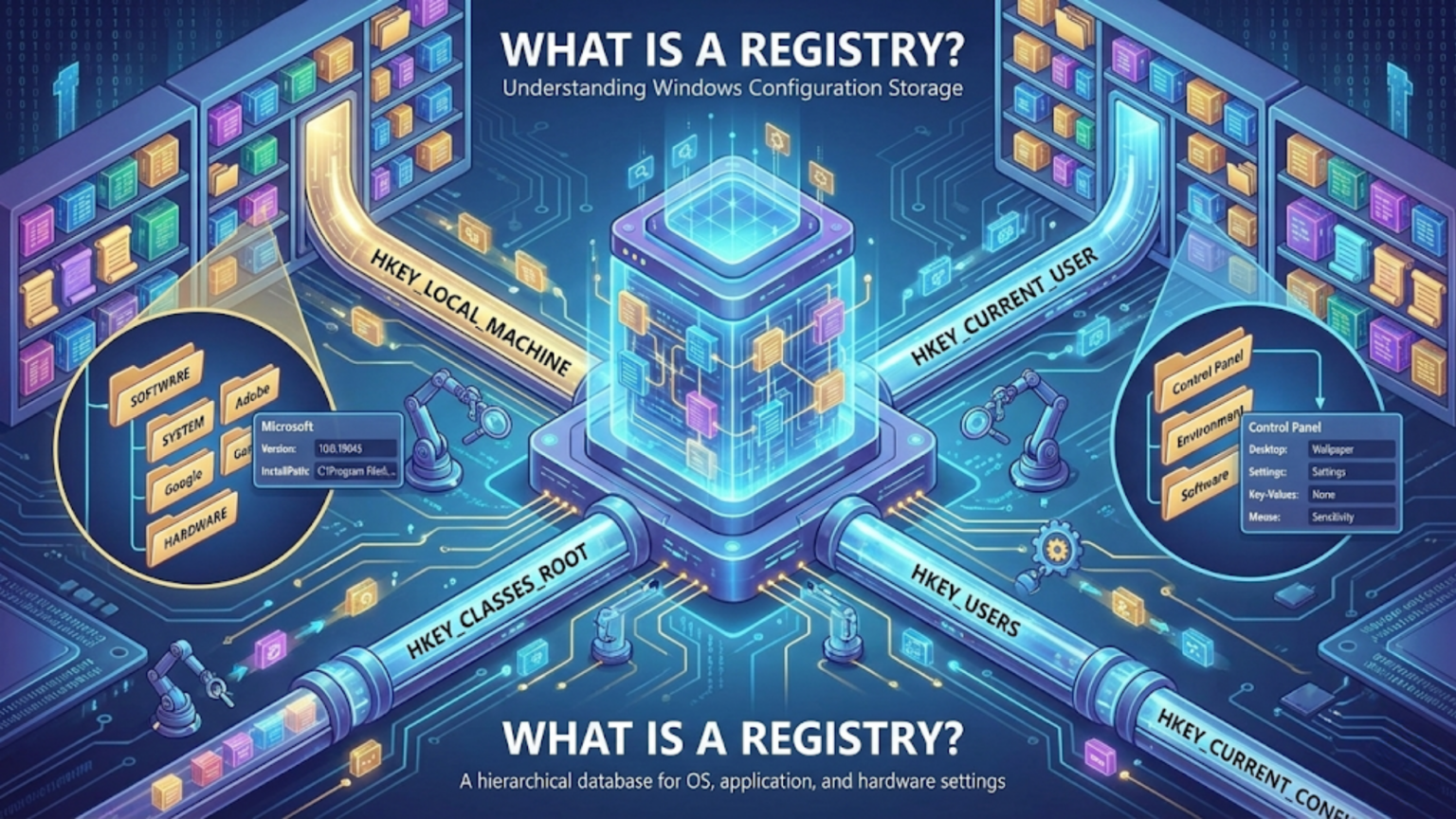
The Windows Registry is a hierarchical database built into Windows operating systems that stores configuration settings, preferences, and options for the operating system, installed applications, hardware devices, and user profiles. It serves as a centralized repository where Windows and applications read and write settings, replacing the scattered INI files used in earlier systems and providing a structured way to manage system configuration.
When you change your desktop wallpaper, install a new program, adjust your mouse sensitivity, or configure a network connection on Windows, those settings must be stored somewhere so they persist after you restart your computer. The Windows Registry serves as the master configuration database for these settings and thousands of others, acting as the central nervous system that remembers everything about how your Windows system is configured. While most users never directly interact with the Registry, it quietly operates behind every Windows action, storing critical information that determines how your computer looks, behaves, and functions. Understanding the Registry reveals one of the most fundamental architectural decisions Microsoft made in Windows design—a decision that profoundly affects system stability, performance, security, and troubleshooting.
The Registry represents Microsoft’s solution to configuration management challenges that plagued earlier Windows versions. Before the Registry, Windows and applications stored settings in scattered INI (initialization) files throughout the system, creating a disorganized configuration landscape that was difficult to manage, backup, or secure. The Registry consolidated this chaos into a structured, hierarchical database that provides standardized storage for all configuration data. This centralization brought significant advantages—easier system administration, better multi-user support, remote configuration capabilities, and improved application integration—but also created new challenges around Registry bloat, corruption, and complexity. This comprehensive guide explores what the Registry is, how it’s structured, what information it contains, how Windows and applications use it, common Registry problems and solutions, and best practices for safely working with this critical Windows component.
The Purpose and History of the Windows Registry
The Windows Registry emerged from Microsoft’s need to improve configuration management as Windows evolved from a simple graphical shell running on DOS into a full-fledged operating system supporting multiple users, complex applications, and enterprise deployment.
In the early days of Windows (versions 1.0 through 3.1), the operating system and applications stored configuration settings in INI files—plain text files with a simple structure of sections in brackets and key-value pairs. Your program settings might live in PROGRAM.INI, Windows system settings in WIN.INI and SYSTEM.INI, and each application could create its own INI files wherever it wanted. While this approach was simple and human-readable, it created serious problems. INI files scattered throughout the file system were difficult to locate, backup, or manage centrally. The INI format had strict size limitations (64KB per file in 16-bit Windows), forcing applications to split settings across multiple files. Different applications stored files in different locations following no standard conventions. Most critically, INI files provided no built-in security, multi-user support, or network accessibility—features increasingly important as Windows moved toward being a true multi-user operating system suitable for corporate environments.
Microsoft introduced the Registry with Windows 3.1, though initially in a limited capacity primarily for OLE (Object Linking and Embedding) and file association information. This early Registry stored only specific types of data while most configuration remained in INI files. The full realization of the Registry concept came with Windows 95 and Windows NT, where Microsoft made the Registry the primary configuration storage mechanism for the entire operating system and encouraged application developers to store their settings there rather than in INI files.
The Registry design addressed the fundamental problems of INI files. By creating a hierarchical database stored in binary files with an API for access, Microsoft enabled centralized configuration management with robust security, multi-user support, and remote administration capabilities. The hierarchical structure (similar to a file system) provided organized storage where related settings could be logically grouped. Binary storage removed size limitations and improved performance compared to parsing text files. An access control system based on Windows security allowed administrators to restrict who could modify different Registry areas, protecting critical system settings. Support for different data types (strings, integers, binary data) beyond simple text values enabled more sophisticated configuration. Remote Registry access allowed IT administrators to configure and troubleshoot computers across a network without physically visiting each machine.
The shift from INI files to the Registry wasn’t without controversy. INI files were human-readable and editable with any text editor, making troubleshooting accessible to knowledgeable users. The Registry, stored in binary format, required special tools to view and modify, reducing transparency. The centralization that made management easier also created a single point of failure—Registry corruption could render a system unbootable, while a corrupted INI file typically affected only one application. The Registry’s complexity made it intimidating to users and even to some IT professionals, who worried about making catastrophic mistakes when editing it.
Despite these concerns, the Registry became fundamental to Windows architecture. Every version of Windows since 95/NT has relied on the Registry, and Microsoft has continuously enhanced it with features like transaction support (transactional Registry in Windows Vista and later), improved backup mechanisms, and better corruption recovery. The Registry’s design influences how Windows applications are developed, how the system boots, how users are managed, and how administrators control Windows environments.
The Hierarchical Structure of the Registry
The Windows Registry organizes information in a hierarchical structure similar to a file system, with a tree of keys containing values. Understanding this structure is essential to comprehending how the Registry works and how to navigate it safely.
At the top level of the Registry hierarchy are five major root keys (also called hives), each serving distinct purposes. These root keys appear in the Registry Editor (regedit.exe) and form the foundation of the entire Registry structure.
HKEY_CLASSES_ROOT (often abbreviated HKCR) stores information about file associations, COM (Component Object Model) objects, and file class registrations. When you double-click a .docx file and Windows opens Microsoft Word, this happens because HKCR contains the association between the .docx extension and Word. This key also stores information about ActiveX controls, shell extensions, and other component registrations that allow different pieces of software to interact. HKCR is actually a merged view of data from two other locations: HKEY_LOCAL_MACHINE\Software\Classes (system-wide associations) and HKEY_CURRENT_USER\Software\Classes (user-specific associations), with user-specific settings taking precedence when conflicts exist.
HKEY_CURRENT_USER (abbreviated HKCU) contains configuration information specific to the currently logged-in user. Your desktop wallpaper preference, screen saver settings, application preferences, recently used files lists, and countless other personalized settings live here. This key is actually loaded from a user-specific file (called a user hive) located in each user’s profile directory (typically C:\Users\Username\NTUSER.DAT). When you log in, Windows loads your user hive into the Registry, making your settings active. When you log out, Windows unloads this hive. This architecture enables the multi-user capability of Windows—each user can have completely different settings, and switching users effectively switches which HKCU data is active.
HKEY_LOCAL_MACHINE (abbreviated HKLM) stores system-wide configuration that applies to all users of the computer. Hardware configuration, installed software information, operating system settings, device drivers, services, and security policies reside here. This key contains several important subkeys: SOFTWARE (installed program settings that apply to all users), SYSTEM (hardware configuration and system control settings), HARDWARE (information about physical hardware detected during boot), SAM (Security Accounts Manager database containing user and group information), and SECURITY (security policy and permissions settings). HKLM settings affect the entire computer regardless of who’s logged in, making this the location for system-wide configurations that administrators control.
HKEY_USERS (abbreviated HKU) contains settings for all user profiles loaded on the computer. Each loaded user has a subkey here identified by their Security Identifier (SID)—a unique string like S-1-5-21-… that Windows uses internally to identify users. The currently logged-in user’s settings appear both in HKU under their SID and as HKEY_CURRENT_USER, which is essentially a shortcut (a symbolic link) to the current user’s entry in HKU. This key also includes a subkey called .DEFAULT that stores settings for the default user profile, which serves as the template for new user accounts and contains settings used by system services running under the SYSTEM account.
HKEY_CURRENT_CONFIG (abbreviated HKCC) contains information about the hardware profile the computer is currently using. This key is actually a link to HKEY_LOCAL_MACHINE\SYSTEM\CurrentControlSet\Hardware Profiles\Current, providing quick access to current hardware configuration. In modern Windows versions with plug-and-play hardware, hardware profiles are less relevant than they were in older Windows versions where users might switch between different hardware configurations (like docked and undocked laptop configurations).
Within these root keys, the Registry organizes data in a tree structure of keys and subkeys. A key is analogous to a folder in a file system—it can contain other keys (subkeys) and values. Keys have names and can have nested subkeys to any depth, creating a hierarchical organization. For example, HKEY_LOCAL_MACHINE\SOFTWARE\Microsoft\Windows\CurrentVersion is a path through multiple nested keys: SOFTWARE contains Microsoft, which contains Windows, which contains CurrentVersion.
Values are the actual configuration data stored in keys, analogous to files in a file system. Each value has a name (though a special unnamed value called the “default value” can exist), a data type, and the actual data. Multiple values can exist within a single key, each storing different configuration items. For example, a key might contain values for “InstallPath” (a string), “Version” (a DWORD integer), and “EnableFeature” (a binary value).
The Registry supports several data types for values. REG_SZ (string) stores text data like file paths, program names, or user-entered strings. REG_EXPAND_SZ (expandable string) stores text that can include environment variables like %SystemRoot%, which Windows expands to the actual Windows directory when reading. REG_DWORD (double word) stores 32-bit integer values, commonly used for numerical settings, flags, and boolean options. REG_QWORD (quad word) stores 64-bit integers for larger numerical values. REG_BINARY stores arbitrary binary data of any length. REG_MULTI_SZ (multi-string) stores arrays of strings, useful for lists of values. REG_NONE indicates no particular type, sometimes used as a marker. Additional specialized types exist for specific purposes like REG_LINK (symbolic links to other Registry keys) and REG_RESOURCE_LIST (hardware resource descriptions).
How Windows and Applications Use the Registry
The Windows operating system and applications interact with the Registry constantly, reading configuration during startup, operation, and shutdown, and writing changes as users modify settings.
Windows relies heavily on the Registry throughout the boot process. When your computer starts, the boot loader reads Registry settings to determine how to start Windows. The Windows kernel loads early in boot and immediately accesses the HKEY_LOCAL_MACHINE\SYSTEM hive to read hardware configuration, driver information, and boot-critical settings. The system identifies which drivers to load, in what order, and with what parameters by reading Registry values. If critical Registry data is corrupted, Windows cannot boot, which is why Windows maintains multiple copies of critical Registry hives and includes recovery mechanisms.
During the boot process, Windows loads multiple Registry hives from files stored on disk. The main Registry hives are stored in C:\Windows\System32\config: SAM, SECURITY, SOFTWARE, SYSTEM, and DEFAULT. When Windows boots, it loads these files into memory, mounting them at the appropriate locations in the Registry hierarchy. The NTUSER.DAT file in each user’s profile directory contains that user’s HKEY_CURRENT_USER settings and loads when they log in. This loading process means the in-memory Registry Windows uses is constructed from multiple files combined into a single logical structure.
Windows services and system components query the Registry constantly. When a service starts, it reads its configuration from HKEY_LOCAL_MACHINE\SYSTEM\CurrentControlSet\Services\ServiceName, finding parameters like the executable path, service dependencies, start type (automatic, manual, disabled), and account under which to run. Windows Explorer reads the Registry to determine file associations, shell extensions, and context menu entries. The Windows security subsystem reads policies and permissions from the Registry. Device drivers store and retrieve configuration from the Registry. Literally hundreds of Windows components depend on Registry data for their operation.
Applications use the Registry for storing configuration and state information. When you install a program on Windows, the installer typically creates Registry keys in both HKEY_LOCAL_MACHINE\SOFTWARE\CompanyName\ProductName (for system-wide settings) and HKEY_CURRENT_USER\SOFTWARE\CompanyName\ProductName (for user-specific settings). The application reads these keys when it starts to load saved preferences—your preferred language, recently opened files, window positions, tool settings, license information, and feature configurations.
Windows provides APIs that applications use to interact with the Registry safely. The RegOpenKeyEx function opens a Registry key for access, RegQueryValueEx reads a value from a key, RegSetValueEx writes a value to a key, RegCreateKeyEx creates a new key, and RegDeleteKey removes a key. These API functions handle the complexity of locating data in the binary hive files, managing concurrent access by multiple programs, enforcing security permissions, and maintaining data integrity. Applications should always use these APIs rather than attempting to directly access Registry files, which could cause corruption.
The Registry supports transactions in modern Windows versions (Vista and later), allowing multiple Registry modifications to be grouped into atomic units. If a program needs to modify several related Registry values, it can create a transaction, make all the changes within that transaction, and then commit it. If anything fails during the transaction, all changes roll back, preventing partial modifications that could leave the Registry in an inconsistent state. This transactional support significantly improves reliability, especially during software installation and uninstallation.
Many Windows features rely on specific Registry locations. The Run and RunOnce keys (HKEY_LOCAL_MACHINE\SOFTWARE\Microsoft\Windows\CurrentVersion\Run and similar locations) specify programs that launch automatically at startup—every entry here causes Windows to execute a program when the system boots or a user logs in. Uninstall information for installed programs appears in HKEY_LOCAL_MACHINE\SOFTWARE\Microsoft\Windows\CurrentVersion\Uninstall, which is where the Windows “Programs and Features” (formerly “Add/Remove Programs”) reads its list. File extension associations that determine which program opens which file types are stored under HKEY_CLASSES_ROOT. Environment variables can be stored in the Registry, with system variables in HKLM\SYSTEM\CurrentControlSet\Control\Session Manager\Environment and user variables in HKCU\Environment.
Windows Group Policy, used extensively in corporate environments for centralized computer management, works primarily by modifying Registry settings. When administrators configure Group Policy settings, those policies ultimately apply by writing specific values to Registry locations. Windows checks these Registry locations and enforces the configured policies. This Registry-based implementation means that understanding the Registry is essential for understanding how Group Policy affects Windows behavior.
Common Registry Locations and What They Control
Certain Registry locations contain particularly important or frequently accessed configuration data that determines key Windows behaviors.
The Windows version information resides in HKEY_LOCAL_MACHINE\SOFTWARE\Microsoft\Windows NT\CurrentVersion. Values here include ProductName (the Windows edition like “Windows 11 Pro”), CurrentBuild (build number), RegisteredOwner (person or organization to whom Windows is registered), and InstallDate (when Windows was installed). System administrators often query these values to inventory computers or verify Windows versions in support scenarios.
Startup programs are configured in several Registry locations. HKEY_LOCAL_MACHINE\SOFTWARE\Microsoft\Windows\CurrentVersion\Run contains programs that run at startup for all users, while HKEY_CURRENT_USER\SOFTWARE\Microsoft\Windows\CurrentVersion\Run contains startup programs specific to the current user. Similar RunOnce keys exist for programs that should run once and then be removed from the startup list. The RunServices and RunServicesOnce keys (in older Windows versions) specified services to start. Understanding these locations helps you control what launches automatically, which is crucial for both performance optimization and malware removal.
File association data lives primarily in HKEY_CLASSES_ROOT. File extensions are registered as keys (like “.docx”), and these keys contain values pointing to file type identifiers (ProgID). The ProgID keys then contain detailed information about that file type, including the default icon, the program to use for opening files, context menu commands, and supported actions. For example, HKEY_CLASSES_ROOT.docx might point to “Word.Document.12,” and HKEY_CLASSES_ROOT\Word.Document.12\shell\open\command would specify the exact command line Windows uses to open .docx files with Word.
Network configuration settings are stored under HKEY_LOCAL_MACHINE\SYSTEM\CurrentControlSet\Services\Tcpip\Parameters. Values here control TCP/IP stack behavior, including DNS server addresses, DHCP configuration, IP forwarding settings, and various TCP tuning parameters. Advanced users sometimes modify these settings to optimize network performance or troubleshoot connectivity issues, though changes require careful consideration as incorrect values can break networking entirely.
Windows Explorer settings reside in several locations. HKEY_CURRENT_USER\Software\Microsoft\Windows\CurrentVersion\Explorer contains user preferences like whether to show hidden files, display file extensions, use single-click or double-click to open items, and recently accessed locations. Subkeys like Advanced control folder view options, while ShellFolders and User Shell Folders define the locations of special folders like Desktop, Documents, and Downloads.
User Account Control (UAC) settings are stored in HKEY_LOCAL_MACHINE\SOFTWARE\Microsoft\Windows\CurrentVersion\Policies\System. The EnableLUA value controls whether UAC is enabled, ConsentPromptBehaviorAdmin determines when administrators see elevation prompts, and various other values control UAC behavior. Modifying these settings changes how Windows handles privilege elevation and security prompts.
Device driver information appears in HKEY_LOCAL_MACHINE\SYSTEM\CurrentControlSet\Enum, which contains a hierarchical structure of all devices Windows has detected, organized by bus type (PCI, USB, etc.). Each device entry includes information about the device’s hardware IDs, compatible drivers, current configuration, and associated driver services. Device Manager reads this information to display installed hardware and their status.
Services configuration lives in HKEY_LOCAL_MACHINE\SYSTEM\CurrentControlSet\Services. Each Windows service has a subkey here containing its executable path (ImagePath), start type (Start value: 2=automatic, 3=manual, 4=disabled), dependencies (other services that must start before this one), and various other configuration values. The Services management console reads and modifies these Registry entries when you start, stop, or configure services.
Windows Update settings are controlled through HKEY_LOCAL_MACHINE\SOFTWARE\Policies\Microsoft\Windows\WindowsUpdate and HKEY_LOCAL_MACHINE\SOFTWARE\Microsoft\Windows\CurrentVersion\WindowsUpdate. These locations control update scheduling, which update types to install, whether to use WSUS (Windows Server Update Services) in enterprise environments, and many other update-related behaviors.
Application-specific settings vary by program but generally follow patterns. Most applications store settings under HKEY_LOCAL_MACHINE\SOFTWARE\CompanyName\ProductName for machine-wide settings and HKEY_CURRENT_USER\SOFTWARE\CompanyName\ProductName for user-specific preferences. Microsoft Office, for example, stores extensive configuration in HKEY_CURRENT_USER\Software\Microsoft\Office\VersionNumber, controlling everything from default fonts to macro security settings.
Registry Editing Tools and Access Methods
Windows provides several tools for viewing and modifying the Registry, each with different capabilities and intended audiences.
The Registry Editor (regedit.exe) is the primary tool for directly viewing and modifying Registry contents. You access it by typing “regedit” in the Windows Run dialog or Start menu search. Regedit presents a two-pane interface: the left pane shows the hierarchical tree of keys, while the right pane displays values within the selected key. You can navigate through keys by expanding them, search for specific keys or values, modify existing values by double-clicking them, create new keys and values through context menus, delete keys and values, export portions of the Registry to .reg files, and import .reg files to add or modify Registry data.
The Registry Editor in 64-bit Windows actually shows a unified view of both 32-bit and 64-bit Registry data. Windows maintains separate Registry areas for 32-bit applications running on 64-bit systems (in HKEY_LOCAL_MACHINE\SOFTWARE\WOW6432Node), implementing Registry redirection so 32-bit applications access their own Registry space without interfering with 64-bit applications. Regedit displays both areas, allowing you to see and modify all Registry data.
A second Registry editor, regedt32.exe, existed in older Windows versions (NT, 2000, XP) with capabilities regedit lacked, particularly the ability to edit security permissions on Registry keys. Microsoft merged regedt32’s capabilities into regedit in Windows Vista and later, so now both names launch the same tool with full functionality.
The reg.exe command-line tool provides scriptable Registry access from the Command Prompt or PowerShell. It supports operations like “reg query” to read values, “reg add” to create or modify values, “reg delete” to remove keys or values, “reg export” to save Registry sections to files, “reg import” to load .reg files, and “reg compare” to compare Registry sections. System administrators use reg.exe in batch scripts and automated deployment scenarios to configure Registry settings across multiple computers. For example, “reg add HKCU\Software\MyApp /v Setting /t REG_SZ /d Value” creates or modifies a string value programmatically.
PowerShell provides even more sophisticated Registry access through the Registry provider, which presents the Registry as if it were a file system you can navigate with standard PowerShell commands. You can use “cd HKLM:\SOFTWARE” to navigate into HKLM like it’s a drive, “Get-Item” and “Get-ItemProperty” to read Registry data, “Set-ItemProperty” to modify values, “New-Item” to create keys, and other cmdlets to manipulate the Registry. This integration makes Registry automation more natural for those familiar with PowerShell. PowerShell scripts can easily read settings, make decisions based on Registry values, and modify configurations as needed.
Group Policy Editor (gpedit.msc) modifies the Registry indirectly through a user-friendly interface. Rather than directly editing Registry values, you navigate through policy categories and enable or disable settings, and Group Policy writes the appropriate Registry values. This abstraction reduces the risk of errors and documents what each setting does. Group Policy is available in Professional, Enterprise, and Education editions of Windows but not Home editions.
Windows Management Instrumentation (WMI) and its successor, Windows Management Infrastructure (MI), include classes for Registry access, allowing remote Registry manipulation through WMI scripts or tools. IT administrators can query or modify Registry settings on remote computers without physically accessing them or even using Remote Desktop, enabling large-scale management scenarios.
Third-party Registry tools offer enhanced features beyond what built-in tools provide. Registry Workshop provides advanced search capabilities, favorites for frequently accessed locations, and better editing features. RegScanner from NirSoft searches the Registry with more flexible criteria and presents results in sortable tables. Process Monitor from Sysinternals shows real-time Registry access by programs, revealing exactly what Registry keys applications read and modify, invaluable for troubleshooting and understanding application behavior. Registry backup tools like ERUNT create point-in-time snapshots you can restore if problems occur.
Registry Backup, Recovery, and Maintenance
Protecting the Registry and recovering from Registry problems represents critical aspects of Windows system maintenance and troubleshooting.
Windows automatically backs up the Registry through several mechanisms. System Restore creates restore points that include Registry snapshots, allowing you to roll back Registry changes if problems occur. When you create a restore point (manually or automatically before major system changes like software installation), Windows saves copies of Registry hives that can be restored later. Using System Restore reverts the Registry to the state it was in when the restore point was created, undoing problematic changes.
Windows keeps backup copies of critical Registry hives in the C:\Windows\System32\config\RegBack folder. In Windows 10 versions before 1803, this folder contained automatic daily backups of the Registry hives (SAM, SECURITY, SOFTWARE, SYSTEM, DEFAULT). Starting with Windows 10 version 1803, Microsoft changed this behavior, and RegBack is typically empty unless you manually configure Task Scheduler to create these backups. The change was controversial, as it removed an important automatic backup mechanism that many recovery procedures relied upon.
You can manually export portions of the Registry to .reg files using the Registry Editor. Right-clicking a key and selecting “Export” saves that key and all subkeys beneath it to a text file in Registry format. These .reg files are human-readable and can be re-imported to restore the exported settings. This manual export is useful before making risky changes—you export the area you’re modifying, make changes, and if problems occur, you can double-click the exported .reg file to restore previous values. You can also export the entire Registry, though the resulting file is very large.
Creating a system image backup through Windows Backup or third-party imaging software captures the entire system including the Registry. This provides the most comprehensive protection but requires significant storage space and restores your entire system, not just the Registry. System images are best for complete disaster recovery rather than surgical Registry fixes.
Windows includes recovery options specifically for Registry corruption. The Advanced Startup Options (accessed by repeatedly pressing F8 during boot in older Windows versions, or through Settings > Update & Security > Recovery in Windows 10/11) include “Last Known Good Configuration” in older Windows versions, which loaded the Registry state from the last successful boot. Windows 10 and later replaced this with more comprehensive recovery options including Safe Mode (which loads minimal drivers and services, sometimes allowing you to fix Registry problems even when normal boot fails) and startup repair.
The Windows Recovery Environment (WinRE) provides tools for recovering from severe Registry corruption. If Windows won’t boot due to Registry problems, you can boot into WinRE and use Command Prompt to manually copy Registry backups from the RegBack folder over the corrupted hives in the config folder. This manual recovery process requires administrative knowledge but can revive seemingly dead Windows installations.
Registry “cleaning” tools promise to fix Registry problems and improve performance by removing orphaned entries, fixing invalid paths, and compacting the Registry. The effectiveness and safety of these tools is debatable. While the Registry can accumulate obsolete entries from uninstalled software, these leftover entries rarely cause actual problems or measurably impact performance. Registry cleaners can sometimes remove entries that seem unused but are actually needed, causing application malfunctions or system issues. Most experts recommend against using Registry cleaners, especially automated ones that make bulk changes without clear understanding of each item’s purpose.
The Registry does grow over time as applications are installed and uninstalled, potentially becoming fragmented. Windows includes no built-in Registry defragmentation or compaction tool, though some third-party utilities offer this functionality. The performance impact of a fragmented Registry on modern hardware is generally negligible, making defragmentation of questionable value and carrying the risk of corruption during the process.
Proper Registry maintenance primarily involves using System Restore regularly (creating restore points before making significant changes), maintaining good backups of your entire system, avoiding unnecessary Registry modifications, and being cautious with Registry cleaning tools. The best protection against Registry problems is prevention—being careful about what software you install, keeping Windows updated, and not making Registry changes unless you understand what they do and have good backups.
Registry Security and Permissions
The Registry implements a comprehensive security system that controls who can view and modify different Registry keys, protecting critical system settings from unauthorized changes.
Registry security follows the same access control model used throughout Windows, based on Access Control Lists (ACLs). Each Registry key has an ACL specifying which users and groups have what permissions on that key. The security descriptor for a key can grant or deny several permission types: Query Value (read values within the key), Set Value (modify values), Create Subkey (add new subkeys), Enumerate Subkeys (list subkeys), Notify (receive notifications when the key changes), Create Link (create symbolic links), Delete (remove the key), Write DAC (modify the key’s security descriptor), Write Owner (change the key’s owner), and Read Control (read the security descriptor).
Windows assigns different permission levels to different parts of the Registry based on security needs. Critical system areas under HKEY_LOCAL_MACHINE typically grant administrators full control while giving standard users only read access, preventing regular users from modifying system-wide settings that could compromise security or stability. User-specific areas under HKEY_CURRENT_USER grant each user full control over their own settings while preventing them from accessing other users’ settings.
Viewing and modifying Registry permissions requires administrative privileges and happens through the Registry Editor. Right-clicking a key and selecting “Permissions” shows the security dialog with a list of users and groups and their assigned permissions. The “Advanced” button provides more detailed control, including permission inheritance settings, auditing configuration (logging who accesses the key), and ownership information. This interface mirrors the file system security UI, making it familiar to Windows administrators.
Permission inheritance flows from parent keys to subkeys by default. When you create a new subkey, it inherits permissions from its parent unless you specifically break inheritance. This hierarchical permission system makes management easier—setting permissions on a top-level key automatically applies them to all subkeys beneath, rather than requiring individual configuration of thousands of keys. You can override inheritance for specific keys that need different permissions than their parent.
The TrustedInstaller account owns many critical Windows Registry keys. TrustedInstaller is a special system account that Windows uses for protected system files and Registry entries, preventing even administrators from easily modifying core system settings. If you try to modify a key owned by TrustedInstaller, you receive an access denied error even if you’re an administrator. You can take ownership of such keys through the Advanced security settings, but this is generally discouraged as modifying TrustedInstaller-protected areas can break Windows.
Registry virtualization protects the system from legacy applications that assume they can write to protected Registry areas. Older applications written for Windows XP and earlier often tried to write settings to HKEY_LOCAL_MACHINE, which all users could modify in those older Windows versions. Modern Windows blocks standard users from writing to HKLM, which would break these legacy applications. To maintain compatibility, Windows virtualizes these writes—when a non-elevated application tries to write to a protected area like HKLM\Software, Windows transparently redirects the write to a per-user location under HKEY_CURRENT_USER\Software\Classes\VirtualStore\MACHINE\SOFTWARE. When the application later reads from HKLM, Windows checks the virtualized location and returns those values if they exist, making the application work without actually granting write access to the protected system area.
Auditing Registry access provides security monitoring capabilities. You can configure auditing on specific Registry keys through the Advanced security settings, specifying that Windows should log when users attempt certain operations. These audit logs appear in the Windows Security event log, allowing administrators to track who accessed or modified sensitive Registry areas. Auditing helps detect security breaches or unauthorized changes in corporate environments.
Malware often targets the Registry to ensure persistence (surviving reboots), hide from detection, or modify system behavior. Common malware techniques include adding entries to Run keys for automatic startup, modifying file associations to intercept file opening operations, changing Internet Explorer or browser settings, disabling security features through Registry modifications, and hiding services by deleting or modifying their Registry entries. Understanding Registry security helps in malware detection and removal—security software scans known malware Registry locations, and advanced malware removal often involves manual Registry inspection and cleaning.
Windows Defender and other anti-malware software monitor Registry changes in real-time, blocking or alerting on modifications to critical security-related keys. When malware attempts to add itself to startup keys or modify security settings, security software can intercept these attempts and prevent them. This real-time monitoring makes the Registry both a target for attackers and a key defensive monitoring point.
Common Registry Problems and Troubleshooting
Registry issues can manifest in various ways, from minor application glitches to complete system failure, and recognizing and addressing these problems is essential for Windows maintenance.
Registry corruption represents the most serious Registry problem. Corruption can occur from improper system shutdowns (power failures, crashes), disk errors, malware, failed software installations or uninstallations, or bugs in programs that write to the Registry incorrectly. Symptoms of Registry corruption vary depending on what’s corrupted—Windows might fail to boot, specific applications might crash or refuse to start, certain features might not work, or you might see error messages about Registry problems. Severe corruption affecting the SYSTEM hive can prevent booting entirely, showing errors like “Windows could not start because the following file is missing or corrupt: \WINDOWS\SYSTEM32\CONFIG\SYSTEM.”
When Windows won’t boot due to Registry corruption, recovery procedures include booting into Safe Mode (which uses minimal drivers and might work even when normal boot fails), using System Restore to revert to a previous Registry state, using WinRE’s Startup Repair which can automatically fix some Registry issues, or manually copying backup Registry hives from C:\Windows\System32\config\RegBack to C:\Windows\System32\config. The manual copy procedure requires booting from Windows installation media or a recovery drive, accessing Command Prompt, and using copy commands to replace corrupted hives with backups.
Orphaned Registry entries accumulate when software uninstallers don’t completely remove all Registry entries they created during installation. After uninstalling a program, remnants might remain in SOFTWARE keys, file associations, shared DLL references, or various other locations. These orphaned entries are generally harmless—they waste a small amount of disk space and make the Registry slightly larger, but they rarely cause functional problems. The danger comes from aggressive Registry cleaners that might remove entries they misidentify as orphaned when they’re actually used by other software.
Incorrect file associations create user frustration when files don’t open with expected programs. This can happen from installing multiple programs that handle the same file types, malware modifying associations, or corrupted file association data. Fixing file associations can be done through Windows Settings (under “Default apps”), through the Registry Editor by examining and correcting associations under HKEY_CLASSES_ROOT, or by using specialized file association management utilities. Sometimes reinstalling the desired application and selecting it as the default handler during installation repairs associations.
Permission problems prevent legitimate access to Registry keys, sometimes after security software has modified permissions or when malware has locked keys to prevent removal. Users encounter “access denied” errors when trying to view or modify these keys. Fixing permission problems requires taking ownership of the affected keys (through Advanced security settings), granting yourself appropriate permissions, making necessary changes, and optionally restoring original permissions afterward. This process should be done carefully as incorrect permissions can create security vulnerabilities or system instability.
Missing Registry keys or values that applications expect can cause crashes or errors. This sometimes happens after running Registry cleaners, from incomplete software uninstallation that removes shared components, or from manual Registry editing mistakes. Diagnosing missing key problems often requires examining application error messages or logs to identify what Registry location the application can’t find, then recreating that location with appropriate values. Sometimes reinstalling the affected application is easier than manually reconstructing its Registry settings.
Registry bloat—excessive Registry size—is more myth than real problem on modern systems. While the Registry does grow with software installations, on modern hardware with fast processors and plenty of RAM, even a large Registry loads quickly and doesn’t measurably impact performance. Claims that Registry cleaning substantially improves performance are generally exaggerated. The Registry size itself rarely causes problems unless it grows to hundreds of megabytes, which is unusual.
Import errors when attempting to load .reg files can occur from syntax errors in the file, permission problems preventing writes to the target locations, or conflicts with existing data. Registry files are text files with specific syntax, and any deviation from correct format causes import failures. Examining the .reg file in a text editor can reveal syntax problems. Permission errors require administrative access or taking ownership of affected keys.
Service startup failures sometimes result from Registry problems in the service’s configuration. If the ImagePath value pointing to the service executable is incorrect, dependencies are misconfigured, or required Registry permissions are missing, the service can’t start. The Event Viewer’s System log typically shows service startup errors with details about what failed. Comparing a non-working service’s Registry configuration to a working service or a known-good backup can identify incorrect values.
Advanced Registry Concepts and Features
Beyond basic Registry structure and usage, several advanced concepts affect how the Registry functions and how experienced users can leverage its capabilities.
The CurrentControlSet and ControlSet001/002/003 structure demonstrates how Windows handles boot configuration. The HKEY_LOCAL_MACHINE\SYSTEM key contains multiple ControlSets (typically ControlSet001, ControlSet002, and sometimes ControlSet003), each a complete copy of system hardware and service configuration. CurrentControlSet is a symbolic link pointing to whichever ControlSet Windows is currently using. When Windows boots successfully, it marks that ControlSet as the “last known good” and uses it as the default. If the current ControlSet becomes corrupted, Windows can fall back to a previous ControlSet during recovery, providing redundancy for critical boot configuration. The Select subkey contains values indicating which ControlSet is current, which is the last known good, and which is the default.
Registry hive loading and unloading allows dynamic mounting of Registry files. While Windows automatically loads the main hives during boot, the Registry Editor allows you to manually load additional hive files using “File > Load Hive.” This feature is invaluable for offline Registry editing—you can boot from a Windows installation disc, use regedit to load a Registry hive from the installed Windows’s files, edit those settings without booting the installed system, and unload the hive. This technique helps fix Registry problems that prevent Windows from booting.
Registry links and symbolic keys create pointers from one Registry location to another, similar to shortcuts or symbolic links in file systems. When you access a Registry key that’s actually a link, Windows transparently redirects you to the target location. HKEY_CURRENT_USER is a link to the current user’s subkey under HKEY_USERS, and HKEY_CURRENT_CONFIG links to a location under HKEY_LOCAL_MACHINE. These links improve usability by providing convenient access points to frequently used locations regardless of their actual storage location.
The Registry redirection and reflection mechanisms handle compatibility between 32-bit and 64-bit applications on 64-bit Windows. Certain Registry locations are redirected, meaning 32-bit and 64-bit applications see different keys at the same logical path. The WOW6432Node subkey under HKLM\SOFTWARE stores 32-bit application data on 64-bit systems. When a 32-bit application accesses HKLM\SOFTWARE, Windows redirects it to HKLM\SOFTWARE\WOW6432Node transparently. Reflection synchronizes specific keys between 32-bit and 64-bit views for compatibility, though reflection was eliminated in Windows 7 and later in favor of explicit redirection.
Registry monitoring capabilities allow programs to receive notifications when specific Registry keys change. Applications can use RegNotifyChangeKeyValue or similar APIs to register for notifications on keys they care about, receiving alerts when values change, subkeys are added or deleted, or security descriptors are modified. Windows Explorer uses this to update its display when file associations change, and many applications use it to dynamically respond to configuration changes without requiring restart.
Transaction support, available since Windows Vista, allows applications to make multiple Registry modifications atomically through the Kernel Transaction Manager. An application can begin a transaction, make numerous Registry changes, and then commit the transaction, with all changes either succeeding together or failing together with automatic rollback. This prevents partial modifications that could leave the Registry in an inconsistent state, particularly important during complex installation or uninstallation operations.
Registry hive file structure stores Registry data in a complex binary format with internal data structures including cell maps, key nodes, value entries, and security descriptors. Understanding this structure is generally unnecessary for normal use but becomes relevant for forensic analysis or low-level recovery tools. Hive files include multiple header structures, bins that contain cells, and free cell tracking for efficient space management. The Registry uses transaction log files (.LOG1, .LOG2) to ensure consistency—changes are written to logs before being committed to the main hive file, allowing recovery if a crash occurs during Registry modification.
Performance optimization features within the Registry include caching frequently accessed data in memory, lazy writing where Registry changes are batched and written to disk asynchronously, and the flush interval that controls how often in-memory changes are written to disk (balancing performance against data persistence in case of crashes). Windows aggressively caches Registry data, keeping frequently accessed keys and values in memory for fast access while writing changes to disk periodically rather than immediately.
Registry in Different Windows Versions
The Registry has evolved significantly across Windows versions, with each major release bringing changes in structure, features, and behavior.
Windows 95 and Windows NT 4.0 established the fundamental Registry structure still used today, with the five main root keys and basic value types. These early Registries were relatively small and simple compared to modern Windows, storing mainly system configuration and application settings without the extensive plug-and-play device information and COM registrations of later versions.
Windows 2000 and Windows XP expanded Registry usage significantly, adding extensive COM and DCOM registrations, Windows File Protection information, and more sophisticated driver and service configurations. The Registry grew in complexity as Windows added features, and Windows XP’s System Restore feature began creating automatic Registry backups, improving recovery options. Registry permissions became more restrictive in XP Service Pack 2, limiting standard users’ ability to modify system settings.
Windows Vista introduced major changes including Registry virtualization for application compatibility, transactional Registry support for more reliable modifications, and User Account Control which significantly affected Registry permissions and how applications access protected areas. Vista moved many legacy application registrations to virtualized locations, and the combination of UAC and stricter permissions meant applications could no longer assume they could write to HKLM without elevation.
Windows 7 refined Vista’s changes, removing some Registry reflection mechanisms while improving redirection for 32-bit/64-bit compatibility. Windows 7 also began the transition away from the “Last Known Good Configuration” boot option, though it remained available through advanced boot options.
Windows 8 and 8.1 introduced Registry changes related to the new Windows Runtime (WinRT) and Universal Windows Platform (UWP) applications, which use different registration mechanisms from traditional Win32 applications. The modern settings interface began replacing some traditional Control Panel functions, though ultimately writing to the same Registry locations.
Windows 10 brought continuous evolution through its feature updates, with each semi-annual update potentially including Registry structure changes. Notable changes included modifications to how automatic Registry backups work (the RegBack folder policy change in version 1803), new Registry locations for Windows 10-specific features like Timeline and virtual desktops, and restructured Windows Update settings. The migration toward Settings app continued, though most settings still ultimately modify Registry values.
Windows 11 continues Windows 10’s Registry structure with relatively minor changes, mostly adding keys for new features like Android app support through Windows Subsystem for Android, redesigned taskbar and Start menu settings, and Snap Layouts configurations. The fundamental Registry architecture remains consistent, maintaining compatibility with the vast ecosystem of Windows applications.
Registry differences between Windows editions (Home, Professional, Enterprise) primarily involve which features are available and which Group Policy settings can be configured, rather than fundamental structural differences. Enterprise and Professional editions support more extensive Group Policy management, which manifests as additional configurable Registry locations and values that Home editions lack or ignore.
Best Practices for Working with the Registry
Safe and effective Registry work requires following established best practices that minimize risks while enabling necessary modifications.
Always back up before making changes. The most important rule of Registry editing is creating backups before modifying anything. Use System Restore to create a restore point, export the specific Registry sections you’re modifying to .reg files, or create a full system image if making extensive changes. With proper backups, you can always undo problematic modifications and return to a working state.
Research changes thoroughly before implementing them. Don’t modify Registry values based on random internet suggestions without understanding what they do. When troubleshooting guides or optimization tips recommend Registry changes, research the specific values being modified, understand their purpose, and verify the information from multiple trustworthy sources. Bad Registry advice proliferates online, and blindly following it can cause serious problems.
Make one change at a time when troubleshooting. If making multiple Registry modifications to fix a problem, make changes individually rather than all at once, testing after each change. This approach helps identify which specific modification solved the problem (or caused a new one) and makes reverting easier if necessary. Batch modifications make it impossible to determine which change had which effect.
Use appropriate tools for the task. While Registry Editor works for most tasks, other tools might be more appropriate for specific scenarios. Use Group Policy Editor when available instead of manually editing Registry values—it’s safer and documents what settings do. Use purpose-built utilities for file associations rather than manually editing HKEY_CLASSES_ROOT. Use PowerShell for scripting Registry modifications rather than batch files with reg.exe when you need conditional logic or error handling.
Be extremely cautious with deletion. Deleting Registry keys is more dangerous than modifying values because deletion is often irreversible without backups. Before deleting keys, export them, research carefully, and consider whether deletion is actually necessary. Sometimes disabling functionality by changing a value to 0 or “false” is safer than deletion since you can easily re-enable it.
Respect permissions and ownership. Don’t casually take ownership of TrustedInstaller-owned keys or modify security permissions unless absolutely necessary and you thoroughly understand the implications. These protections exist for good reasons—protecting critical system settings from accidental or malicious modification. Changing them can create security vulnerabilities or system instability.
Document changes you make. Maintain notes about what Registry modifications you’ve made, why you made them, what the previous values were, and when you made changes. This documentation helps when troubleshooting later problems, when you need to undo changes, or when you’re setting up a new system and want to replicate useful modifications.
Verify changes took effect as expected. After modifying Registry values, verify that the change had the intended effect. Sometimes applications cache Registry values and don’t read changes until restart, or changes to certain Registry locations require specific conditions to activate. Test that your modification actually accomplished its purpose rather than assuming success.
Avoid Registry cleaners and optimizers. The marginal benefits these tools offer don’t justify the risks of removing entries that seem unused but are actually needed, corrupting the Registry through bulk modifications, or creating new problems while supposedly fixing old ones. Manual, targeted Registry modifications based on specific known issues are safer than automated bulk cleaning.
Consider whether Registry modification is actually necessary. Many things people modify in the Registry can be changed through Windows Settings, Control Panel, Group Policy Editor, or application preferences interfaces. These official interfaces are safer than direct Registry editing and provide validation that prevents invalid values. Only resort to direct Registry modification when no official interface exists for the change you need.
Conclusion
The Windows Registry stands as one of the most critical yet least understood components of the Windows operating system, functioning as the central repository for virtually all system and application configuration data. From its origins as a solution to the scattered chaos of INI files, the Registry has evolved into a sophisticated hierarchical database that enables Windows’ multi-user capabilities, security model, hardware management, and application integration. The Registry’s structure of hives and keys, organized under root keys like HKEY_LOCAL_MACHINE and HKEY_CURRENT_USER, provides organized storage for the millions of configuration values that determine how Windows looks, behaves, and functions.
Understanding the Registry empowers Windows users and administrators to troubleshoot problems, customize their systems beyond what GUI options allow, and comprehend how Windows works at a fundamental level. While the Registry’s binary format and complexity can be intimidating, the tools Windows provides—from Registry Editor for direct access to PowerShell for automation to Group Policy for safe configuration management—make working with the Registry accessible when approached carefully and knowledgeably. The Registry’s role in everything from boot configuration to file associations, from device drivers to user preferences, makes it inseparable from Windows operation and Windows administration.
Safe Registry work requires respecting its importance and power—always maintaining backups, making changes deliberately and carefully, researching modifications thoroughly, and understanding that the Registry represents the configuration backbone without which Windows cannot function. Whether you’re a curious user wanting to understand your system better, an IT professional managing Windows deployments, or a developer creating applications that integrate with Windows, knowledge of the Registry’s structure, purpose, and proper management techniques forms essential Windows expertise that applies across all modern Windows versions and will remain relevant as Windows continues evolving.
Summary Table: Windows Registry Root Keys and Their Purposes
| Root Key | Abbreviation | Primary Purpose | Data Source | Typical Users |
|---|---|---|---|---|
| HKEY_CLASSES_ROOT | HKCR | File associations, COM object registrations, file type definitions, shell extensions, and ActiveX controls | Merged view of HKLM\Software\Classes and HKCU\Software\Classes | Applications during file opening, Windows Explorer for file handling |
| HKEY_CURRENT_USER | HKCU | Current user’s preferences, desktop settings, environment variables, software settings, and personalized configurations | User’s NTUSER.DAT file from profile directory | Active user’s applications, Windows Explorer, Control Panel for user settings |
| HKEY_LOCAL_MACHINE | HKLM | System-wide settings, installed software (all users), hardware configuration, device drivers, services, and security policies | Multiple hives: SOFTWARE, SYSTEM, HARDWARE, SAM, SECURITY from System32\config\ | Windows during boot, services, system-wide applications, device drivers |
| HKEY_USERS | HKU | Settings for all loaded user profiles on the system, indexed by Security Identifier (SID) | NTUSER.DAT files from all loaded user profiles plus .DEFAULT | Windows during user logon/logoff, roaming profile management, system services |
| HKEY_CURRENT_CONFIG | HKCC | Current hardware profile information (largely legacy in modern Windows) | Symbolic link to HKLM\SYSTEM\CurrentControlSet\Hardware Profiles\Current | Hardware profile-aware applications (increasingly rare in modern Windows) |
Additional Important Registry Locations:
| Location | Purpose | Common Uses |
|---|---|---|
| HKLM\SOFTWARE\Microsoft\Windows\CurrentVersion\Run | Programs that auto-start for all users | Startup applications, potentially unwanted programs, malware persistence |
| HKCU\SOFTWARE\Microsoft\Windows\CurrentVersion\Run | Programs that auto-start for current user | User-specific startup applications |
| HKLM\SYSTEM\CurrentControlSet\Services | Windows services configuration | Service management, driver configuration, dependency chains |
| HKLM\SOFTWARE\Classes | System-wide file associations and COM registrations | Default application associations, shell extensions |
| HKLM\SYSTEM\CurrentControlSet\Control\Session Manager\Environment | System environment variables | PATH, TEMP, system-wide variables |
| HKCU\Environment | User-specific environment variables | User PATH additions, user-specific variables |
| HKLM\SOFTWARE\Microsoft\Windows NT\CurrentVersion | Windows version and installation information | System inventory, version checking, registered owner |
| HKEY_CLASSES_ROOT.extension | File extension registrations | Mapping file extensions to file types and applications |