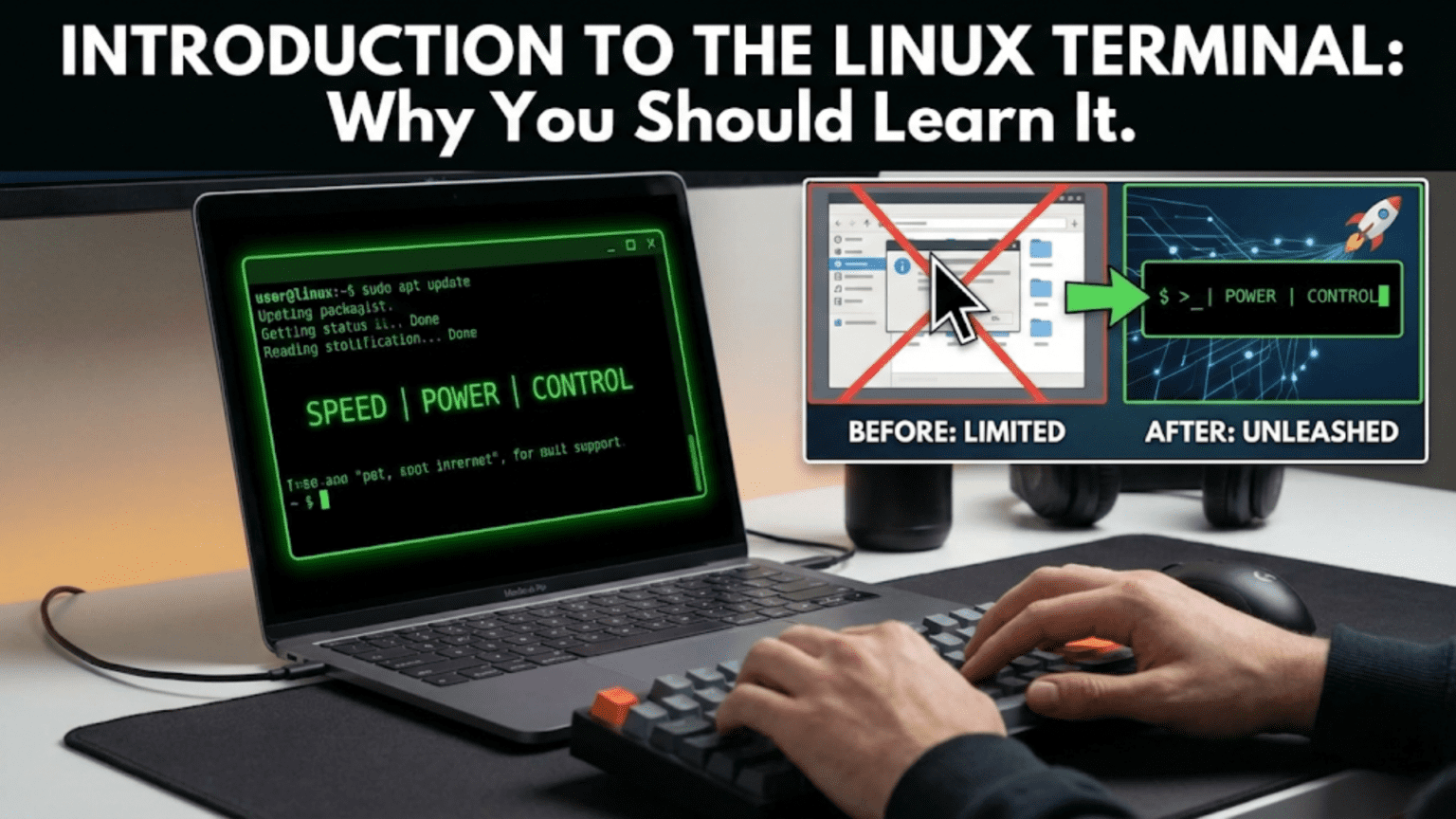
The Linux terminal — also called the command line, shell, or console — is a text-based interface where you type commands to interact with your operating system directly. Instead of clicking icons and navigating menus, you type instructions and the system executes them instantly. Learning the terminal unlocks capabilities that no graphical interface can match: automating repetitive tasks, managing remote servers, processing large amounts of data, and configuring virtually every aspect of your system with precision.
Introduction: The Window Behind the Window
Every Linux user who has been using the system for more than a few weeks has had the same experience: they run into a tutorial, a forum answer, or a documentation page that solves their exact problem — and the solution involves typing a command into something called the terminal. Perhaps they hesitantly open this unfamiliar application, copy the suggested command, paste it in, press Enter, and are surprised when it works perfectly and instantly. Something that would have taken ten minutes of clicking through menus happened in three seconds.
That experience — the moment when the terminal’s power becomes personally real — is something every Linux user remembers. And it raises an immediate question: if the terminal is this useful, why do so many people spend months or years avoiding it?
The answer is familiarity bias. Most people who come to Linux have spent their entire computing lives in graphical environments, clicking menus and icons. The terminal appears to be a relic of computing’s ancient past — a black screen with blinking cursor that belongs to the era before Windows existed. This perception is understandable but completely wrong. The terminal is not a relic. It is one of computing’s most powerful and enduring interfaces, still actively used every day by the world’s most skilled software developers, system administrators, data scientists, and security professionals — precisely because it is vastly more powerful than any graphical interface for certain categories of tasks.
This article is a genuine introduction to the Linux terminal — what it is, how it works, why it is worth learning, what you can actually do with it, and how to approach learning it without being overwhelmed. By the end, you will not just understand the terminal intellectually; you will understand why experienced Linux users say learning it was one of the most valuable things they ever did with their computer.
What Is the Terminal?
The terminal has several names used interchangeably, which adds to the confusion for newcomers. Understanding what each name refers to helps clarify what you are actually working with.
Terminal, Console, Shell, and Command Line
A terminal or terminal emulator is the application that provides the text-based interface — the window you open, the thing with the dark background and text. On modern Linux systems, the terminal is an application that emulates historical hardware terminals (physical devices with keyboards and screens used to interact with mainframe computers). Common terminal emulators on Linux include GNOME Terminal (the default on Ubuntu), Konsole (KDE), Xfce Terminal, and many others. The terminal application itself is simply the container — the window.
The shell is the program that runs inside the terminal and actually interprets the commands you type. When you open a terminal, a shell is automatically started within it. The shell reads your input, interprets it as commands, executes those commands, and displays the output. The most common shell on Linux is Bash (Bourne Again Shell), which is the default on Ubuntu, Linux Mint, Debian, and many others. Other popular shells include Zsh (the default on macOS and favored by many Linux power users) and Fish (a user-friendly shell with built-in autocompletion and syntax highlighting).
The command line refers to the interaction model itself — the line where you type commands, as opposed to a graphical interface where you interact through menus and buttons. When someone says “use the command line,” they mean “type commands in a terminal.”
The console historically referred to the physical text-mode interface directly connected to a computer (not through a network), but in modern usage it is often used synonymously with terminal and command line.
In everyday speech, “terminal,” “command line,” “shell,” and “console” are used almost interchangeably. When a tutorial says “open a terminal” or “run this in the command line,” they all mean the same thing: open your terminal application and type the command shown.
What the Terminal Looks Like
When you first open a terminal, you see something like this:
sarah@laptop:~$This is the prompt — the text the shell displays to signal that it is ready to accept a command. The prompt contains useful information:
sarah— your username@— the “at” symbol separating username from hostnamelaptop— the hostname (your computer’s name on the network):— a separator~— your current directory (the tilde represents your home directory)$— indicates you are a regular user (a#symbol would indicate the root/administrator user)
After the prompt, there is a cursor waiting for you to type. You type a command, press Enter, and the shell executes it. The output appears below your command, and then a new prompt appears, ready for the next command. This input-execute-output cycle repeats continuously.
Your First Commands
To make the terminal immediately concrete, let us look at a few simple commands:
pwd — Print Working Directory. Shows you which directory you are currently in.
sarah@laptop:~$ pwd
/home/sarahls — List. Shows the contents of your current directory.
sarah@laptop:~$ ls
Desktop  Documents  Downloads  Music  Pictures  Videos
echo "Hello, World!" — Prints text to the screen.
sarah@laptop:~$ echo "Hello, World!"
Hello, World!date — Shows the current date and time.
sarah@laptop:~$ date
Wed Feb 18 14:32:07 UTC 2026These four commands demonstrate the fundamental terminal interaction: type a command, press Enter, see the result. There is nothing mysterious about it — it is simply a different way of asking the computer to do things.
Why Learn the Terminal? The Real Reasons
Many articles about the Linux terminal tell you to learn it without adequately explaining why. Here are the genuine, concrete reasons why learning the terminal is worth the investment.
Speed for Repeated Operations
Consider a simple scenario: you have 500 photograph files in a folder, and you need to rename all of them from their camera’s default naming format (IMG_0001.jpg, IMG_0002.jpg, etc.) to include the date they were taken and a descriptive prefix (2026-02-18-vacation-001.jpg, etc.).
Graphically, this would require renaming each file individually — 500 times, with careful attention each time. Even with a graphical batch rename tool, setting up the rename pattern and verifying each result would take considerable time.
In the terminal, a single command can rename all 500 files in under a second. The exact command depends on the specific rename pattern you want, but the point is clear: for batch operations on large numbers of files, the terminal is not just faster — it is categorically faster by orders of magnitude.
This pattern repeats across dozens of common computing tasks. Installing software through the terminal is faster than navigating a graphical installer. Searching for a specific piece of text across thousands of files takes seconds from the command line. Configuring a server application by editing its text configuration file is faster than navigating graphical settings panels. The terminal excels at tasks that are repetitive, batch-oriented, or require precision.
Automation: Making Your Computer Work for You
The terminal’s greatest superpower is automation. Because terminal commands are text, they can be combined into scripts — text files containing a sequence of commands that execute automatically. A script can do anything you can do manually in the terminal, but without requiring you to be present or involved.
Consider what you could automate with a simple script:
Every morning, automatically download the day’s news headlines, check your server’s disk usage, back up your documents folder to an external drive, and send you a summary email — all triggered by a single scheduled task, running while you sleep.
Or: every time you insert a USB drive containing photos, automatically copy the new photos to your Pictures folder, convert them to a compressed format, and delete the originals from the USB drive — triggered the moment the drive is inserted, requiring no action from you.
Or: monitor a directory for new files, and whenever a new CSV file appears, automatically process it through a data transformation script and email the results to a list of recipients.
All of these scenarios are achievable with modest shell scripting skills. The terminal is not just an interface for running commands — it is the foundation of automation, and automation is one of computing’s most powerful capabilities.
Remote Server Management
Every web server, database server, cloud computing instance, and network device in the world can be managed through a terminal connection over SSH (Secure Shell). When a company’s website goes down at 2 AM and a system administrator needs to diagnose and fix the issue, they do it through a terminal connected to the remote server.
Graphical interfaces simply cannot serve this role as effectively. Remote graphical desktop connections are slow over network connections, require the server to run a full graphical stack (consuming resources), and do not work well in automated scripts. The terminal connection through SSH is fast, lightweight, works on any network connection with sufficient bandwidth to send text, and allows everything from viewing log files to restarting services to editing configuration files.
If you ever plan to manage any kind of server — even your own personal home server or a Raspberry Pi — the terminal is not optional. It is the primary interface.
Power and Precision
The terminal gives you access to capabilities that graphical interfaces simply do not expose. Consider text processing: the Linux command line includes tools for searching text with complex patterns (grep with regular expressions), transforming text (sed and awk), sorting, filtering, and reformatting data. A journalist with a CSV file of 100,000 records can use three command-line tools chained together to find specific entries, sort them by a field, and output a formatted report — in seconds.
Or consider process management: from the terminal, you can see every process running on your system with exact CPU and memory usage, send signals to processes, change their priority, and kill runaway processes — with more precision and information than any graphical task manager provides.
Or consider file searching: the find command can locate files anywhere in your file system based on name, size, modification date, permissions, content, or any combination of these criteria — with filtering and action capabilities that no graphical search tool matches.
The terminal does not just do the same things as graphical interfaces — it does different things, things that graphical interfaces cannot replicate.
Understanding Your System
There is an educational dimension to the terminal that is easy to undervalue: using the terminal teaches you how Linux actually works. When you click “Install” in a graphical software center, a lot happens invisibly. When you type sudo apt install firefox in a terminal, you see exactly what happens: which packages are being fetched, from which servers, what dependencies are being resolved, what is being installed, and confirmation that the installation succeeded or the reason it failed.
This transparency makes the terminal an extraordinary learning tool. Every command you run teaches you something about how the system functions. Over months and years of terminal use, you accumulate an intuitive understanding of Linux’s internals that purely graphical users never develop.
This understanding has practical value: when something goes wrong, you have the knowledge to diagnose it. You know which log files to check, which commands reveal system state, and how to interpret what you find. Terminal users fix problems that graphical users take to support forums.
It Is Everywhere
One of the terminal’s most underappreciated advantages is its universality. Once you learn the Linux terminal, you can use it on any Linux system — from your home desktop to a remote server in a data center to a Raspberry Pi to an Android phone with a terminal emulator to a Docker container. The commands you learn work across distributions, across versions, and across decades. Bash commands you learn today will work on Linux systems in 2040.
This universality extends to macOS, which is Unix-based and provides the same terminal commands (with minor differences). Cloud computing platforms — AWS, Google Cloud, Azure — are almost entirely managed through terminal interfaces. DevOps, cloud engineering, and system administration are terminal-centric careers because the terminal is the universal interface to computing infrastructure.
Common Fears and Misconceptions
The terminal’s intimidating reputation comes from a set of fears that deserve direct address.
Fear 1: “I Might Break My System”
This fear is real and worth taking seriously — but it is also manageable. The terminal does give you tools that can cause serious damage if misused. The famous example is the command rm -rf /, which deletes everything on the system (modern systems have safeguards against this specific command, but the principle stands). Destructive operations in the terminal are generally immediate and permanent, without the confirmation dialogs that graphical interfaces provide.
However, the practical risk for a beginner following tutorials and documentation is very low. The dangerous commands are specific, unusual, and not commands you will encounter in beginner tutorials. The two practices that protect beginners almost completely are: never run commands you do not understand from untrusted sources, and always make sure you understand what a command does before running it with sudo (administrator privileges).
Starting your terminal education with read-only commands — commands that display information without changing anything (pwd, ls, cat, echo, man, df) — builds familiarity without risk. You will naturally progress to more powerful commands as your understanding deepens.
Fear 2: “I Have to Memorize Everything”
The mistaken belief that terminal users have thousands of commands memorized is one of the biggest barriers to getting started. In reality, professional Linux users regularly rely on:
The man command (manual) to look up any command’s documentation. man ls shows the complete documentation for the ls command, including every option and usage example. man man shows the documentation for the man command itself.
Tab completion to avoid typing long command or filename strings. In Bash, pressing Tab auto-completes the command or filename you are typing — type cd Doc and press Tab, and Bash completes it to cd Documents/. Pressing Tab twice when there are multiple possible completions shows all options.
Command history, accessed by pressing the Up arrow key to cycle through previously used commands. If you ran a long command earlier in your session, pressing Up several times brings it back for re-use or editing.
The --help flag, available with most commands, which shows a brief summary of options. ls --help shows all of ls’s options in a compact format.
Search engines and documentation websites. Every experienced terminal user searches for commands and syntax regularly. The skill is not memorization — it is knowing roughly what capability exists and knowing how to look up the exact syntax.
Fear 3: “It Is Too Slow to Type Everything”
Beginners type slowly in the terminal because everything is new. As commands become familiar, typing speed is rarely the bottleneck — the terminal actually facilitates speed through features like tab completion, command history, aliases (custom shorthand for long commands), and the ability to chain multiple operations in a single line.
An experienced terminal user can accomplish in thirty seconds of typing what takes several minutes of graphical navigation. The typing speed concern disappears quickly as muscle memory develops.
Fear 4: “Modern Linux Does Not Need the Terminal”
This is partially true and worth acknowledging. For everyday computing tasks — browsing the web, writing documents, watching videos, managing files through a graphical file manager — a modern Linux desktop can be used entirely without the terminal. Linux has genuinely become capable enough graphically to serve these needs.
But “capable of doing without the terminal” is different from “better without the terminal.” The moment you step beyond basic consumer computing — installing software not in the Software Center, troubleshooting a system problem, setting up a development environment, managing a server, automating any task — the terminal is not just useful but essential. And as you grow as a Linux user, you will almost certainly want to go beyond basic consumer computing.
How the Shell Works: A Closer Look
Understanding how the shell processes commands helps you use it more effectively and troubleshoot when commands do not behave as expected.
Commands, Arguments, and Options
Most terminal commands follow a consistent structure:
command [options] [arguments]The command is the name of the program to run. Options (also called flags or switches) modify how the command behaves — they begin with a dash (-) for single-letter options or two dashes (–) for word-length options. Arguments are the things the command acts on.
For example:
ls -la /home/sarahHere ls is the command (list files), -la combines two options (-l for long format showing permissions and sizes, -a for all files including hidden), and /home/sarah is the argument (the directory to list).
Options and arguments can usually appear in any order (after the command name), and many commands have extensive options that radically change their behavior. The -R option for ls, for example, makes it recursively list all subdirectories. Understanding this structure makes learning new commands much faster — you are not learning a completely different system for each command, just different options.
Standard Input, Output, and Error
Every command in Linux has three standard data streams: standard input (stdin), standard output (stdout), and standard error (stderr).
Standard output is where a command sends its normal results — the output you see printed to the terminal when a command runs successfully. Standard error is where error messages go — if a command fails or encounters a problem, it writes its error message to stderr, which also appears in the terminal by default but is technically a separate stream.
Standard input is where a command reads data from — by default, your keyboard input.
These streams can be redirected. The > operator redirects standard output to a file instead of the terminal: ls -la > filelist.txt runs the ls command and saves the output to a file called filelist.txt rather than printing it on screen. The >> operator appends to a file instead of overwriting it. The < operator feeds a file into a command’s standard input instead of keyboard input.
Understanding redirection opens up powerful workflows — saving command output for later reference, feeding data files into commands for processing, and combining multiple tools through their standard streams.
Pipes: Connecting Commands Together
The pipe operator | connects the standard output of one command to the standard input of another, allowing you to chain commands into processing pipelines. This is one of the most powerful concepts in Unix/Linux computing.
For example, the command ls -la /usr/.bin | wc -l works as follows: ls -la /usr/.bin lists all files in /usr/.bin in long format, producing hundreds of lines of output. The | (pipe) takes that output and feeds it as input to wc -l, which counts lines. The result is the number of files in /usr/bin.
Another example: cat /var/.log/syslog | grep "error" | tail -20 reads the system log file, filters it to show only lines containing “error,” and then shows only the last 20 of those lines. Three commands chained together to extract exactly the information you need from a potentially enormous log file.
Pipes embody the Unix philosophy: build small, focused tools that do one thing well, and combine them to accomplish complex tasks. The combination of simple tools through pipes is more flexible and powerful than any single complex tool could be.
Variables and Environment
The shell maintains a set of variables that store information used by commands and scripts. Some of these variables are standard and used by the system:
$HOME stores the path to your home directory — equivalent to ~. $PATH stores a colon-separated list of directories where the shell looks for executable programs. When you type a command name, the shell searches each directory in $PATH in order until it finds a matching executable. This is why you can type firefox rather than /usr/.bin/firefox — the shell finds it automatically. $USER stores your username. $SHELL stores the path to your current shell.
You can view these variables with echo: echo $HOME prints your home directory path. You can set your own variables: MYVAR=hello creates a variable called MYVAR with the value “hello.” You can use variables in commands: echo $MYVAR prints “hello.”
Environment variables are passed to programs when they are launched, allowing you to configure program behavior without modifying the program itself. This is a powerful configuration mechanism used extensively in server environments and development workflows.
Opening the Terminal: Multiple Ways
Before you can use the terminal, you need to know how to open it. On most Linux desktop environments there are several ways:
Keyboard shortcut: The fastest method. On most distributions, pressing Ctrl+Alt+T opens a new terminal window. This shortcut works on Ubuntu, Linux Mint, Fedora, and most others. It is so universally useful that it should be one of the first keyboard shortcuts you memorize.
Application menu: Search for “Terminal,” “Console,” or the specific name of your distribution’s default terminal (GNOME Terminal, Konsole, Xfce Terminal) in your application menu. Click the result to open it.
Right-click on the desktop: On some desktop environments (KDE Plasma, XFCE, older GNOME configurations), right-clicking on the desktop background reveals a context menu option “Open Terminal Here” — this is particularly useful because it opens the terminal already navigated to the location represented by the desktop.
Right-click in the file manager: In many file managers (Nautilus with a plugin, Dolphin, Nemo), right-clicking inside a folder reveals an “Open Terminal Here” option that launches a terminal already navigated to that folder’s path. This is extraordinarily useful when you want to run commands in the context of a specific directory.
From within a running terminal: Once you have one terminal open, you can open additional ones without leaving the keyboard. In GNOME Terminal, Ctrl+Shift+T opens a new tab. Ctrl+Alt+T opens a new window. Learning to use terminal tabs keeps your workspace organized when running multiple simultaneous command sequences.
The Terminal in Practice: Real-World Scenarios
Abstract explanations of terminal power become concrete when illustrated with real-world scenarios that everyday Linux users encounter.
Scenario 1: Installing Software Not in the Software Center
A developer wants to install a specific version of Node.js that is not in Ubuntu’s official repositories. The recommended installation method from Node.js’s official documentation involves a series of terminal commands that add a custom repository and install from it. In the terminal, this takes under two minutes. There is no graphical equivalent.
Scenario 2: Fixing a Display Problem After an Update
After a system update, a user’s screen resolution is stuck at the wrong setting. The graphics subsystem has a configuration that needs editing. Following a forum solution, the user opens a terminal, uses sudo nano /etc/.X11/xorg.conf.d/20-display.conf to edit the configuration file, makes the required change, saves the file, and restarts the display manager. Problem solved. No graphical tool exposes this level of configuration.
Scenario 3: Finding Which Process Is Using Too Much CPU
A user notices their laptop fan running loudly. They open a terminal and type top — a real-time process monitor that shows CPU and memory usage for every running process, updating every second. They immediately see that a browser plugin is consuming 80% of CPU, click over to the browser, and disable that plugin. The graphical system monitor would have shown the same information eventually, but top was faster to open and provided more immediate information.
Scenario 4: Backing Up Files to an External Drive
A user wants to back up their Documents folder to an external drive every day. They write a simple shell script using rsync — a powerful file synchronization tool — that copies only new and changed files from Documents to the external drive. They schedule this script to run automatically every night using cron. Total setup time: fifteen minutes. The backup then runs silently every night forever with no further attention required.
Scenario 5: Searching Through Log Files
An application is crashing occasionally and the user wants to understand why. They use grep -i "error" /var/.log/syslog | tail -50 to find the most recent 50 error messages in the system log. They see a recurring message about a specific library failing to load, search for that library name, and find that an update accidentally removed it. They reinstall it with a single sudo apt install command. Problem diagnosed and solved in five minutes.
Getting Comfortable: The Right Way to Learn the Terminal
Learning the terminal is best approached gradually and purposefully. A few practices make the process effective and enjoyable rather than frustrating.
Start with Reading Commands Before Writing Them
Begin with commands that only display information — they cannot break anything. The first commands worth mastering are pwd, ls, cd, cat, echo, man, date, and df. These alone give you a rich set of capabilities for understanding your system, and they are entirely safe.
Spend your first week simply exploring: navigate to different directories with cd, list their contents with ls, read files with cat, check disk space with df -h, read command documentation with man. Getting comfortable with reading the system before modifying anything builds confidence and understanding simultaneously.
Use the Man Pages
The man command is the terminal user’s built-in encyclopedia. man ls shows the complete documentation for the ls command. man bash shows the complete Bash reference. man intro is a special entry that introduces the manual system. Man pages can be verbose, but even reading the first paragraph of a man page for a new command gives you the most important information.
Navigate man pages with arrow keys, Page Up and Page Down, and press Q to quit. Search within a man page by pressing / followed by your search term and Enter.
Learn Tab Completion Immediately
Tab completion is the single most important terminal productivity feature and it is completely beginner-friendly. Press Tab after typing the beginning of a command or file name to auto-complete it. If there are multiple completions, press Tab twice to see all options. Start using Tab from your very first terminal session — it prevents typos, shows you available options, and makes long file paths manageable.
Keep a Personal Command Reference
As you learn commands, write them down in a simple text file along with a note about what they do and an example. This personal reference becomes invaluable as you accumulate commands. You will forget commands you learned three weeks ago; a personal reference lets you look them up in seconds without searching online.
Do Not Try to Learn Everything at Once
The Linux command set is enormous — thousands of individual commands exist, each with dozens of options. No one knows them all. The productive approach is to learn commands as you need them, building a working vocabulary organically. Each time you need to accomplish something and look up how to do it in the terminal, you add one more tool to your repertoire.
What You Will Be Able to Do
To conclude with a concrete vision of where the terminal learning journey leads, here is what becomes possible as your terminal skills develop:
At the beginner level (weeks 1–4): navigate the file system, create and manage files and directories, read files, install and remove software, check system information, and understand what you are doing when you run commands from tutorials.
At the intermediate level (months 2–6): write simple shell scripts to automate repetitive tasks, use pipes and redirection to build data processing workflows, manage users and permissions, read and interpret log files, configure services, and work confidently with remote servers over SSH.
At the advanced level (ongoing): write complex automation scripts, manage complex server configurations, contribute to open source projects through command-line tools, build DevOps pipelines, process and analyze large datasets, and troubleshoot any system problem with confidence.
Each level builds on the previous one, and the progression feels natural because every step makes your computing life more capable and efficient.
Conclusion: The Terminal Is Not a Step Backward
The Linux terminal is not a relic of computing’s past that exists because no one has gotten around to replacing it. It is a mature, powerful, and deliberately maintained interface that remains the tool of choice for the world’s most skilled computer users precisely because nothing else matches it for speed, power, automation capability, and remote accessibility.
The graphical desktop and the terminal are not competitors — they are complementary. Your graphical desktop is excellent for browsing the web, managing documents, watching videos, and everyday consumer tasks. The terminal is excellent for everything else: system administration, development, automation, remote management, and any task that benefits from the raw power of direct system access.
Learning the terminal does not require abandoning the graphical desktop. It means adding a tremendously powerful tool to your toolkit — a tool that will make you more capable, more efficient, and more knowledgeable about the system you use every day.
The next article in this series begins the practical terminal education: the basic Linux commands every user should know, explained with clear examples that make them immediately useful in your daily computing life.