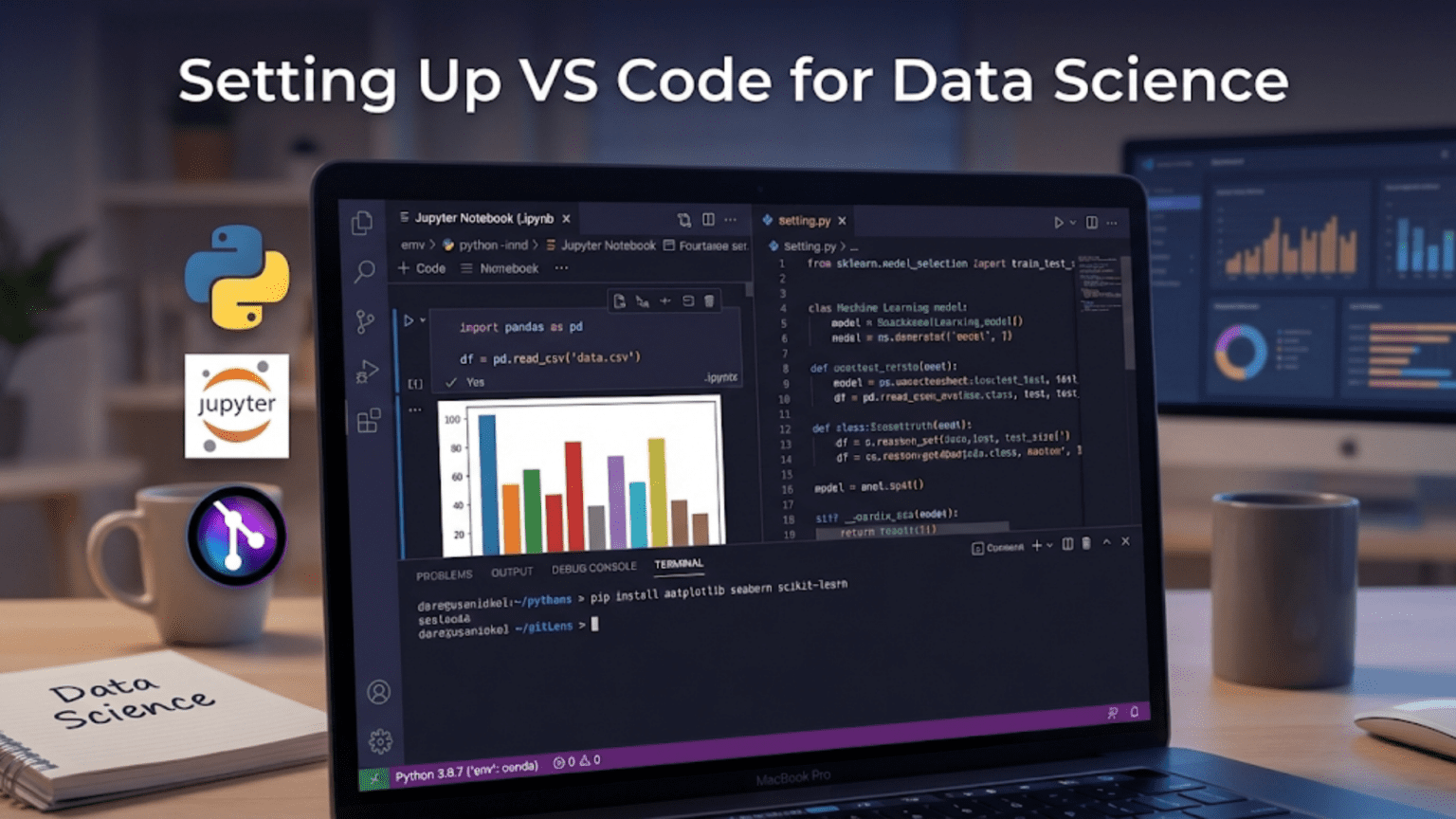
Visual Studio Code (VS Code) is a free, lightweight, and highly extensible code editor developed by Microsoft that has become the most popular development environment for data scientists worldwide. With the right extensions and configuration, VS Code supports Python scripting, Jupyter Notebooks, interactive data exploration, Git integration, remote development, and AI-powered code completion — all in one unified interface that works seamlessly on Windows, macOS, and Linux.
Introduction
Choosing the right development environment is one of the most important decisions a data scientist makes. Your IDE is where you spend hours every day — writing code, debugging models, exploring datasets, and iterating on experiments. A well-configured environment that gets out of your way and amplifies your capabilities makes a genuine difference to your productivity and the quality of your work.
Visual Studio Code has emerged as the dominant choice for data scientists, displacing older editors like Sublime Text and Atom, and even competing favorably with purpose-built scientific IDEs like PyCharm and Spyder. It’s used by individual learners and enterprise teams at companies like Microsoft, Netflix, and Airbnb. The 2023 Stack Overflow Developer Survey found VS Code to be the most popular development environment for the seventh year running, with over 73% of respondents using it.
Why has VS Code won so comprehensively? It strikes an almost perfect balance: lightweight and fast like a text editor, yet extensible enough to match any full IDE through its enormous extension marketplace. It handles everything a data scientist needs — Python scripts, Jupyter Notebooks, terminal access, Git integration, remote servers, containers, and AI assistance — without becoming bloated or slow.
This guide walks you through every step of configuring VS Code into a world-class data science environment, from installation through advanced productivity features. By the end, you’ll have a setup that professional data scientists at top companies would recognize and approve of.
Installing VS Code
Download and Installation
VS Code is available for free at code.visualstudio.com. Download the installer for your operating system:
Windows: Download the .exe installer. Run it and follow the prompts. During installation, check the boxes for “Add to PATH” and “Add ‘Open with Code’ to Windows Explorer context menu” — both are extremely useful.
macOS: Download the .zip file, unzip it, and move Visual Studio Code.app to your Applications folder. Then add VS Code to your PATH so you can open files from the terminal: open VS Code, press Cmd+Shift+P, type “Shell Command: Install ‘code’ command in PATH”, and run it.
Linux (Ubuntu/Debian):
sudo snap install code --classicOr download the .deb package directly from the website.
First Launch and Interface Overview
When VS Code opens for the first time, you’ll see the Welcome tab. The interface has five main areas:
- Activity Bar (far left): Icons for Explorer, Search, Source Control, Run & Debug, and Extensions
- Side Panel: The panel that expands when you click Activity Bar icons (e.g., file tree in Explorer)
- Editor Area: Where your files open for editing — supports multiple tabs and split views
- Panel (bottom): Terminal, Output, Problems, and Debug Console tabs
- Status Bar (bottom strip): Shows current branch, Python interpreter, line/column position, and other contextual info
Understanding this layout helps you navigate efficiently from day one.
Installing the Python Extension
The single most important extension for data science is the official Python extension from Microsoft. It transforms VS Code from a generic text editor into a full Python IDE.
Installation
- Click the Extensions icon in the Activity Bar (or press
Ctrl+Shift+X/Cmd+Shift+X) - Search for “Python”
- Click Install on the extension published by Microsoft (it will have millions of downloads and a blue verified badge)
What the Python Extension Provides
Once installed, the Python extension delivers:
- IntelliSense: Auto-completion as you type, showing available methods, function signatures, and docstrings inline
- Syntax highlighting: Color-coded Python syntax that makes code readable at a glance
- Linting: Underlines code problems — undefined variables, import errors, style violations — as you type, before you even run the code
- Debugging: A full graphical debugger — set breakpoints, step through code, inspect variable values
- Test integration: Run pytest or unittest directly from the editor with a visual test explorer
- Code navigation: Go to definition (
F12), find all references, rename symbol across files
Selecting the Python Interpreter
After installing the extension, tell VS Code which Python interpreter to use. Click the Python version indicator in the bottom-left Status Bar. A dropdown appears listing all Python environments VS Code has detected:
Python 3.11.4 64-bit ('base': conda)
Python 3.10.12 64-bit ('/usr/bin/python3')
Python 3.11.4 64-bit ('myproject': venv)  ← Your project's virtual environment
+ Enter interpreter path...Select the interpreter corresponding to your project’s virtual environment. VS Code saves this selection per workspace, so each project can use its own environment.
You can also select the interpreter via the Command Palette (Ctrl+Shift+P / Cmd+Shift+P) by typing “Python: Select Interpreter”.
Installing the Jupyter Extension
The Jupyter extension (also from Microsoft) brings full Jupyter Notebook functionality directly into VS Code, combining the interactivity of notebooks with the power of a professional IDE.
Installation
Search “Jupyter” in the Extensions panel and install the extension from Microsoft. This installs support for .ipynb files, interactive Python windows, and notebook-specific features.
Working with Notebooks in VS Code
Opening any .ipynb file automatically displays it in VS Code’s notebook interface. The experience is similar to classic Jupyter in a browser, but with important improvements:
- Better IntelliSense: Auto-completion in notebook cells is faster and more accurate than in the browser
- Variable Explorer: A dedicated panel showing all variables currently in the kernel’s memory with their types, shapes, and values — extremely useful for debugging data transformations
- Data Viewer: Click the table icon next to any DataFrame variable in the Variable Explorer to open a spreadsheet-like viewer with sorting and filtering
- Integrated terminal: No need to switch windows between your notebook and terminal
- Git integration: See which cells have been changed since the last commit
The Interactive Python Window
Beyond .ipynb notebooks, the Jupyter extension also enables the Interactive Python Window — a hybrid between a script and a notebook. You can write a regular .py file and mark cells with # %% comments:
# %%
import pandas as pd
import matplotlib.pyplot as plt

df = pd.read_csv("data/sales.csv")
print(df.shape)

# %%
# Explore the data
df.describe()

# %%
# Visualize revenue by month
df.groupby('month')['revenue'].sum().plot(kind='bar')
plt.title("Monthly Revenue")
plt.show()Press Shift+Enter (or click the Run Cell button in the margin) to run the current cell and see its output in the Interactive Window panel — without the overhead of a full .ipynb file. This hybrid approach gives you notebook-style iteration while keeping your code in a Git-friendly plain text .py file.
Essential Extensions for Data Scientists
Beyond Python and Jupyter, a curated set of extensions transforms VS Code into a comprehensive data science environment.
Pylance
Purpose: Enhanced language support for Python
Pylance is a high-performance language server that dramatically improves Python IntelliSense. It provides faster and more accurate auto-completion, type checking, better import resolution across complex projects, and inlay hints showing function parameter names and return types. Pylance is installed automatically with the Python extension.
autoDocstring
Purpose: Generate docstring templates automatically
When you type """ under a function definition and press Enter, autoDocstring generates a complete docstring template with parameter names, types, and return value placeholders:
def calculate_metrics(y_true, y_pred, threshold=0.5):
    """
    _summary_

    Parameters
    ----------
    y_true : _type_
        _description_
    y_pred : _type_
        _description_
    threshold : float, optional
        _description_, by default 0.5

    Returns
    -------
    _type_
        _description_
"""Just fill in the blanks. This encourages good documentation habits and works with NumPy, Google, and Sphinx docstring styles.
Rainbow CSV
Purpose: Make CSV files readable
CSV files are a staple of data science but are notoriously hard to read as plain text. Rainbow CSV colors each column differently, making it trivial to visually track which column each value belongs to.
Excel Viewer
Purpose: Preview Excel and CSV files as spreadsheets
Opens .xlsx, .csv, and .tsv files in a spreadsheet grid view directly in VS Code — no need to open Excel just to peek at a data file.
GitLens
Purpose: Supercharged Git integration
GitLens extends VS Code’s built-in Git support with inline blame (who last changed each line and when), file history, a commit graph, and an interactive rebase editor. For collaborative data science work, GitLens makes Git history exploration dramatically more intuitive.
Error Lens
Purpose: Show errors and warnings inline
Instead of requiring you to hover over underlined code to see error messages, Error Lens displays the error message directly on the relevant line in red text. You see exactly what’s wrong without any extra interaction.
Path Intellisense
Purpose: Auto-complete file paths
When you type a file path in your code (like pd.read_csv("data/...")), Path Intellisense shows a dropdown of matching files and directories — eliminating FileNotFoundError errors from typos.
Extension Summary Table
| Extension | Publisher | Primary Benefit |
|---|---|---|
| Python | Microsoft | Core Python IDE features (required) |
| Jupyter | Microsoft | Notebook support (required) |
| Pylance | Microsoft | Better IntelliSense (auto-installed) |
| autoDocstring | Nils Werner | Auto-generate docstring templates |
| Rainbow CSV | mechatroner | Color-coded CSV viewing |
| Excel Viewer | GrapeCity | Spreadsheet view for data files |
| GitLens | GitKraken | Enhanced Git history and blame |
| Error Lens | Alexander | Inline error messages |
| Path Intellisense | Christian Kohler | Auto-complete file paths |
| Python Indent | Kevin Rose | Correct auto-indentation |
Configuring VS Code Settings
VS Code is configured through a settings.json file. Access it via Ctrl+, (Cmd+,) for the GUI or through the Command Palette → “Open User Settings (JSON)” for direct JSON editing.
Recommended Data Science Settings
{
    "python.defaultInterpreterPath": "${workspaceFolder}/venv/bin/python",
    "python.terminal.activateEnvironment": true,

    "editor.fontSize": 14,
    "editor.lineHeight": 1.6,
    "editor.wordWrap": "on",
    "editor.rulers": [88],
    "editor.renderWhitespace": "boundary",
    "editor.formatOnSave": true,
    "editor.defaultFormatter": "ms-python.black-formatter",

    "python.linting.enabled": true,
    "python.linting.flake8Enabled": true,
    "python.linting.flake8Args": ["--max-line-length=88"],

    "jupyter.askForKernelRestart": false,
    "jupyter.notebookFileRoot": "${workspaceFolder}",

    "files.trimTrailingWhitespace": true,
    "files.insertFinalNewline": true,
    "files.exclude": {
        "**/__pycache__": true,
        "**/*.pyc": true,
        ".ipynb_checkpoints": true
    },

    "git.autofetch": true,
    "explorer.sortOrder": "type"
}Workspace vs. User Settings
VS Code has two levels of settings. User Settings apply to all VS Code windows across all projects on your machine. Workspace Settings apply only to the current project folder, stored in .vscode/settings.json inside your project and overriding user settings.
Commit your .vscode/settings.json to Git so teammates share a consistent configuration:
// .vscode/settings.json — commit this to Git
{
    "python.defaultInterpreterPath": "${workspaceFolder}/venv/bin/python",
    "python.linting.flake8Args": ["--max-line-length=88"],
    "[python]": {
        "editor.defaultFormatter": "ms-python.black-formatter"
    }
}Setting Up Linting and Formatting
Professional data science code is consistent, readable, and style-compliant. VS Code makes enforcing these standards automatic.
Code Formatting with Black
Black is an opinionated Python code formatter that automatically reformats your code to a consistent style — making “how should this be formatted?” a question you never have to think about again.
Install Black in your virtual environment:
pip install blackInstall the Black Formatter VS Code extension (from Microsoft). Then configure VS Code to format with Black on every save:
{
    "editor.formatOnSave": true,
    "[python]": {
        "editor.defaultFormatter": "ms-python.black-formatter"
    }
}Every time you save a .py file, Black automatically reformats it. Your code is always consistently styled without any manual effort.
Linting with Flake8
Flake8 checks for Python style violations (PEP 8), programming errors, and complexity issues.
pip install flake8Enable in VS Code settings:
{
    "python.linting.enabled": true,
    "python.linting.flake8Enabled": true
}For data science projects, create a .flake8 file in your project root to configure compatibility with Black:
[flake8]
max-line-length = 88
extend-ignore = E203, E501, W503
exclude =
    .git,
    __pycache__,
    venv,
.ipynb_checkpointsisort: Automatic Import Sorting
isort automatically sorts and organizes Python import statements into a clean, consistent order:
pip install isortConfigure in settings.json:
{
    "[python]": {
        "editor.codeActionsOnSave": {
            "source.organizeImports": true
        }
    },
    "isort.args": ["--profile", "black"]
}The --profile black flag makes isort compatible with Black’s formatting style, avoiding conflicts between the two tools.
Debugging Python Code in VS Code
VS Code’s debugger is one of its standout features — a massive upgrade over print-statement debugging that is invaluable for tracking down data pipeline issues.
Setting Breakpoints
Click in the margin to the left of a line number to set a breakpoint (a red dot appears). When you run the debugger, execution pauses at that line and you can inspect the state of every variable.
Running the Debugger
Press F5 or click the Run & Debug icon in the Activity Bar. Choose “Python File” to debug the current file. The Debug panel shows all local and global variables, a Watch panel for expressions you want to monitor, and the Call Stack showing which functions led to the current line.
Debug Controls
| Action | Windows/Linux | macOS | Description |
|---|---|---|---|
| Continue | F5 | F5 | Resume to next breakpoint |
| Step Over | F10 | F10 | Execute line, skip into functions |
| Step Into | F11 | F11 | Enter the called function |
| Step Out | Shift+F11 | Shift+F11 | Complete current function |
| Restart | Ctrl+Shift+F5 | Cmd+Shift+F5 | Restart debug session |
| Stop | Shift+F5 | Shift+F5 | End debug session |
Debug Configuration for Data Science Scripts
Create .vscode/launch.json for complex scenarios with arguments and environment variables:
{
    "version": "0.2.0",
    "configurations": [
        {
            "name": "Train Model",
            "type": "python",
            "request": "launch",
            "program": "${workspaceFolder}/src/train.py",
            "args": ["--config", "config/train_config.yaml"],
            "env": {
                "PYTHONPATH": "${workspaceFolder}/src",
                "DATA_DIR": "${workspaceFolder}/data"
            },
            "console": "integratedTerminal"
        },
        {
            "name": "Run Tests",
            "type": "python",
            "request": "launch",
            "module": "pytest",
            "args": ["tests/", "-v"],
            "console": "integratedTerminal"
        }
    ]
}With this configuration, you select “Train Model” from the Debug dropdown and run your training script with all arguments and environment variables preset — no need to remember command-line syntax every time.
Working with Virtual Environments in VS Code
Each data science project should have its own isolated Python environment. VS Code integrates seamlessly with both venv and conda.
Creating and Selecting a Virtual Environment
# In VS Code's integrated terminal:
python -m venv venvVS Code typically detects the new environment immediately and prompts you to select it. You can also open the Command Palette and type “Python: Select Interpreter” to choose manually. After selection, new terminals automatically activate the environment — you’ll see (venv) in your terminal prompt confirming the environment is active.
Conda Environments
VS Code detects conda environments automatically if Anaconda or Miniconda is installed. They appear alongside venv environments in the interpreter picker:
Python 3.11.4 ('myenv': conda)
Python 3.11.4 ('venv': venv) ~/projects/my-project/venvAI-Powered Coding Assistance
VS Code has become the hub for AI coding assistants that are increasingly valuable for data scientists navigating complex library APIs.
GitHub Copilot
GitHub Copilot is an AI pair programmer that suggests code completions as you type — not just single lines, but entire functions and code blocks. It’s particularly good at completing pandas, scikit-learn, and matplotlib code from descriptive comments:
# Create a function that applies min-max normalization to a DataFrame column
# Copilot suggests:
def normalize_column(df: pd.DataFrame, column: str) -> pd.DataFrame:
    min_val = df[column].min()
    max_val = df[column].max()
    df[column] = (df[column] - min_val) / (max_val - min_val)
return dfCopilot requires a paid subscription, with a free tier for students.
GitHub Copilot Chat
Copilot Chat adds a conversational interface in VS Code where you can ask questions with full context of your open files: “Explain what this function does,” “What’s causing this KeyError,” “Refactor this to be more memory efficient.”
IntelliCode
IntelliCode (free, from Microsoft) provides AI-assisted IntelliSense that ranks completion suggestions based on thousands of open-source repositories — putting the most commonly used methods first in the autocomplete list rather than alphabetically.
Essential Keyboard Shortcuts for Data Scientists
Learning keyboard shortcuts is one of the highest-ROI investments a VS Code user can make.
| Action | Windows/Linux | macOS |
|---|---|---|
| Command Palette | Ctrl+Shift+P | Cmd+Shift+P |
| Quick file open | Ctrl+P | Cmd+P |
| Go to definition | F12 | F12 |
| Rename symbol | F2 | F2 |
| Toggle terminal | `Ctrl+“ | `Cmd+“ |
| Split editor | Ctrl+\ | Cmd+\ |
| Format document | Shift+Alt+F | Shift+Option+F |
| Comment/uncomment | Ctrl+/ | Cmd+/ |
| Multi-cursor (add) | Alt+Click | Option+Click |
| Move line up/down | Alt+↑/↓ | Option+↑/↓ |
| Duplicate line | Shift+Alt+↓ | Shift+Option+↓ |
| Global find & replace | Ctrl+Shift+H | Cmd+Shift+H |
| Run cell (Jupyter) | Shift+Enter | Shift+Enter |
| Zen mode (focus) | Ctrl+K Z | Cmd+K Z |
Multi-cursor editing deserves special mention. Hold Alt (Option on Mac) and click multiple locations — you now have multiple cursors and every keystroke applies to all of them simultaneously. This is invaluable for renaming multiple column names or adjusting multiple similar lines at once, and once you start using it, you won’t want to stop.
The Command Palette is also worth emphasizing. Nearly every action in VS Code is accessible through it by name — if you don’t know a shortcut, just open it and type what you want to do: “Format Document,” “Python: Select Interpreter,” “Git: Commit,” “Restart Jupyter Kernel.”
Remote Development: Working on GPU Servers
Data scientists frequently need to work on remote machines — cloud VMs with GPUs, HPC clusters, or shared servers. VS Code’s Remote Development extensions make this seamless.
Remote – SSH
Install the Remote – SSH extension (from Microsoft). To connect:
- Open the Command Palette and type “Remote-SSH: Connect to Host”
- Enter your SSH connection string:
user@remote-server-ip - VS Code connects and opens a new window — all files, terminals, and extensions now run on the remote machine
From your perspective, you’re editing files in a familiar interface. Behind the scenes, your keystrokes are transmitted to a VS Code server on the remote machine. The experience is nearly indistinguishable from local development, even for large files that would be impractical to transfer locally — a genuine game-changer for training large models on GPU servers.
Dev Containers
The Dev Containers extension lets you develop inside a Docker container. Your project’s .devcontainer/devcontainer.json defines the complete environment, and any teammate opens the project in VS Code and gets an identical, fully configured environment with one click:
{
    "name": "Data Science Environment",
    "image": "mcr.microsoft.com/devcontainers/python:3.11",
    "postCreateCommand": "pip install -r requirements.txt",
    "customizations": {
        "vscode": {
            "extensions": [
                "ms-python.python",
                "ms-toolsai.jupyter",
                "ms-python.black-formatter"
            ]
        }
    }
}Recommended Project Structure for VS Code
Here’s the ideal project workspace structure that takes advantage of VS Code’s features:
my-data-science-project/
├── .devcontainer/
│   └── devcontainer.json        # Container-based dev environment (optional)
├── .github/
│   └── workflows/
│       └── tests.yml            # CI/CD pipeline
├── .vscode/
│   ├── settings.json            # Project-specific VS Code settings
│   ├── launch.json              # Debug configurations
│   └── extensions.json          # Recommended extensions for teammates
├── data/
│   ├── raw/                     # Original data (gitignored)
│   └── processed/               # Cleaned data (gitignored)
├── notebooks/
│   ├── 01_eda.ipynb
│   └── 02_modeling.ipynb
├── src/
│   ├── __init__.py
│   ├── preprocessing.py
│   ├── features.py
│   └── train.py
├── tests/
│   └── test_preprocessing.py
├── .flake8
├── .gitignore
├── pyproject.toml
├── requirements.txt
└── README.mdThe extensions.json File
This file recommends extensions to anyone who opens the project:
{
    "recommendations": [
        "ms-python.python",
        "ms-toolsai.jupyter",
        "ms-python.pylance",
        "ms-python.black-formatter",
        "njpwerner.autodocstring",
        "mechatroner.rainbow-csv",
        "usernamehw.errorlens",
        "eamodio.gitlens"
    ]
}When a teammate opens the project, VS Code asks “This workspace recommends the following extensions — Install all?” One click gives them your entire toolset.
Consolidating Configuration with pyproject.toml
Modern Python projects consolidate tool configuration in a single pyproject.toml file:
[tool.black]
line-length = 88
target-version = ['py311']
exclude = '''/(\.git|venv|\.ipynb_checkpoints)/'''

[tool.isort]
profile = "black"
line_length = 88
skip_glob = ["venv/*"]

[tool.pytest.ini_options]
testpaths = ["tests"]
python_files = "test_*.py"
addopts = "-v --tb=short"VS Code reads this file and applies the configuration to Black, isort, and pytest automatically — one file to rule all your tools.
Themes and Visual Customization
A comfortable visual environment reduces fatigue during long coding sessions. Change themes via Ctrl+K Ctrl+T (Cmd+K Cmd+T on Mac) for an instant visual preview.
Popular themes among data scientists include One Dark Pro (dark theme with excellent Python syntax highlighting contrast), GitHub Theme (light and dark variants matching GitHub’s interface), Dracula Official (high-contrast dark theme), and Night Owl (designed specifically for low-light conditions).
For file icons, Material Icon Theme and vscode-icons add distinct icons for Python files, notebooks, YAML files, data files, and dozens of other types — making your file explorer visually informative at a glance.
Summary
A well-configured VS Code environment dramatically improves the data science workflow by combining the interactivity of Jupyter Notebooks with the professional tooling of a full IDE — all in a single, unified interface. The foundation is the Python and Jupyter extensions from Microsoft, which provide IntelliSense, debugging, notebook support, and environment management. Layered on top, extensions like Black, Flake8, GitLens, and Error Lens automate code quality enforcement and make collaboration smoother.
The most impactful configuration choices are: selecting the correct Python interpreter for each project (enabling automatic virtual environment management), enabling format-on-save with Black (eliminating style debates and manual formatting), configuring workspace settings in .vscode/settings.json (sharing configuration with teammates), and learning core keyboard shortcuts (multiplying daily productivity).
VS Code is a living tool that evolves rapidly — Microsoft releases updates monthly, and the extension ecosystem constantly introduces new capabilities. The configuration described in this guide reflects current best practices, but keep an eye on the VS Code blog and Python/Jupyter extension changelogs as new features regularly enhance the data science workflow.
Key Takeaways
- VS Code is the most widely used development environment for data scientists, balancing the lightness of a text editor with full IDE capabilities through extensions
- The Python and Jupyter extensions from Microsoft are the essential foundation — install these first before anything else
- The Interactive Python Window (
# %%cells in.pyfiles) offers notebook-style interactivity while maintaining Git-friendly plain text format - Configure format-on-save with Black and linting with Flake8 to enforce code quality automatically without manual effort
- Workspace settings in
.vscode/settings.jsonand extension recommendations in.vscode/extensions.jsongive your entire team a consistent, pre-configured environment - VS Code’s debugger — with breakpoints, variable inspection, and step-through execution — is dramatically more effective than print-statement debugging for complex data pipelines
- Remote SSH development makes it possible to use VS Code’s full interface while running computationally intensive code on powerful GPU servers or cloud machines
- The Command Palette (
Ctrl+Shift+P) is the universal entry point to all VS Code functionality — if you don’t know a keyboard shortcut, type what you want to do there