Introduction
As you work on multiple data science projects, you quickly encounter a fundamental problem: different projects require different package versions. One project might need pandas 1.5 while another requires pandas 2.0. One analysis uses Python 3.9 while a newer project demands Python 3.11. Installing everything globally creates conflicts where updating packages for one project breaks another. You need a way to maintain separate, isolated Python installations for each project, ensuring that changes in one environment never affect others. Conda solves this problem through environment management, arguably its most valuable feature for data scientists.
Conda serves as both a package manager and an environment manager, making it particularly powerful for data science workflows. While pip handles package installation, it does not manage Python versions or create isolated environments (though venv does this for Python itself). Conda does both, managing not just Python packages but also the Python interpreter itself, system libraries, and even non-Python dependencies that many scientific packages require. This comprehensive approach explains why Anaconda, the distribution that includes conda, has become standard for data science work despite adding complexity compared to basic Python installations.
Environment management represents a professional necessity rather than optional complexity. Every experienced data scientist maintains multiple environments: one for each long-term project, separate environments for experimenting with new packages, and clean environments for reproducing published analyses. This organization prevents the “dependency hell” where you cannot update any package without breaking something somewhere. More importantly, it enables reproducibility, letting you share exact environment specifications with collaborators or return to old projects years later knowing you can recreate the exact package versions that made your code work originally.
This comprehensive guide takes you from conda basics through confident environment management. You will learn what conda is and how it differs from pip, how to create and activate environments for different projects, how to install and manage packages within environments, how to export and share environment specifications, and best practices for organizing your data science workflow around environments. You will also discover how to troubleshoot common environment issues and understand when to use conda versus alternative tools. By the end, you will manage multiple projects confidently, knowing that each has its dependencies isolated and properly tracked.
Understanding Conda: Package Manager and Environment Manager
Conda is an open-source package management system and environment management system that runs on Windows, macOS, and Linux. Unlike pip, which only manages Python packages, conda manages packages for any language and can install Python itself along with system-level dependencies. This broader scope makes conda particularly valuable for scientific computing where packages often depend on compiled libraries written in C, Fortran, or other languages.
The distinction between Anaconda, Miniconda, and conda often confuses beginners. Conda is the command-line tool that manages packages and environments. Anaconda is a distribution that includes conda plus Python and over 250 pre-installed packages popular in data science. Miniconda is a minimal installer containing only conda, Python, and a few essential packages. For most data scientists, Miniconda provides a better starting point because you install only what you need rather than accepting hundreds of packages you may never use, keeping your base installation lean.
Conda and pip solve overlapping but distinct problems. Pip excels at installing pure Python packages and integrates tightly with PyPI’s vast package repository. Conda excels at managing entire environments including non-Python dependencies and handles binary compatibility issues that complicate pip installations on some platforms. In practice, you will use both: conda for environment management and installing core scientific packages, pip for specialized packages not available through conda channels. Conda environments can use pip without issues, combining the strengths of both tools.
Understanding conda channels explains where packages come from. Channels are repositories containing conda packages. The default channel maintained by Anaconda Inc contains curated packages. The conda-forge channel, community-maintained, offers more packages with faster updates. You can add channels and prioritize them, controlling where conda searches for packages. This flexibility lets you access cutting-edge package versions through conda-forge while maintaining stability for core packages from the default channel.
Installing Conda
If you do not have conda installed, download and install either Anaconda or Miniconda from anaconda.com or docs.conda.io. Anaconda provides a graphical installer and includes Jupyter, Spyder IDE, and many pre-installed packages. Miniconda provides a minimal installation that you customize by installing only needed packages.
After installation, verify conda works by opening a terminal (Anaconda Prompt on Windows, regular Terminal on macOS/Linux) and running:
conda --versionThis displays the conda version, confirming successful installation:
conda 24.1.2Update conda itself to the latest version:
conda update condaConda asks for confirmation before updating. Type ‘y’ and press Enter. Keeping conda updated ensures you have the latest features and bug fixes.
Configure conda for optimal behavior:
# Show channel URLs when installing packages
conda config --set show_channel_urls true

# Add conda-forge channel
conda config --add channels conda-forge

# Set conda-forge as priority
conda config --set channel_priority strictThese configurations make conda show where packages come from and prioritize the conda-forge channel, which typically has more up-to-date packages than the default channel.
Creating Your First Environment
Create a new environment with a specific Python version:
conda create --name myenv python=3.11This creates an environment named “myenv” with Python 3.11. Conda shows what will be installed and asks for confirmation:
The following NEW packages will be INSTALLED:
  python     conda-forge/osx-arm64::python-3.11.7
  ...

Proceed ([y]/n)?Type ‘y’ to proceed. Conda downloads and installs Python and essential packages in the new environment.
Create an environment with specific packages:
conda create --name dataenv python=3.11 numpy pandas matplotlibThis creates “dataenv” with Python 3.11 and immediately installs numpy, pandas, and matplotlib. Including commonly used packages in the creation command saves time compared to installing them separately later.
Create an environment without specifying Python version:
conda create --name testenvThis creates an environment using conda’s default Python version. Explicitly specifying Python versions is recommended for reproducibility.
Name environments meaningfully to remember their purpose:
conda create --name project-analysis python=3.11
conda create --name ml-experiments python=3.10
conda create --name client-report python=3.11Clear names help when you have many environments. Some developers use project names, others use descriptive labels like “pytorch-dev” or “tensorflow-prod.”
Activating and Deactivating Environments
Activate an environment to use it:
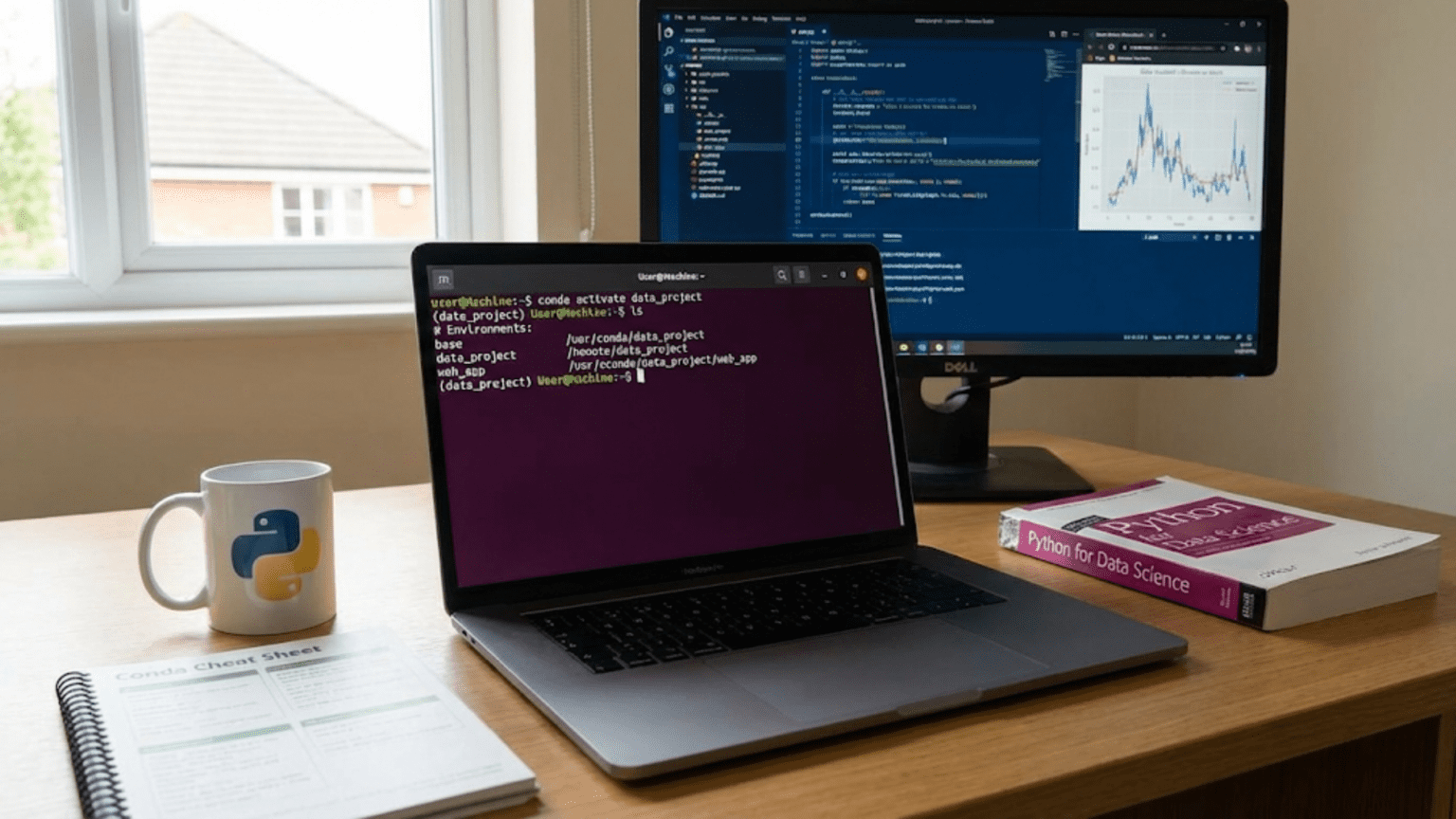
conda activate myenvYour prompt changes to indicate the active environment:
(myenv) user@computer:~$The environment name in parentheses shows which environment is active. Python commands now use the Python installation and packages in this environment.
Verify you are using the environment’s Python:
python --version
which python  # macOS/Linux
where python # WindowsThis confirms you are using the Python from the active environment rather than the system Python or base environment.
Deactivate the current environment:
conda deactivateThis returns you to the base environment. The base environment is conda’s default environment, but it is best practice to create separate environments for projects rather than installing packages in base.
Activate a different environment directly:
conda activate dataenvYou do not need to deactivate first; conda switches directly from one environment to another.
Installing Packages in Environments
With an environment activated, install packages using conda:
conda install numpyThis installs numpy in the currently active environment, not globally. The package affects only this environment, leaving other environments unchanged.
Install multiple packages simultaneously:
conda install numpy pandas matplotlib scikit-learnInstalling related packages together lets conda resolve dependencies more efficiently than installing them separately.
Install specific package versions:
conda install numpy=1.24.3Or install with version constraints:
conda install "numpy>=1.24,<1.26"Note the quotes around version specifications to prevent shell interpretation of comparison operators.
Search for available packages:
conda search pandasThis shows all available pandas versions and their sources. Use this to verify package names and see what versions are available.
Install packages from specific channels:
conda install -c conda-forge geopandasThe -c flag specifies the channel. Some packages are only available in specific channels. Conda-forge typically has more packages and newer versions than the default channel.
Update packages in the active environment:
conda update numpyOr update all packages:
conda update --allBe cautious with --all updates as they may introduce breaking changes. Update packages individually in production environments and test thoroughly.
Using pip within conda environments:
pip install package-not-in-condaConda environments fully support pip. Install packages with conda when possible for better dependency management, but use pip for packages unavailable through conda. Conda tracks pip-installed packages and includes them when exporting environment specifications.
Managing Environments
List all environments:
conda env listOr:
conda info --envsThis shows all environments and their locations:
# conda environments:
#
base                  *  /Users/user/miniconda3
myenv                    /Users/user/miniconda3/envs/myenv
dataenv /Users/user/miniconda3/envs/dataenvThe asterisk indicates the currently active environment.
List packages in the current environment:
conda list
This shows all installed packages with versions and channels:
# packages in environment at /Users/user/miniconda3/envs/myenv:
#
numpy         1.24.3      py311h1234567_0    conda-forge
pandas        2.0.1       py311h2345678_0    conda-forge
python 3.11.7 h3456789_0 conda-forgeList packages in a specific environment without activating it:
conda list -n myenvRemove a package from the active environment:
conda remove numpyConda handles dependencies appropriately. If removing a package would break other packages, conda warns you and shows what else will be removed.
Clone an environment to create a copy:
conda create --name myenv-copy --clone myenvThis creates an exact duplicate of myenv named myenv-copy. Cloning is useful for experimenting with package updates without affecting your working environment.
Remove an entire environment:
conda env remove --name myenvOr:
conda remove --name myenv --allConda asks for confirmation before removing. Be certain you want to delete the environment as this action cannot be undone.
Exporting and Sharing Environments
Export your environment to a file for sharing or backup:
conda env export > environment.ymlThis creates a YAML file containing complete environment specifications:
name: myenv
channels:
  - conda-forge
  - defaults
dependencies:
  - python=3.11.7
  - numpy=1.24.3
  - pandas=2.0.1
  - pip:
- some-pip-package==1.0.0The environment.yml file includes environment name, channels, package versions, and pip-installed packages. This specification lets others recreate your exact environment.
Create an environment from an environment.yml file:
conda env create -f environment.ymlConda reads the file, creates an environment with the specified name, and installs all packages at specified versions. This ensures perfect reproducibility across machines and collaborators.
Export without absolute paths or build-specific details:
conda env export --from-history > environment.ymlThis exports only explicitly installed packages, not their dependencies. The resulting file is more portable across operating systems because it does not include OS-specific build strings.
Create a minimal environment file manually for sharing:
name: dataproject
channels:
  - conda-forge
  - defaults
dependencies:
  - python=3.11
  - numpy
  - pandas
  - matplotlib
- scikit-learnThis simplified specification omits exact versions for flexibility. Others recreating the environment get compatible versions, which may be newer than yours if packages have been updated. For critical reproducibility, include exact versions.
Update an existing environment from a file:
conda env update -f environment.yml --pruneThe --prune flag removes packages not specified in the file, ensuring the environment exactly matches the specification.
Best Practices for Environment Management
Following established patterns keeps your environments organized and maintainable.
Create a new environment for each project. Do not reuse environments across unrelated projects. Isolation prevents conflicts and makes dependency management explicit per project.
Name environments descriptively. Use project names or clear descriptions like “ml-research” or “client-dashboard” rather than generic names like “env1” or “test.”
Keep the base environment minimal. Install packages in project-specific environments rather than cluttering the base environment. A clean base environment serves as a reliable fallback.
Document environment creation. Include environment.yml files in project repositories so collaborators can recreate environments. Update these files when adding packages.
Specify Python versions explicitly. Environment specifications should include Python versions to ensure consistency across machines and over time.
Prefer conda for scientific packages. Install numpy, pandas, scipy, matplotlib, and similar packages using conda rather than pip when possible. Conda handles their complex dependencies better.
Use pip only when necessary. Install packages with pip when they are not available through conda channels. Conda tracks pip-installed packages in environment specifications.
Update environments conservatively. Test package updates in cloned environments before applying them to production environments. Breaking changes happen, and rolling back is harder than testing first.
Remove unused environments. Periodically review your environments and remove those no longer needed. Environments consume disk space and clutter listings.
Version control environment specifications. Commit environment.yml files to version control along with code. Track changes to environment specifications just like code changes.
Common Conda Commands Reference
Here is a quick reference for frequently used conda commands:
# Environment management
conda create --name myenv python=3.11    # Create environment
conda activate myenv                      # Activate environment
conda deactivate                          # Deactivate current environment
conda env list                            # List all environments
conda env remove --name myenv             # Remove environment

# Package management
conda install numpy                       # Install package
conda install numpy=1.24.3               # Install specific version
conda update numpy                        # Update package
conda remove numpy                        # Remove package
conda list                                # List installed packages
conda search numpy                        # Search for package

# Environment export/import
conda env export > environment.yml        # Export environment
conda env create -f environment.yml       # Create from file
conda env update -f environment.yml       # Update from file

# Information
conda info                                # System information
conda --version                           # Conda version
conda config --show # Show configurationTroubleshooting Common Issues
Understanding typical problems helps you resolve them quickly.
Conda command not found: Conda is not in your PATH. On Windows, use Anaconda Prompt instead of regular Command Prompt. On macOS/Linux, you may need to restart your terminal or run:
source ~/miniconda3/etc/pro.file.d/conda.shEnvironment activation fails: Ensure the environment exists (conda env list). Check spelling of environment name. On some systems, shell initialization may need configuration.
Package installation conflicts: Conda cannot resolve compatible versions for all requested packages. Try installing packages separately, updating conda, or using different package versions. Sometimes conda-forge channel has more flexible versions.
Slow package resolution: Conda’s solver can be slow with many packages. Update conda, enable strict channel priority, or try mamba, a faster drop-in replacement for conda.
Environment.yml fails to recreate environment on different OS: Build strings in exported files are OS-specific. Use --from-history when exporting or create simplified environment files without exact build specifications.
Disk space issues: Conda environments consume significant space. Remove unused environments, clean cached packages with conda clean --all, and consider using smaller package selections.
Conda vs Other Environment Tools
Understanding alternatives helps you choose appropriate tools.
Conda vs pip + venv: Pip with venv (Python’s built-in environment tool) provides lighter-weight environment management for pure Python projects. Conda offers better handling of non-Python dependencies and system libraries needed by scientific packages. For data science, conda’s advantages typically outweigh its complexity.
Conda vs Poetry: Poetry provides excellent Python-specific dependency management with lock files for reproducibility. It excels for Python package development. Conda remains better for data science applications requiring compiled libraries and system dependencies.
Conda vs Docker: Docker containers provide complete environment isolation including operating system. Docker is heavier but offers stronger guarantees of reproducibility. For local development, conda is more convenient. For deployment, Docker often makes sense.
Conda vs mamba: Mamba is a reimplementation of conda in C++ that solves dependencies faster. It is a drop-in replacement; just replace conda with mamba in commands. Consider mamba if conda’s slowness frustrates you.
Many data scientists combine tools: conda for environment management, pip for missing packages, Docker for deployment. Choose tools based on project needs rather than dogmatically using one exclusively.
Conclusion
Conda environment management transforms Python from a single system installation into a flexible platform where each project has perfectly tailored dependencies. Creating separate environments for each project prevents conflicts, enables reproducibility, and lets you experiment fearlessly knowing you can always create fresh environments or restore working configurations. While conda adds complexity compared to single-environment workflows, this complexity brings professional-grade dependency management that becomes essential as projects grow and multiply.
The discipline of maintaining separate environments feels cumbersome initially but quickly becomes second nature. You will soon create environments reflexively when starting projects, export environment specifications automatically, and think of environment management as normal rather than advanced technique. This professionalism prevents countless hours of debugging mysterious errors caused by version conflicts and makes collaboration vastly easier when everyone can recreate identical environments.
As you progress in data science, you will develop personal patterns for environment organization. Some data scientists create fresh environments for each analysis, others maintain long-lived environments for ongoing projects, and some use hybrid approaches. The flexibility conda provides lets you develop workflows matching your needs. Experiment with different strategies, note what works, and build environment management habits that support rather than hinder your productivity.
Practice creating, using, and exporting environments regularly. The commands will become muscle memory, and you will manage environments without conscious thought. With solid environment management skills, you can confidently install packages, try new tools, and collaborate with others, knowing that your environments are isolated, reproducible, and well-organized. Master conda, and you gain a professional superpower that elevates your entire data science practice.