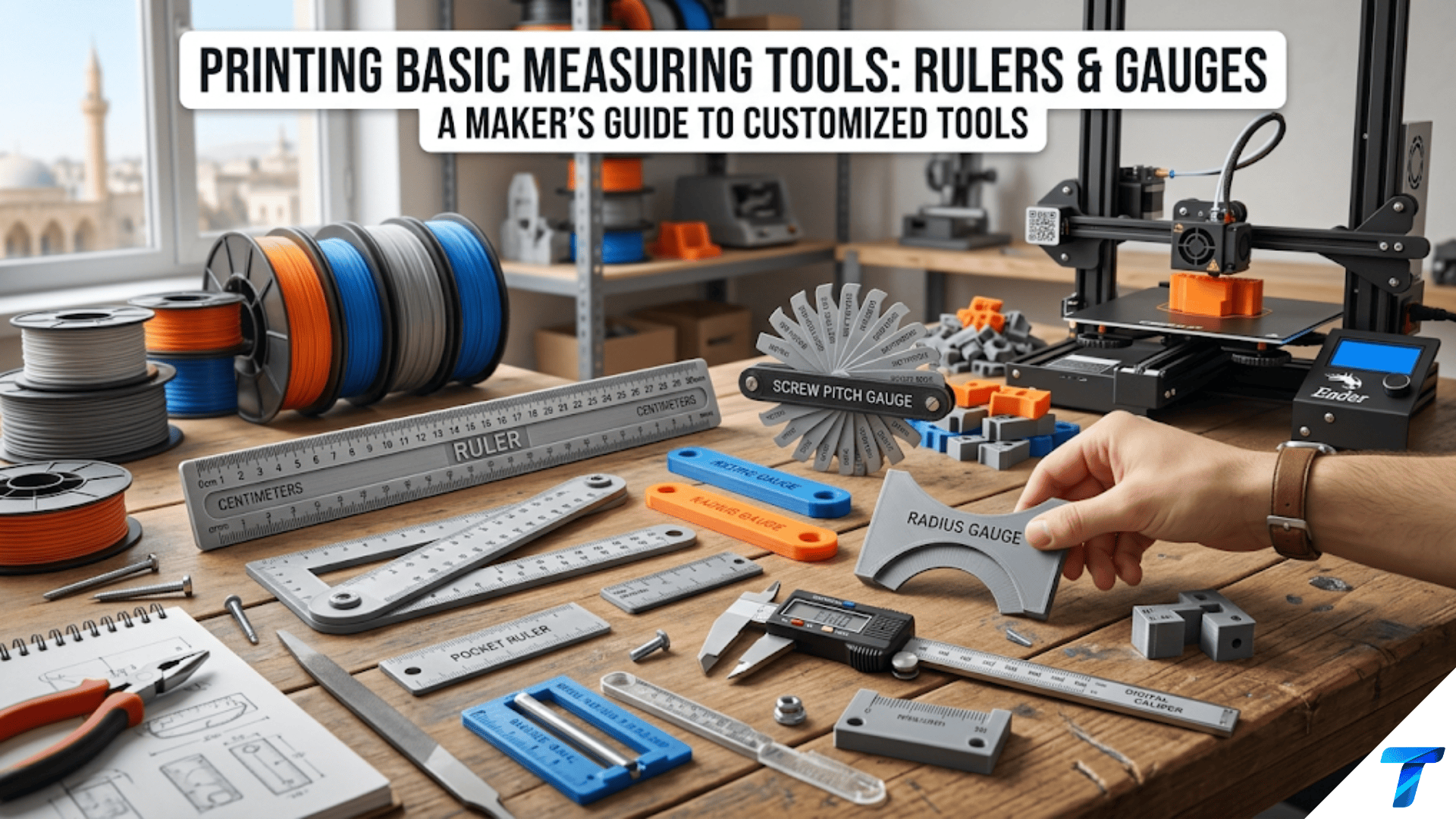

3D printed measuring tools — including rulers, depth gauges, radius gauges, drill bit gauges, and specialty measurement templates — are custom-made tools that fill the gaps in commercial measurement sets, provide measuring capability in unusual formats or scales, and serve as practical exercises in precision FDM printing. They introduce one of the most important concepts in functional printing: dimensional accuracy calibration — the process of verifying and compensating for the small dimensional errors that FDM printers produce so that the printed scale markings match real-world measurements.
Introduction: The Printer That Measures Its Own Work
There is something elegantly recursive about using a 3D printer to make measuring tools. The printer’s own accuracy is the subject of constant measurement — did this print come out to the right dimensions? — and yet the printer itself can produce the tools that answer that question. A calibrated printed ruler can measure the printer’s output. A printed drill bit gauge can verify hole tolerances. A printed radius gauge can check the curves your printer produces.
This recursiveness is not just philosophically interesting — it is practically useful. The home 3D printer owner who understands dimensional accuracy can design more precisely, troubleshoot problems more effectively, and produce functional parts that fit correctly the first time. Printing measuring tools is one of the best ways to develop this understanding, because the process forces you to think carefully about exactly how accurate your printer is and in which directions it deviates from designed dimensions.
Beyond the calibration education, printed measuring tools have genuine practical value. A ruler in an unusual scale (centimeters on one face, eighths of an inch on the other), sized to fit in a specific toolkit. A depth gauge for checking the depth of a countersink in woodworking. A drill bit gauge that holds all the bits in a set and shows their diameters clearly. A radius gauge set for a specific range of curves used in a particular craft or trade. A bolt and nut size checker for the fasteners in your workshop. None of these need to be purchased if you can print them, and printing them can produce tools that match your specific needs far better than generic commercial alternatives.
This guide covers the complete workflow for printed measuring tools: understanding and calibrating for FDM dimensional accuracy, the specific tools worth printing, design approaches, scale marking techniques, material selection, and the practical applications that make these tools genuinely useful.
The Dimensional Accuracy Challenge
Before designing any measuring tool, understanding FDM dimensional accuracy — and how to compensate for it — is essential. A ruler that is 1% too long will lead to every measurement it takes being 1% wrong. For most applications this is acceptable; for precision work it is not.
How FDM Printing Deviates From Designed Dimensions
FDM printing deviates from designed dimensions in consistent, predictable ways:
XY plane dimensions (horizontal): FDM prints are typically slightly smaller than designed in the XY plane, by approximately 0.2–0.5mm depending on calibration. This happens because material deposited at a designed width slightly over-extrudes at corners and edges, but the extrusion path itself is slightly inward of the designed surface. The net effect is usually a part that is 0.2–0.4mm smaller than designed per dimension.
Z axis dimension (height): The Z axis is controlled by the layer height setting and is typically more accurate than XY — within 0.1–0.2mm for a well-calibrated printer over 100mm of height.
Temperature effects: Different materials shrink different amounts as they cool. PLA shrinks approximately 0.1–0.3% from the hot deposited state to room temperature. PETG shrinks slightly less. ABS shrinks significantly more (0.5–1%), which is why ABS is more prone to warping.
The practical implication for measuring tools: A ruler designed to be exactly 150mm long will print slightly shorter — perhaps 149.5–149.8mm — if these factors are not compensated. For a measuring tool to be accurate, the design must compensate for the printer’s specific dimensional deviation.
Calibrating for Accurate Measuring Tools
The calibration process for printing accurate measuring tools:
Step 1: Print a calibration test piece
Print a simple box: 100mm × 100mm × 10mm at your standard settings.
Step 2: Measure with accurate calipers
Measure the actual X dimension and Y dimension of the printed box with digital calipers. Record the actual dimensions: e.g., X = 99.6mm, Y = 99.5mm.
Step 3: Calculate the scale factor
Scale factor X = Actual X ÷ Designed X = 99.6 ÷ 100 = 0.996 Scale factor Y = Actual Y ÷ Designed Y = 99.5 ÷ 100 = 0.995
Step 4: Compensate in your design
When designing a 150mm ruler, design it to 150mm ÷ 0.996 = 150.6mm. After printing, the actual printed dimension should be very close to 150mm.
Alternatively, use your slicer’s “Horizontal Expansion” or “XY Compensation” setting to apply a global correction.
Step 5: Verify with a test print
Print a short section of the compensated ruler design and measure. Iterate until the printed dimension matches the designed dimension within your target accuracy (typically ±0.5mm for general-purpose rulers; ±0.2mm for precision gauges).
Tools Worth Printing: A Complete Guide
Ruler
The most fundamental measuring tool. A printed ruler can be:
Standard metric ruler (150mm or 300mm): A flat strip with millimeter markings on one edge and centimeter markings on the other. The 150mm ruler is the most useful size for general workshop use — it fits in a pocket, toolbox, or maker kit.
Dual-scale ruler: Metric on one face, imperial on the other (or metric on one edge, fractional inches on the other edge). This is where printed rulers outperform commercial alternatives — you can put exactly the scales you want on a single ruler.
Pocket ruler: A compact 100mm ruler that fits in a wallet or thin notebook. 80–90mm × 25–30mm × 2mm. Especially useful for quick measurements in the field.
Large format ruler: A 300mm or 500mm ruler for larger measurements. Requires careful attention to flatness during printing and may need to be printed in sections joined at the center.
Design specifications:
- Length: 150mm for standard pocket ruler
- Width: 20–30mm (enough for legible scale markings with adequate material)
- Thickness: 3–4mm (rigid enough for accurate measurement; thin enough for portability)
- Scale markings: Embossed lines at each mm, with taller lines at 5mm intervals and the tallest lines at 10mm (cm) intervals
- Number labels: At each centimeter (every 10mm), character height 3–4mm minimum
Scale marking design — the key challenge:
The scale markings on a ruler are the most demanding design element. Each millimeter graduation line must be:
- Exactly 1mm apart (critical — this is the ruler’s function)
- Clearly visible against the ruler surface
- Tall enough to be legible at normal viewing distance
For a printed ruler, embossed lines (raised above the surface) are more visually clear than debossed lines (recessed into the surface) because they cast distinct shadows. However, debossed lines can be filled with contrasting paint for maximum contrast.
Recommended marking approach: Debossed lines (recessed) filled with black or contrasting paint. This produces the clearest markings and most closely resembles a commercial ruler.
Spacing accuracy: After compensation, verify that a printed 10mm span measures exactly 10mm with your calipers. The most common error is consistent over- or under-scaling — if 10mm marks are 9.8mm apart, the compensation needs adjustment.
Depth Gauge
A depth gauge measures how deep a hole, recess, or channel is — essential for woodworking (countersink depth), machining (hole depth), and quality checking printed parts (how deep a boss or recess printed).
Design: A flat base plate (30mm × 30mm) with a central rod that slides through the base. The base sits flat on the surface surrounding the hole; the rod drops into the hole until it hits the bottom. The depth is read from scale markings on the rod where it exits the base plate.
For a simple printed depth gauge:
- Design a flat base: 40mm × 40mm × 5mm with a central cylindrical hole 5mm diameter
- Design a slide rod: 5mm diameter, 60mm long, with scale markings (5mm intervals) embossed on the rod surface
- The rod should slide smoothly through the hole (0.3–0.4mm clearance)
- Add a locking nut or friction clip to hold the rod position after setting
This design is functional for rough measurement (±0.5mm accuracy). For precision depth gauges (±0.1mm), metal commercial alternatives are more appropriate.
Drill Bit Gauge
A template with graduated holes for identifying unmarked drill bits. Each hole is drilled to a specific diameter; the bit that slides cleanly through the smallest matching hole is the correct size.
Design: A flat plate (80mm × 40mm × 6mm) with a row of holes at 0.5mm intervals from 1.0mm to 10.0mm. Each hole is labeled with its diameter.
Critical consideration: The holes in a printed drill bit gauge are sized in the design, but FDM printing makes holes consistently smaller than designed. A designed 5.0mm hole will likely print as approximately 4.7–4.9mm — too small for a 5.0mm bit. Compensate by adding 0.3–0.5mm to each designed hole diameter.
Calibration approach: Design the holes 0.4mm larger than their labeled diameter. Print the gauge and test each hole with a known drill bit. If the labeled 5.0mm hole accepts a 5.0mm bit with minimal clearance (snug but slide-through), the compensation is correct. Adjust and reprint if needed.
Result: A gauge that correctly identifies unlabeled drill bits by finding the smallest hole the bit slides through cleanly.
Radius Gauge
A set of profiles for identifying and matching curve radii — used in woodworking (checking router profile), metalworking (measuring radii on parts), and 3D printing quality checking (verifying that printed fillets and curves match the designed radius).
Design: A set of thin profiled tabs on a common handle or ring. Each tab has a specific curved profile (a quarter-circle arc) of a known radius: 1mm, 2mm, 3mm, 4mm, 5mm, 6mm, 8mm, 10mm. The tab is pressed against the surface being measured; the correct radius is the tab that matches the curve perfectly (no gap between the tab and the surface).
Design specifications:
- Tab thickness: 3mm (rigid enough to resist bending during measurement)
- Tab width: 15mm
- Tab height: 20mm (enough to include the full arc profile)
- Arc profile: A precise quarter-circle arc of the labeled radius, machined into the tab edge
- Handle: A flat grip section connecting all tabs
Accuracy consideration: Radius gauges depend on the dimensional accuracy of the arc profiles. Apply the calibration compensation to ensure the printed arc radius matches the labeled value.
Gap / Feeler Gauge Set
A set of thin blades of known thickness for measuring gaps — setting screw terminal clearances, checking spark plug gaps, setting print nozzle distance. Each blade is a precise thickness.
Design: A set of flat tabs on a common pivot pin. Each tab is a specific thickness: 0.1mm, 0.2mm, 0.3mm, 0.5mm, 0.8mm, 1.0mm, 1.5mm, 2.0mm. The tabs fan out from the pivot like a folding knife.
Accuracy limitation: FDM printing with a 0.4mm nozzle has difficulty producing accurate thicknesses below 1.0mm. The 0.1mm and 0.2mm blades in particular are not achievable with standard equipment. For thin feeler gauge blades, FDM printing is not appropriate — commercial metal feeler gauges are inexpensive and far more accurate for sub-1mm measurements.
For thicker blades (1.0mm and above), printed feeler gauges can achieve ±0.1–0.15mm accuracy with calibrated printing — adequate for rough gap checking but not precision work.
Bolt and Nut Size Checker
A plate with a series of hexagonal holes for identifying unmarked bolts by their head size, and a series of circular holes for identifying bolt shaft diameters.
Design: A flat plate (100mm × 60mm × 5mm) with:
- Row 1: Hexagonal holes from 5.5mm to 19mm across flats (M3 through M12 hex head sizes) labeled with the bolt size
- Row 2: Circular holes from 2mm to 10mm diameter labeled with the diameter
This tool is invaluable for the workshop where metric and imperial fasteners are mixed, or where fasteners have lost their identifying markings.
Compensation: Apply the standard hole size compensation (design holes 0.4mm larger than labeled size) for accurate identification.
Thread Pitch Gauge
A template for identifying the thread pitch of screws and bolts — the spacing between threads, which determines which nut fits which bolt.
Design: A set of combs where each comb has teeth at a specific pitch (0.5mm, 0.75mm, 1.0mm, 1.25mm, 1.5mm, 1.75mm, 2.0mm). The comb that meshes cleanly with the bolt threads identifies the pitch.
Accuracy consideration: Thread pitch gauges require accurate tooth spacing. This is achievable with FDM printing for the coarser pitches (1.5mm and above) but less reliable for fine pitches (0.5mm, 0.75mm). Calibrate carefully and verify against known fasteners.
Design Workflow: A Ruler in Tinkercad
Here is the detailed design process for a 150mm metric ruler in Tinkercad.
Step 1: Create the Ruler Body
Create a box: 154mm × 25mm × 3.5mm. (154mm is 150mm + 4mm to account for the end material beyond the scale markings.) This is the ruler body.
Step 2: Create Scale Marking Lines
For a millimeter ruler, you need 150 lines — one every millimeter. In Tinkercad, creating 150 individual objects is tedious. Use this approach:
Create one millimeter mark: a thin box, 0.5mm wide × 3mm tall × 0.4mm deep. Position it at the first millimeter position.
Duplicate it 149 times (Ctrl+D rapidly in Tinkercad, each time repositioning the duplicate 1mm along the length axis). For 10mm marks (centimeter marks), use a taller line (5mm tall). For 5mm marks, use an intermediate height (4mm tall).
Set all marking lines as “Holes” and group with the ruler body — they create debossed lines on the ruler face.
Alternative approach: Use OpenSCAD or Fusion 360 where parametric loops can generate all 150 lines automatically from a single line of code. For Tinkercad, consider a hybrid approach: design the ruler body and a few example marks in Tinkercad, then export as STL and modify in Meshmixer or a similar tool for the full scale generation.
Practical shortcut: Search Printables or Thingiverse for a parametric ruler generator — many exist that allow you to input ruler length and scale type and download a ready-to-use STL. Use these for efficiency, then print and calibrate.
Step 3: Add Number Labels
Add centimeter numbers (1 through 15) at each centimeter mark. In Tinkercad, use the text generator at 3mm character height. Position below the centimeter marks. Set as “Hole” for debossed numbers.
Step 4: Add Ruler End Features
At the 0 end of the ruler, add a small hole (3mm diameter) for attaching to a key ring or workshop tag.
Step 5: Apply Calibration Compensation
Before exporting, scale the ruler’s length dimension by the inverse of your printer’s scale factor. If your printer produces 99.6% of designed X dimensions, scale the ruler length to 150mm ÷ 0.996 = 150.6mm. All millimeter spacings scale proportionally.
Step 6: Export and Print
Export as STL. In the slicer, orient the ruler with its large face flat on the build plate. Apply settings from the table below.
Slicer Settings for Measuring Tools
Measuring tools require the highest dimensional accuracy achievable on a standard FDM printer.
| Setting | Recommended Value | Notes |
|---|---|---|
| Layer Height | 0.1–0.15mm | Finer layers improve dimensional accuracy |
| Print Speed | 30–40 mm/s | Slower for better dimensional consistency |
| Outer Wall Speed | 15–20 mm/s | Critical for accurate dimensions |
| Perimeters/Walls | 4 | Solid walls for consistent dimensions |
| Infill | 40–50% | Higher infill reduces internal stress |
| Top/Bottom Layers | 5–6 | Flat, solid surfaces for ruler face |
| Support | None | Design flat tools to print without support |
| Cooling | 100% | Maximum cooling for dimensional accuracy |
| Bed Adhesion | Brim (5–8mm) | Prevent warping in flat tools |
| Ironing | Recommended | Smooth ruler face for legible markings |
| First Layer Width | 100% | Avoid over-extrusion on first layer |
Why Slow Outer Walls Matter for Measuring Tools
The dimensional accuracy of a printed ruler depends primarily on the outer wall positions — these define the ruler’s edges and overall length. Printing outer walls at lower speed (15–20 mm/s) allows better positional accuracy from the stepper motors and reduces vibration-induced dimensional variation. The difference between 50 mm/s and 15 mm/s outer wall speed can be 0.1–0.3mm in dimensional accuracy — significant for a measuring tool.
The Warp Problem for Flat Rulers
A warped ruler is inaccurate by definition. If the ruler bends even 0.5mm along its length, any measurement it takes will be slightly wrong. Preventing warp in thin flat prints is critical:
- Use a generous brim (8–10mm) along the long sides
- Reduce cooling to 80% for PETG rulers
- Print at a low bed temperature (PLA: 55°C; PETG: 70°C)
- Use PETG for longer rulers (300mm+) — it warps less than PLA over long dimensions
- Allow the print to cool on the bed for 10+ minutes before removing — thermal shock from sudden cooling increases warp
Material Selection for Measuring Tools
| Material | Dimensional Stability | Durability | Marking Clarity | Recommendation |
|---|---|---|---|---|
| PLA | Good | Moderate | Good | Suitable for basic rulers and gauges |
| PETG | Very good | Good | Good | Better for precision tools; less warping |
| ASA | Excellent | Excellent | Good | Best for outdoor measurement tools |
| Translucent PLA | Good | Moderate | Excellent with paint | Scale markings visible as color fill |
Color Strategy for Measuring Tools
The ruler body color and marking color should provide maximum contrast:
- White or cream ruler body: Fill debossed markings with black or dark paint for maximum contrast
- Black ruler body: Fill markings with white or silver paint — dramatic, professional
- Natural/wood-fill PLA: Use black paint for markings — warm, workshop aesthetic
- Translucent PLA: The translucency makes debossed markings catch light beautifully without painting
Two-color printing: For the cleanest ruler markings without painting, use the filament swap technique (Article 79 in this series) to change filament color at the layer where the debossed markings are at their deepest. The contrast filament fills the markings automatically as printing continues.
Post-Processing for Clear Scale Markings
The scale markings on a ruler must be clearly visible for the ruler to be useful. Post-processing specifically addresses marking visibility.
Painting Debossed Scale Markings
Using the same contrast enhancement technique from Articles 76 and 81:
- Sand the ruler face with 400-grit sandpaper for a smooth surface
- Apply contrasting paint (black, white, or metallic) over the entire ruler face
- Allow 30–40 seconds of tack time
- Wipe firmly with a dry cloth in one direction (along the ruler length)
- Paint remains in debossed scale lines and number recesses; flat surface is clean
- Allow full dry time
- Apply matte clear coat to protect the markings
Paint choice: Fine acrylic craft paint works well. Apply it slightly thinned with water (10% water) for better flow into the fine marking lines.
Using a Fine Marker Pen
For quick results without spray or brush painting:
- Run a fine permanent marker pen (Sharpie fine point) along the ruler face, letting ink flow into debossed markings
- Allow 30 seconds
- Wipe excess with isopropyl alcohol on a cloth — IPA removes wet Sharpie ink from smooth surfaces but leaves it in recesses
- Result: Black-filled markings on the clean ruler face
This quick technique produces surprisingly clear results and takes under 2 minutes.
Step-by-Step: Verifying Your Ruler’s Accuracy
After printing a ruler, verify its accuracy before trusting it for measurements.
Step 1: Measure with Calipers
Use your digital calipers (the most accurate measurement tool available in most home workshops) to measure the distance between specific scale marks on the printed ruler:
- Measure from the 0 mark to the 100mm mark
- Measure from the 10mm mark to the 110mm mark (to check consistency across the ruler’s length)
- Record the actual measured distances
Step 2: Calculate Error
If the 0–100mm span measures 99.4mm, the ruler is 0.6% too short — every measurement it makes will be 0.6% smaller than the true value.
For a ruler this is often acceptable (0.6% error over 100mm = 0.6mm), but it should be documented so you know the tool’s accuracy limitations.
Step 3: Apply Compensation and Reprint if Needed
If the error exceeds your acceptable tolerance, apply the scale compensation (increase the designed ruler length by 100/99.4 = 1.006×) and reprint.
After 1–2 iterations of calibration and compensation, you can produce rulers accurate to ±0.3mm over 150mm — better than many commercial plastic rulers and adequate for most workshop and craft measurement needs.
Creative Measuring Tool Projects
Workshop Gauge Set
A complete set of gauges organized in a printed tray: drill bit gauge, bolt checker, radius gauge, and a depth gauge. The tray holds each tool in its labeled position and fits in a toolbox drawer. Print all pieces in the same material and color for a cohesive, professional workshop tool set.
Sewing and Crafting Measurement Templates
Specialized measurement tools for sewing and crafting: a seam gauge (for measuring seam allowances), a hemming gauge (for consistent hem depths), a buttonhole spacer template (for evenly spaced buttonholes), a quilt corner template (for cutting perfect 45° corners). These are Category 1 tools that commercial craft stores sell but never in exactly the right dimensions for every pattern.
Architectural Scale Ruler
A ruler with multiple architectural scales: 1:20, 1:50, 1:100 on different edges. For architects and engineers doing preliminary sketches, a single printed ruler with all needed scales eliminates the need for a full architect’s scale set.
Printer Calibration Gauge Set
A dedicated set of gauges specifically for calibrating your 3D printer:
- 20mm calibration cube (for X/Y/Z accuracy)
- First layer height gauge (multiple steps at 0.1mm increments from 0.1mm to 0.5mm)
- Overhang test angles (angled walls at 30°, 45°, 60°, 70° for identifying maximum overhang angle)
- Wall thickness test (walls at 0.4mm, 0.6mm, 0.8mm, 1.0mm to verify single-wall printing)
This set of calibration tools lives next to the printer and is used whenever settings are changed or print quality degrades.
Troubleshooting Common Measuring Tool Issues
Ruler Scale Marks Are Not Evenly Spaced
Cause: XY scaling error in the printer; dimensional compensation not applied or incorrectly applied; design software rounding errors in mark positioning.
Solution: Print the calibration test piece first and measure carefully. Apply accurate scale compensation. Verify that the design software is placing marks at exact 1mm intervals without rounding. Use parametric design (OpenSCAD or Fusion 360) for mark placement rather than manual Tinkercad placement, which can introduce positioning errors.
Ruler Warps After Printing
Cause: Thin flat print with insufficient brim; cooling too aggressive; PLA in a warm environment.
Solution: Increase brim to 10mm. Reduce cooling to 80%. Allow to cool slowly on the bed. Switch to PETG for rulers over 200mm. Print the ruler at an angle (45°) on the build plate — diagonal orientation can reduce differential cooling effects on long thin parts.
Scale Markings Are Not Visible
Cause: Marking depth too shallow; insufficient contrast between markings and ruler body; paint not filling fine lines adequately.
Solution: Increase marking depth to 0.6–0.8mm minimum. Apply thinned paint (10% water) to flow into fine marks better. Use the fine marker pen technique for a quick visibility fix. Ensure layer height is 0.15mm or less for fine marking reproduction.
Gauge Holes Are Wrong Size
Cause: FDM holes print smaller than designed; compensation not applied; different material shrinkage than expected.
Solution: Always add 0.3–0.5mm to designed hole diameters for FDM printing. Verify with test prints of specific critical hole sizes before committing to the full gauge. Calibrate for your specific printer and material combination — the compensation varies between materials and printers.
Conclusion: Precision in Your Own Hands
The measuring tool is among the oldest human artifacts — we have been calibrating our world with graduated marks and defined standards since the first standardized cubit rods of ancient Egypt. The impulse to measure precisely, to know exactly how much space an object occupies or how far two points are separated, is fundamental to all making.
Your 3D printer brings this ancient impulse into the modern workshop. The ruler you print is not as accurate as a laser-etched steel rule. But it can be calibrated to be accurate enough for most workshop tasks, and it can carry exactly the scales you need, in exactly the format that fits your workflow, in exactly the size that fits your toolkit.
More importantly, the process of printing and calibrating a ruler teaches you something concrete about your printer’s dimensional accuracy — knowledge that improves every functional print you make from that point forward.
Calibrate your printer. Print your ruler. Verify its accuracy. Use it.
Then notice that you understand your printer a little better than you did before.
That’s the real measuring tool: the calibrated intuition that accurate printing practice develops.