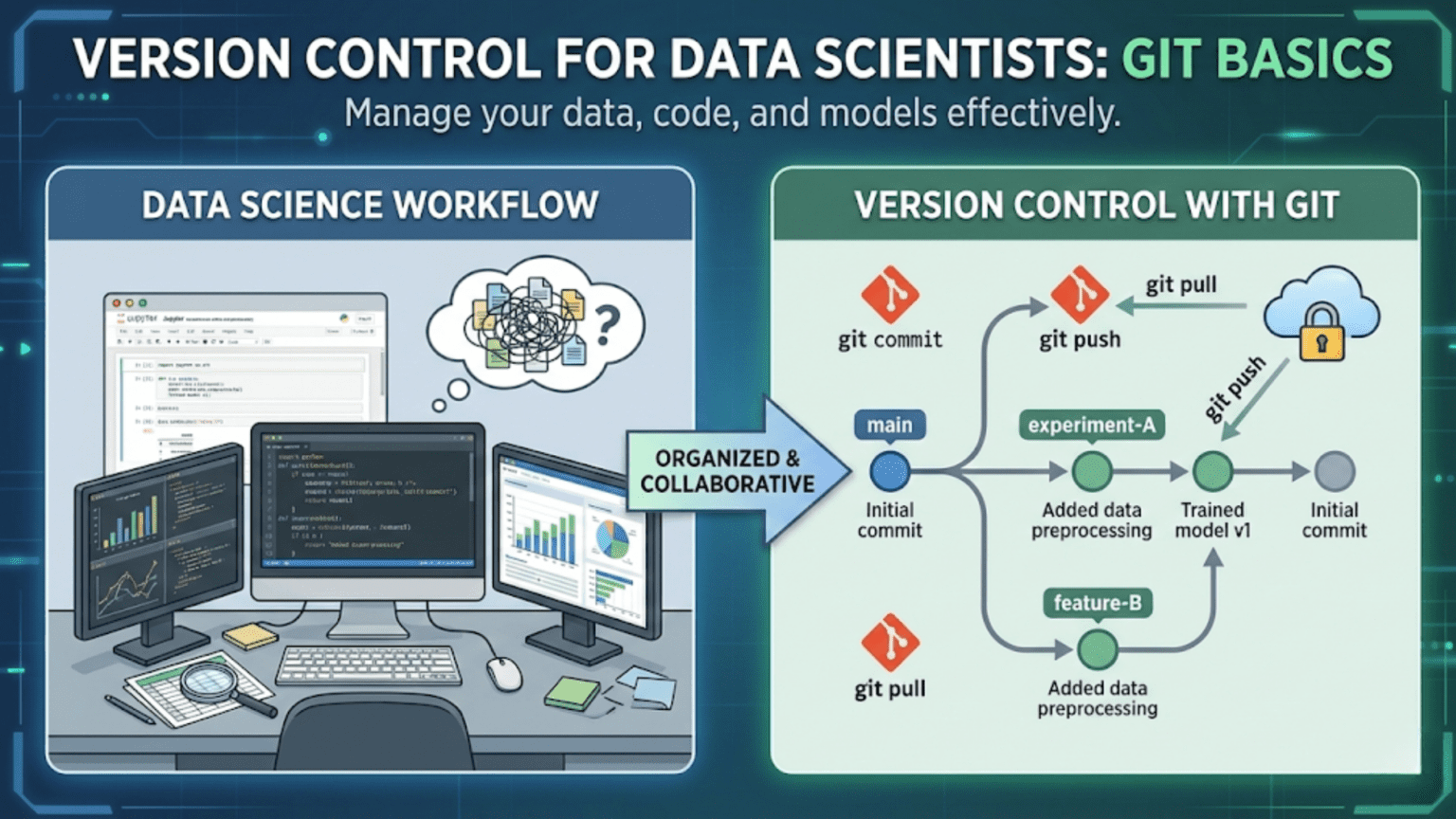
Git is a distributed version control system that tracks changes to files over time, allowing you to revisit any previous state of your project, collaborate with teammates without overwriting each other’s work, and maintain a complete history of every modification ever made. For data scientists, Git is an essential tool that transforms chaotic, file-based workflows (“model_v2_FINAL_fixed.py”) into structured, professional project management.
Introduction
Picture this scenario: you’ve spent three weeks building a machine learning model. It’s working reasonably well, and you decide to try a new feature engineering approach. Two days of work later, the model is performing worse than before — and you can’t quite remember what the original code looked like. You search through files named model_v1.py, model_v2_new.py, model_v2_new_FIXED.py, and model_FINAL_use_this_one.py, trying to piece together what you had before.
Every data scientist has lived some version of this story. It’s painful, time-consuming, and completely avoidable.
Git is the solution. It’s the industry-standard version control system used by virtually every professional software developer and an increasing number of data scientists. With Git, every change you make is recorded, every version of your project is accessible, and collaboration with teammates becomes structured and conflict-free.
This guide will take you from zero Git knowledge to confidently using version control in your daily data science work. We’ll cover what Git is, why it matters specifically for data scientists, how to set it up, and how to use the core commands that you’ll reach for every single day.
What Is Version Control?
Before diving into Git specifically, let’s understand what version control means and why it was invented.
Version control is a system that records changes to a set of files over time so that you can recall specific versions later. Think of it like an infinitely detailed “undo history” for your entire project — not just the last 20 changes, but every change ever made, by anyone, with notes explaining why each change was made.
The Problem Version Control Solves
Without version control, developers and data scientists resort to manual versioning — duplicating files, adding dates or version numbers to filenames, keeping “backup” folders. This approach:
- Creates clutter and confusion about which version is current
- Makes it impossible to understand why changes were made
- Makes collaboration a nightmare (who changed what? did their changes overwrite mine?)
- Provides no way to easily roll back a bad change
- Offers no history of the project’s evolution
With version control, you have a single source of truth for your project, a complete annotated history of every change, and the ability to branch off in experimental directions without risk.
Types of Version Control Systems
There are two main models of version control:
Centralized Version Control (CVS, Subversion/SVN): All version history is stored on a single central server. Team members check out files from this central server, make changes, and check them back in. This creates a single point of failure and requires constant network access.
Distributed Version Control (Git, Mercurial): Every team member has a complete copy of the repository and its entire history on their local machine. Changes can be made, committed, and reviewed offline. Synchronization with remote servers (like GitHub) happens explicitly when you choose.
Git is by far the most dominant distributed version control system in use today, powering the workflows of millions of developers and data scientists worldwide.
Why Git Matters Specifically for Data Scientists
Data scientists have unique version control needs that differ slightly from traditional software developers. Here’s why Git is especially valuable in data science work:
Tracking Experiments and Model Iterations
Machine learning involves constant experimentation. You try different algorithms, hyperparameters, preprocessing steps, and feature combinations. Without version control, it’s nearly impossible to remember what combination of choices produced your best result three weeks ago.
With Git, you commit a working version of your code, create a branch to try a new approach, and if the new approach doesn’t pan out, you simply switch back to the previous commit. Your best model is always recoverable.
Collaboration Without Conflict
Data science projects increasingly involve teams — data engineers building pipelines, data scientists building models, ML engineers deploying them. Without version control, multiple people working on the same codebase leads to files being overwritten and work being lost. Git provides structured tools for merging contributions from multiple people.
Reproducibility
Reproducibility is a core principle of good science. If someone asks you to reproduce results from a model you trained six months ago, you need to know exactly what code was used. Git lets you tag specific commits as “the code used for the Q3 2024 model” and check out that exact state at any time.
Code Quality and Review
Teams using Git can implement code review workflows where changes are reviewed by peers before being merged into the main codebase. This catches bugs, improves code quality, and spreads knowledge across the team.
Installing and Configuring Git
Installation
On macOS: Git is often pre-installed. Check by running:
git --versionIf not installed, the easiest approach is via Homebrew:
brew install gitOr install Xcode Command Line Tools:
xcode-select --installOn Linux (Ubuntu/Debian):
sudo apt update
sudo apt install gitOn Windows: Download Git for Windows from git-scm.com. The installer includes Git Bash — a terminal emulator that lets you use Git with Unix-style commands on Windows. Most data scientists on Windows use Git Bash or WSL (Windows Subsystem for Linux).
Initial Configuration
After installing Git, the first thing to do is configure your identity. Git attaches your name and email to every commit you make:
git config --global user.name "Your Name"
git config --global user.email "your.email@example.com"The --global flag means these settings apply to all Git repositories on your machine. You can also set a default text editor (used for writing commit messages):
# Set VS Code as the default editor
git config --global core.editor "code --wait"

# Or set nano (simpler for beginners)
git config --global core.editor "nano"Verify your configuration:
git config --listCore Git Concepts
Before learning commands, you need to understand Git’s mental model. These are the foundational concepts everything else builds on.
The Repository
A repository (or “repo”) is a directory that Git is tracking. It contains your project files plus a hidden .git folder where Git stores all the version history and metadata. Everything Git needs to know about your project’s history is inside that .git folder.
There are two types of repositories:
- Local repository: The copy on your computer
- Remote repository: A copy hosted on a server, typically GitHub, GitLab, or Bitbucket
The Three Areas of Git
This is one of the most important concepts to understand. Git manages your files across three distinct areas:
1. Working Directory (Working Tree) This is your actual project folder — the files you see and edit. When you create, modify, or delete files, those changes exist in the working directory but are not yet tracked by Git.
2. Staging Area (Index) Think of the staging area as a “preparation zone” where you assemble changes you intend to commit. You explicitly add files to the staging area to say “these are the changes I want to include in my next commit.”
3. Repository (Commit History) Once you commit the staged changes, they are permanently recorded in Git’s history. Each commit is a snapshot of your project at a specific point in time.
The workflow is: Work → Stage → Commit
Working Directory  →  Staging Area  →  Repository
(git add) (git commit)Commits
A commit is a snapshot of your project at a specific moment in time. Each commit contains:
- A unique identifier (SHA hash like
a3f8c2d) - The author’s name and email
- A timestamp
- A commit message describing what changed and why
- A reference to the previous commit (parent)
Commits are the core unit of Git. All of Git’s power — branching, merging, reverting, time-traveling — operates on commits.
Branches
A branch is a lightweight pointer to a specific commit. The default branch is typically called main (or master in older repositories). When you create a new branch, you create a parallel line of development where you can make changes independently from the main codebase.
Branches are how you work on new features or experiments without affecting your stable, working code.
The HEAD
HEAD is a special pointer that indicates where you currently are in the repository — which commit (or branch) is your “current position.” When you’re on the main branch and make a new commit, HEAD advances to point to the new commit.
Essential Git Commands
Now let’s get into the commands you’ll use every day. We’ll build up from the simplest workflows to more advanced operations.
Starting a Repository
Initialize a new repository:
cd my-data-science-project
git initThis creates the .git folder in your current directory, turning it into a Git repository. Your files are still untracked — you haven’t told Git to watch anything yet.
Clone an existing repository:
git clone https://github.com/username/repository-name.gitThis downloads a complete copy of an existing repository (including all history) to your local machine. You’ll use this when joining a project that already exists on GitHub.
Checking Status and History
Check the current state of your repository:
git statusThis is the command you’ll run most frequently. It tells you:
- Which files have been modified
- Which files are staged (ready to commit)
- Which files are untracked (new files Git doesn’t know about)
Example output:
On branch main
Changes not staged for commit:
  (use "git add <file>..." to update what will be committed)
        modified:   model_training.py

Untracked files:
  (use "git add <file>..." to include in what will be committed)
new_features.pyView commit history:
git logShows a list of all commits in reverse chronological order, with hash, author, date, and message.
For a more compact view:
git log --onelineOutput:
a3f8c2d Add random forest model comparison
b91e4af Fix missing value handling in preprocessing
c72d1e3 Initial data exploration notebookSee what changed in a file:
git diff model_training.pyShows the specific lines added (in green, prefixed with +) and removed (in red, prefixed with -) since your last commit.
Staging and Committing
Stage a specific file:
git add model_training.pyStage multiple files:
git add model_training.py feature_engineering.pyStage all changed files:
git add .The . means “everything in the current directory and subdirectories.” Use this carefully — make sure you know what you’re staging.
Unstage a file (if you staged it by mistake):
git restore --staged model_training.pyCommit staged changes:
git commit -m "Add gradient boosting model with tuned hyperparameters"The -m flag lets you write the commit message inline. If you omit -m, Git opens your configured text editor for you to write the message.
Stage and commit in one step (for tracked files only):
git commit -am "Fix bug in data preprocessing pipeline"The -a flag automatically stages all modifications to already-tracked files. Note: this doesn’t include new (untracked) files.
Writing Good Commit Messages
This deserves special attention. A commit message is a note to your future self and your teammates explaining why a change was made. Vague messages like “fix stuff” or “update” are nearly useless. Good commit messages have lasting value.
The conventional structure:
Short summary (50 characters or less)

More detailed explanation if necessary. Wrap at 72 characters.
Explain what and why, not how (the code shows how).

- Bullet points are fine for multiple changes
- Reference issue numbers if relevant: Fixes #42Examples of poor vs. good commit messages:
| Poor Message | Good Message |
|---|---|
fix | Fix KeyError in feature engineering when column is missing |
update model | Switch from RandomForest to XGBoost, improves AUC by 3% |
changes | Refactor preprocessing pipeline for readability |
wip | Add initial implementation of SMOTE for class imbalance |
stuff | Remove hardcoded file paths, use config.yaml instead |
A good commit message answers: “If applied, this commit will ___________.” For example: “If applied, this commit will fix the KeyError in feature engineering when a column is missing.”
Branching
Create a new branch:
git branch experiment-xgboostSwitch to a branch:
git checkout experiment-xgboost
# Or using the newer syntax:
git switch experiment-xgboostCreate and switch to a new branch in one command:
git checkout -b experiment-xgboost
# Or:
git switch -c experiment-xgboostList all branches:
git branchThe current branch is marked with an asterisk (*).
Delete a branch (after merging):
git branch -d experiment-xgboostA Branching Workflow Example
Here’s how a data scientist might use branches to safely experiment:
# Start on main branch with your stable model
git status
# On branch main, nothing to commit

# Create a branch to try XGBoost
git switch -c experiment-xgboost

# Make your experimental changes
# Edit model_training.py to use XGBoost...

# Commit your experiment
git add model_training.py
git commit -m "Replace RandomForest with XGBoost, initial attempt"

# More experiments...
git add .
git commit -m "Tune XGBoost learning rate and max depth"

# If the experiment succeeds, merge it into main
git switch main
git merge experiment-xgboost

# If it fails, just delete the branch - main is untouched
git switch main
git branch -d experiment-xgboostYour main branch always contains working, stable code. Experiments live in their own branches until they’re proven.
Merging
Merge a branch into your current branch:
git switch main
git merge experiment-xgboostIf there are no conflicting changes, Git performs a clean merge automatically. If two branches modified the same lines of the same file differently, Git creates a merge conflict that you must resolve manually.
Resolving Merge Conflicts
A merge conflict looks like this in your file:
<<<<<<< HEAD
model = RandomForestClassifier(n_estimators=100)
=======
model = XGBClassifier(learning_rate=0.1, max_depth=5)
>>>>>>> experiment-xgboostGit is showing you both versions. You need to edit the file to keep what you want, removing the conflict markers:
# Keep XGBoost version
model = XGBClassifier(learning_rate=0.1, max_depth=5)After editing, stage and commit to complete the merge:
git add model_training.py
git commit -m "Merge XGBoost experiment into main"Undoing Changes
One of Git’s most powerful features is the ability to undo mistakes. There are several ways to do this depending on your situation.
Discard changes in a file (before staging):
git restore model_training.pyThis reverts the file to the state of your last commit. Warning: this is irreversible for uncommitted changes.
Undo the last commit (keep changes in working directory):
git reset HEAD~1This “uncommits” your last commit, putting the changes back into your working directory unstaged. Useful when you committed too early.
Create a new commit that reverses a previous commit:
git revert a3f8c2dThis is the safe way to undo a commit that’s already been shared with others. It creates a new commit that applies the inverse of the specified commit, preserving history.
View a previous version of a file without changing your current state:
git show a3f8c2d:model_training.pyWorking with Remote Repositories
So far, everything we’ve discussed happens on your local machine. Remote repositories (typically on GitHub) enable collaboration and provide a backup of your work.
Connecting to a Remote
When you clone a repository, the remote connection is set up automatically. When you initialize a new local repository, you need to connect it to a remote:
git remote add origin https://github.com/yourusername/your-repo.gitorigin is the conventional name for your primary remote. You can have multiple remotes with different names.
List remote connections:
git remote -vPushing and Pulling
Push your commits to the remote:
git push origin mainThis sends your local main branch’s commits to the remote repository.
Push a new branch to the remote:
git push origin experiment-xgboostPull changes from the remote (fetch + merge):
git pull origin mainThis downloads new commits from the remote main branch and merges them into your local main branch. Use this to get your teammates’ latest changes.
Fetch without merging:
git fetch originDownloads remote changes but doesn’t merge them into your current branch. Useful for reviewing what teammates have pushed before integrating their changes.
The .gitignore File
Not everything in your project directory should be version-controlled. The .gitignore file tells Git which files and directories to ignore completely.
What to Ignore in Data Science Projects
For data science projects, you typically want to ignore:
- Large data files: Raw datasets (CSV, parquet, HDF5 files) are often too large for Git and belong in cloud storage (S3, GCS) or data versioning tools (DVC)
- Model binary files: Trained model files (
.pkl,.joblib,.h5) can be large and change frequently - Virtual environment folders:
venv/,env/,.conda/ - Python cache:
__pycache__/,*.pyc,*.pyo - Jupyter checkpoint folders:
.ipynb_checkpoints/ - Environment/secret files:
.envfiles containing API keys and passwords - OS-generated files:
.DS_Store(macOS),Thumbs.db(Windows) - IDE configuration folders:
.vscode/(sometimes),.idea/
A Data Science .gitignore Template
Create a .gitignore file in your project root:
# Data files (store in S3, GCS, or DVC instead)
data/raw/
data/processed/
*.csv
*.parquet
*.h5
*.hdf5

# Model files
models/
*.pkl
*.joblib
*.h5

# Python
__pycache__/
*.pyc
*.pyo
*.pyd
.Python
*.egg-info/
dist/
build/

# Virtual environments
venv/
env/
.conda/
.env

# Jupyter
.ipynb_checkpoints/

# OS files
.DS_Store
Thumbs.db

# Secrets and environment variables
.env
*.secret
config/secrets.yaml

# IDE
.vscode/settings.json
.idea/Important note on data files: The .gitignore approach ignores data files from Git entirely. For actual data version control (tracking which version of your dataset was used to train each model), look into DVC (Data Version Control) — a Git-like tool specifically designed for data and model files.
A Complete Data Science Git Workflow
Let’s walk through a realistic, end-to-end Git workflow for a data science project, from initialization to collaboration.
Setting Up a New Project
# Create project directory
mkdir customer-churn-prediction
cd customer-churn-prediction

# Initialize Git
git init

# Create project structure
mkdir data notebooks src tests
touch README.md .gitignore requirements.txt

# Add your .gitignore content
nano .gitignore
# (add data science gitignore content from above)

# Initial commit
git add README.md .gitignore requirements.txt
git commit -m "Initialize project structure"

# Connect to GitHub (after creating the repo on GitHub)
git remote add origin https://github.com/yourname/customer-churn-prediction.git
git push -u origin mainThe Daily Development Cycle
# Start your day by pulling latest changes from teammates
git pull origin main

# Check status before starting work
git status

# Create a branch for your new work
git switch -c feature/add-feature-importance-plot

# Do your data science work...
# Edit notebooks/02_model_training.ipynb
# Edit src/visualization.py

# Review what changed
git diff src/visualization.py

# Stage your changes
git add src/visualization.py
git add notebooks/02_model_training.ipynb

# Commit with a descriptive message
git commit -m "Add feature importance bar chart to model evaluation"

# Push your branch to GitHub
git push origin feature/add-feature-importance-plot

# Open a Pull Request on GitHub for code review
# (done through the GitHub web interface)

# After approval and merge, clean up
git switch main
git pull origin main
git branch -d feature/add-feature-importance-plotGit for Jupyter Notebooks: Special Considerations
As mentioned in the previous article, Jupyter Notebook files (.ipynb) present specific challenges for Git because they store output cells in JSON format. Here’s how to handle this professionally.
Option 1: Strip Outputs Before Committing
Manually clear all outputs before committing a notebook: in Jupyter, go to Cell > All Output > Clear. Then commit the clean notebook.
Option 2: Use nbstripout
nbstripout is a tool that automatically strips notebook outputs before they’re committed to Git, acting as a Git filter:
pip install nbstripout
# Install as a Git filter for the current repository
nbstripout --installAfter installation, whenever you git add a notebook, outputs are automatically stripped. Teammates running the notebook will re-generate outputs locally — but the notebook code stays clean and version-controllable.
Option 3: Use Jupytext
Jupytext synchronizes notebooks with plain .py scripts:
pip install jupytextConfigure Jupytext to auto-generate a .py version of every notebook. Commit the .py file (which diffs beautifully) and optionally ignore the .ipynb in .gitignore.
Git Commands Quick Reference
Here’s a comprehensive reference table for the commands covered in this guide:
| Command | Description |
|---|---|
git init | Initialize a new Git repository |
git clone <url> | Clone a remote repository locally |
git status | Show working directory and staging area status |
git log --oneline | View compact commit history |
git diff <file> | Show unstaged changes in a file |
git add <file> | Stage a file for commit |
git add . | Stage all changed files |
git commit -m "message" | Commit staged changes with a message |
git push origin <branch> | Push branch to remote |
git pull origin <branch> | Pull and merge remote changes |
git fetch origin | Download remote changes without merging |
git branch | List branches |
git switch -c <branch> | Create and switch to a new branch |
git switch <branch> | Switch to an existing branch |
git merge <branch> | Merge a branch into the current branch |
git branch -d <branch> | Delete a merged branch |
git restore <file> | Discard unstaged changes in a file |
git reset HEAD~1 | Undo last commit, keep changes staged |
git revert <hash> | Create a new commit reversing a past commit |
git stash | Temporarily save uncommitted changes |
git stash pop | Restore stashed changes |
git remote -v | List remote connections |
git remote add origin <url> | Add a remote connection |
git config --list | Show Git configuration |
Common Git Mistakes and How to Fix Them
“I committed to the wrong branch”
# Move the last commit to a new branch
git switch -c correct-branch
git switch wrong-branch
git reset HEAD~1“I accidentally committed a large data file”
# Remove the file from tracking (add to .gitignore first!)
git rm --cached large_dataset.csv
echo "large_dataset.csv" >> .gitignore
git add .gitignore
git commit -m "Remove large data file from tracking"Note: If you’ve already pushed this to a remote repository, the file is in the history and needs more advanced techniques (like git filter-branch or BFG Repo-Cleaner) to remove completely.
“I accidentally committed my API key”
This is serious. Treat the key as compromised — rotate it immediately through the service provider. Then remove it from Git history using git filter-branch or BFG Repo-Cleaner. Going forward, store secrets in .env files and add .env to .gitignore.
“My merge created a mess and I want to start over”
# Abort the merge and return to pre-merge state
git merge --abort“I want to see what the file looked like 3 commits ago”
git show HEAD~3:model_training.pyOr check it out temporarily:
git checkout HEAD~3 -- model_training.py
# Review the file, then restore the current version:
git checkout HEAD -- model_training.pyGit Stash: Saving Work in Progress
Sometimes you’re in the middle of working on something when you need to quickly switch to another branch (maybe a bug was found in production). You’re not ready to commit your half-finished work, but you also don’t want to lose it.
git stash is the solution:
# Save your uncommitted changes temporarily
git stash

# Your working directory is now clean — switch branches freely
git switch main
# Fix the bug...
git commit -m "Fix critical bug in production pipeline"

# Switch back to your feature branch
git switch feature/my-work

# Restore your stashed changes
git stash popYou can have multiple stashes and list them with git stash list.
Best Practices for Data Scientists Using Git
Commit Early and Often
Small, focused commits are much easier to understand, review, and revert than large, sweeping changes. Commit whenever you complete a logical unit of work, even if it’s just a small improvement.
One Logical Change Per Commit
Each commit should represent a single logical change. Don’t bundle “Fix missing value handling, add new features, and update README” into one commit. Three separate commits with clear messages are far more valuable.
Never Commit Directly to Main
Treat your main branch as sacred — it should always contain working, tested code. Do all your work in feature branches and merge to main only when the work is ready.
Write Meaningful Commit Messages
Invest 30 seconds in writing a clear commit message. Your future self will thank you six months from now when you’re trying to understand why you made a change.
Use a Consistent Branch Naming Convention
Clear branch names make project navigation much easier:
feature/add-shap-explanationsexperiment/lstm-time-seriesfix/handle-null-datesrefactor/simplify-preprocessing
Keep Data Out of Git
Data files belong in dedicated storage (S3, Google Cloud Storage, local data directories) or data version control tools like DVC. Git is for code, not data.
Review git status and git diff Before Every Commit
Before running git commit, always run git status to confirm what you’re committing and git diff --staged to review the actual line-level changes. This prevents accidental commits of debug code, secrets, or unintended files.
Beyond the Basics: What to Learn Next
Once you’re comfortable with the concepts in this article, several advanced Git topics will further improve your workflow:
Git rebase offers an alternative to merging that rewrites commit history to create a cleaner, linear project history. It’s controversial but widely used.
Interactive rebase (git rebase -i) lets you rewrite, squash, and reorder commits before sharing them — useful for cleaning up messy experimental work into clean, logical commits.
Git tags let you mark specific commits as significant milestones, like v1.0-baseline-model or 2024-q3-production-release.
GitHub Pull Requests (covered in the next article) provide the formal workflow for proposing, reviewing, and merging changes in team environments.
Git hooks are scripts that run automatically at specific points in the Git workflow — like running your test suite before every commit to prevent broken code from being committed.
DVC (Data Version Control) extends Git-like versioning to data files and ML models, enabling true reproducibility of ML experiments including the exact dataset and model weights used.
Summary
Git is an indispensable tool for data scientists, transforming chaotic, file-duplication-based workflows into professional, structured project management. The core workflow you’ll use every day is simple: make changes in your working directory, stage the changes you want to record with git add, and commit them with a clear message using git commit.
Branches let you experiment safely without affecting your stable main codebase. Remote repositories on GitHub provide collaboration infrastructure and off-site backup. The .gitignore file keeps data files, secrets, and generated files out of your repository.
The best way to learn Git is to start using it on every project, even personal ones with no collaborators. The habits you build — small, frequent commits; descriptive messages; feature branches; reviewing diffs before committing — become second nature quickly, and the protection and clarity they provide make you a significantly more effective and professional data scientist.
Key Takeaways
- Git tracks file changes over time, enabling you to recover any previous version of your project and collaborate without overwriting teammates’ work
- The three areas of Git — working directory, staging area, and repository — define a clear workflow: edit, stage, commit
- Branches let you experiment safely in parallel without affecting your stable
mainbranch - Good commit messages (descriptive, explaining the why) are an investment in your project’s long-term maintainability
- The
.gitignorefile is essential for keeping data files, secrets, and generated files out of version control - Jupyter Notebooks require special handling in Git due to their JSON format and stored outputs — use
nbstripoutfor clean diffs - The daily Git rhythm is:
git pull→git switch -c(new branch) → do work →git add→git commit→git push - Start using Git on all your projects immediately — the habits it builds are foundational to professional data science work