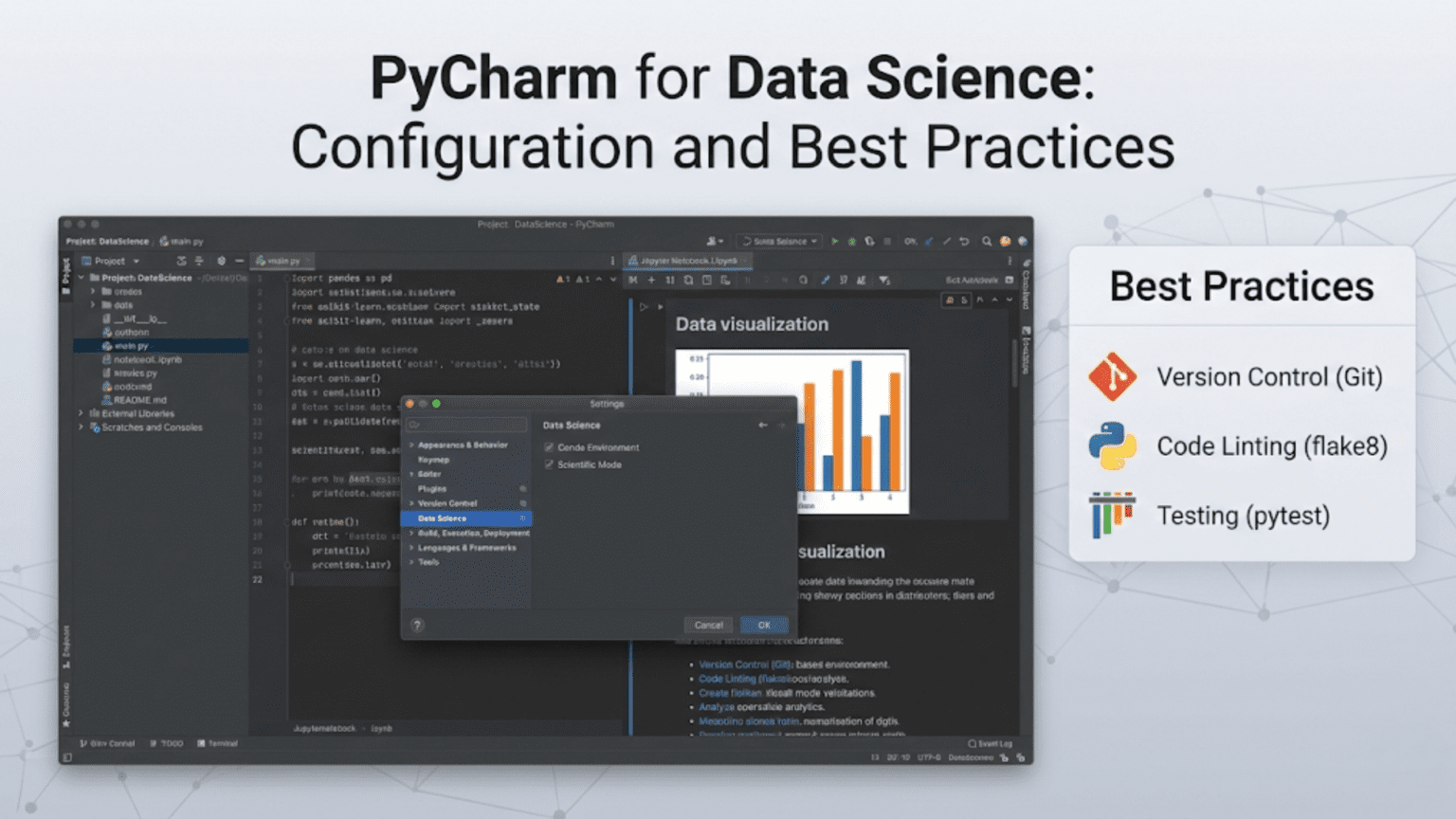
PyCharm is a full-featured Python IDE developed by JetBrains that offers one of the most powerful and deeply integrated development environments for data scientists. With built-in support for Jupyter Notebooks, an interactive Scientific mode, advanced code intelligence, a sophisticated debugger, database tools, and a comprehensive testing framework — all configured and ready out of the box — PyCharm is the IDE of choice for data scientists who want maximum power and tooling depth without manually assembling extensions and configurations.
Introduction
In the landscape of Python development environments, two tools stand above the rest for serious data science work: VS Code and PyCharm. While VS Code wins on flexibility and lightweight performance, PyCharm wins on depth, integration, and the “everything just works” experience.
PyCharm is developed by JetBrains, the same company behind IntelliJ IDEA (used by Java developers worldwide), WebStorm (JavaScript), and a family of purpose-built IDEs. JetBrains has decades of experience building developer tooling, and it shows in PyCharm’s quality — the code analysis is extraordinarily accurate, the refactoring tools are unmatched in the Python world, and the debugging experience is the best available for Python.
For data scientists, PyCharm Professional (the paid edition) offers something genuinely differentiated: a deeply integrated scientific computing environment that treats data exploration, visualization, and notebook-based work as first-class citizens rather than add-on features. The Scientific mode transforms PyCharm into something closer to a dedicated data science workbench.
That said, PyCharm’s depth can be overwhelming without guidance. This article is your comprehensive guide to configuring PyCharm specifically for data science work — from installation and edition selection through every important setting, tool, and workflow that will make you maximally productive.
PyCharm Editions: Community vs. Professional
The first decision every PyCharm user faces is which edition to use. This choice significantly affects your data science workflow.
PyCharm Community Edition
The Community Edition is completely free and open-source. It provides excellent Python development support:
- Full Python IDE features (syntax highlighting, IntelliSense, code navigation)
- Advanced debugger with breakpoints and variable inspection
- Built-in Git and version control integration
- Refactoring tools (rename, extract method, introduce variable)
- Code quality analysis and inspections
- Virtual environment and conda environment management
- Testing support (pytest, unittest)
- Basic database console
For general Python development and learning, the Community Edition is excellent. However, it lacks several features that matter significantly for data science.
PyCharm Professional Edition
The Professional Edition is paid (subscription-based) and adds capabilities that are genuinely transformative for data scientists:
- Jupyter Notebook support: Open, create, and run
.ipynbfiles directly in PyCharm - Scientific mode: A specialized view with a Variables panel, plots panel, and interactive console
- Scientific View: Inline plots in the console, DataFrame inspection with the Data viewer
- Remote development: Connect to remote interpreters on SSH servers, Docker containers, or WSL
- Database tools: Full-featured SQL editor, ER diagrams, data viewer for database tables
- Web framework support: Django, Flask, FastAPI (useful when deploying ML models as APIs)
- Profiler: Code performance profiling to identify bottlenecks in your pipeline
- HTTP client: Test REST APIs without leaving the IDE
JetBrains offers a free 30-day trial of Professional. They also offer free licenses for students and teachers, and substantially discounted rates for open-source contributors.
Edition Comparison
| Feature | Community | Professional |
|---|---|---|
| Python IDE core features | Yes | Yes |
| Debugger | Yes | Yes |
| Git integration | Yes | Yes |
| Refactoring tools | Yes | Yes |
| Virtual environment management | Yes | Yes |
| Jupyter Notebook support | No | Yes |
| Scientific mode | No | Yes |
| Interactive plots in console | No | Yes |
| DataFrame viewer | No | Yes |
| Remote interpreter (SSH/Docker) | No | Yes |
| Database tools | Basic | Full |
| Web framework support | No | Yes |
| Code profiler | No | Yes |
| Price | Free | ~$249/year (individual) |
For professional data scientists working with notebooks and remote servers, Professional is worth the cost. For learners or those who primarily write scripts, Community is entirely sufficient.
Installation
Downloading PyCharm
Visit jetbrains.com/pycharm and download the appropriate installer:
- Windows:
.exeinstaller — run it and follow the setup wizard. Check “Add launchers dir to the PATH” to enable thecharmcommand-line launcher. - macOS:
.dmgfile — drag PyCharm to Applications. Add the command-line launcher via Tools → Create Command-line Launcher inside PyCharm. - Linux:
.tar.gzarchive or install via JetBrains Toolbox (recommended for easy version management).
JetBrains Toolbox (Recommended)
JetBrains Toolbox is a separate application that manages all JetBrains IDEs, handles updates, and lets you maintain multiple versions side-by-side. Installing and managing PyCharm through Toolbox is simpler than manual installation for most users. Download it from jetbrains.com/toolbox-app.
First Launch
When PyCharm opens for the first time, it walks you through basic configuration: UI theme, keymap scheme, and optional plugin installations. The most important choice here is the keymap — the default “PyCharm” keymap is excellent, though developers migrating from other editors can choose VS Code, Emacs, or Vim keymaps.
Creating Your First Data Science Project
New Project Configuration
When you create a new project in PyCharm (File → New Project), the setup dialog offers important configuration choices:
Location: Choose a clean project directory. PyCharm creates the interpreter environment inside this directory by default.
Python Interpreter: This is the most important setting. Options include:
- New environment using Virtualenv: Creates a fresh virtual environment inside your project (recommended for isolated projects)
- New environment using Conda: Creates a conda environment (better if you use conda and need packages like numpy that benefit from conda’s binary distribution)
- Existing interpreter: Use a pre-created environment or system Python
Project template: For data science, choose “Pure Python” — you’ll configure the scientific tools manually for maximum control.
Click Create. PyCharm creates the project structure and installs the interpreter.
Installing Data Science Packages
Once the project is created, open the integrated terminal (Alt+F12 / Option+F12) and install your core data science stack:
pip install numpy pandas matplotlib seaborn scikit-learn jupyter ipykernelOr install from a requirements.txt:
pip install -r requirements.txtPyCharm monitors package installations and updates its project interpreter index automatically, so new packages become available in IntelliSense within seconds.
The PyCharm Interface for Data Scientists
PyCharm’s interface is denser than VS Code’s by design — it surfaces more information and tools simultaneously. Understanding the key panels helps you navigate efficiently.
Project Tool Window
The Project tool window (left panel, Alt+1) shows your project file tree. Files are color-coded:
- Blue: Files tracked by Git
- Green: New files not yet added to Git
- Red: Files with errors
- Gray: Ignored files (listed in
.gitignore)
This color coding makes it immediately obvious which files have been modified or have problems.
Editor Window
The main code editor. PyCharm’s editor renders several layers of information simultaneously:
- Gutter: Line numbers, breakpoints, Git change indicators (green for added, blue for modified, gray for deleted)
- Inspections: Yellow (warnings) and red (errors) highlights on problematic code
- Breadcrumbs: Navigation bar at the top showing your location in the class/function hierarchy
- Parameter hints: Grayed-out text showing parameter names for function calls you’re typing
The Scientific Panel (Professional Only)
In Python Scientific mode (View → Scientific Mode), the right panel splits into:
- Variables: All variables in the current session with type, shape, and value
- Plots: All generated matplotlib/seaborn plots, collected in a gallery you can browse
- SciView: A dedicated pane for large plot viewing
This panel alone is worth much of the Professional edition’s price for data scientists — having all plots collected in one browsable gallery, and being able to click any DataFrame variable to open it in a full spreadsheet viewer, transforms the exploratory workflow.
The Python Console
The Python Console (Alt+F8 / Option+F8) is an interactive Python REPL that shares state with your running scripts in Scientific mode. Key features:
- Execute arbitrary Python expressions interactively
- The console maintains all variables from your script’s execution
- In Scientific mode, plots appear inline in the console output
- Tab completion works the same as in the editor
- You can inspect any variable with a simple expression:
df.head(),model.feature_importances_, etc.
Tool Windows Overview
| Tool Window | Shortcut | Purpose |
|---|---|---|
| Project | Alt+1 | File tree and project structure |
| Bookmarks | Alt+2 | Bookmarked lines and files |
| Find | Alt+3 | Find results |
| Run | Alt+4 | Script execution output |
| Debug | Alt+5 | Debugging panel |
| Problems | Alt+6 | All errors and warnings |
| Structure | Alt+7 | Current file’s class/function outline |
| Git | Alt+9 | Git log and changes |
| Python Console | Alt+F8 | Interactive Python REPL |
| Terminal | Alt+F12 | System terminal |
Configuring PyCharm for Data Science
Setting Up the Python Interpreter
Verify your interpreter is correctly configured: File → Settings → Project → Python Interpreter (on macOS: PyCharm → Preferences → Project → Python Interpreter).
You’ll see a list of all installed packages with their versions. The gear icon lets you:
- Add: Install new packages (opens a package installer with search)
- Remove: Uninstall packages
- Show all: See all configured interpreters and switch between them
Configuring Code Style
PyCharm’s code style settings control how the editor formats and analyzes your Python code: File → Settings → Editor → Code Style → Python.
For data science teams using Black, configure PyCharm to match Black’s style:
- Install the BlackConnect plugin (File → Settings → Plugins → Marketplace, search “BlackConnect”)
- Or simply set line length to 88 and configure indentation to spaces (4) to match Black’s defaults
To run Black as an external tool on save:
- File → Settings → Tools → External Tools → click
+ - Name: “Black Formatter”
- Program:
$PyInterpreterDirectory$/black - Arguments:
$FilePath$ - Working directory:
$ProjectFileDir$
Then assign a keyboard shortcut in File → Settings → Keymap → search “External Tools → Black Formatter”.
Configuring Inspections
PyCharm’s code inspections are its most powerful code quality feature — static analysis that catches bugs, style violations, and potential problems as you type. Configure them at File → Settings → Editor → Inspections.
For data science, the most valuable inspections to enable are:
- Python → Unresolved references: Catches typos in variable and function names
- Python → Type checker: Warns about type mismatches (if you use type hints)
- Python → PEP 8 coding style violations: Style compliance
- Probable bugs → Shadowed built-in name: Warns when you name a variable
list,str,dictetc.
You can set each inspection’s severity — Error (red, blocking) or Warning (yellow, advisory).
Enabling Scientific Mode
In PyCharm Professional, enable Scientific mode by going to View → Scientific Mode or clicking the beaker icon in the toolbar. This activates the Variables and Plots panels on the right side of the interface.
When Scientific mode is active, running any Python script or console command that generates a matplotlib plot will display it in the Plots panel rather than a separate pop-up window — keeping your workflow contained in one environment.
Jupyter Notebooks in PyCharm Professional
PyCharm Professional’s Jupyter support is tightly integrated — notebooks open natively in the editor, and the experience combines Jupyter’s interactivity with PyCharm’s intelligence.
Opening and Creating Notebooks
Open any .ipynb file by double-clicking it in the Project tool window. PyCharm renders it with a notebook-style cell interface. Create a new notebook via File → New → Jupyter Notebook.
Notebook Features in PyCharm
PyCharm’s notebook experience has several advantages over the browser-based Jupyter:
Superior IntelliSense in cells: PyCharm’s code completion inside notebook cells is significantly better than Jupyter’s — it resolves types across cell boundaries, shows complete documentation, and catches errors without running code.
Integrated Variables panel: When you run notebook cells, all variables appear immediately in the Variables panel on the right. Click any DataFrame or array variable to open it in the Data View — a full spreadsheet interface with column filtering, sorting, and value statistics.
Notebook debugging: Set breakpoints in notebook cells and debug them with PyCharm’s full debugger — stepping through code, inspecting variables, evaluating expressions. This is substantially more capable than Jupyter’s built-in debugging.
Diff view for notebooks: When reviewing Git changes, PyCharm can show notebook diffs in a cell-by-cell comparison view, making it much easier to review what changed than raw JSON diffs.
Refactoring across notebooks: Rename a variable or function in a notebook cell and PyCharm can propagate the rename across the entire notebook — something browser-based Jupyter doesn’t support.
Running Notebooks
The toolbar above each notebook provides controls: Run All, Run Selected Cell, Clear All Outputs, Restart Kernel. Individual cells have run buttons on the left margin (or use Shift+Enter to run and advance).
The kernel status indicator shows whether the kernel is idle, busy, or disconnected. Click it to restart or select a different kernel.
The PyCharm Debugger: A Data Scientist’s Best Friend
PyCharm’s debugger is widely regarded as the most capable Python debugger available. For data scientists tracking down issues in complex pipelines, it is an extraordinary tool.
Setting Breakpoints
Click in the gutter (left margin) next to any line number to set a breakpoint. Types of breakpoints in PyCharm:
- Line breakpoint (red circle): Pauses execution at that line
- Conditional breakpoint (red circle with question mark): Pauses only when a condition is true (right-click a breakpoint to add a condition)
- Exception breakpoint: Pauses whenever a specific exception is raised
For data science, conditional breakpoints are particularly powerful:
# Right-click the breakpoint on this line and add condition:
# df.shape[0] < 100
# This only pauses if your DataFrame unexpectedly loses rows
result = preprocessing_pipeline.transform(df)The Debug Panel
When a breakpoint is hit, the Debug panel opens showing:
Variables tab: Every variable in scope, organized by local and global. Expand objects to see their attributes. For DataFrames and arrays, a special icon opens the Data Viewer. This is immensely useful for inspecting intermediate states of your data pipeline.
Watches tab: Add arbitrary Python expressions to monitor continuously as you step through code:
df.shape           # Watch the DataFrame shape change
df['target'].sum() # Watch how the target distribution evolves
model.n_iter_ # Watch model convergenceConsole tab: A REPL attached to the current debug session. You can execute arbitrary Python expressions in the context of the paused program — inspect variables, call functions, even modify values mid-execution.
Frames tab: The call stack showing which functions were called to reach the current line.
Debug Actions
| Action | Shortcut | Description |
|---|---|---|
| Start Debugging | Shift+F9 | Run current script in debug mode |
| Resume Program | F9 | Continue to next breakpoint |
| Step Over | F8 | Execute line, don’t enter functions |
| Step Into | F7 | Enter the called function |
| Step Into My Code | Alt+Shift+F7 | Enter only your code, skip library code |
| Step Out | Shift+F8 | Finish current function, return to caller |
| Evaluate Expression | Alt+F8 | Evaluate an expression in current context |
| Set Value | Right-click variable | Change a variable’s value mid-execution |
“Set Value” is particularly powerful for data scientists. If you pause at a breakpoint and see a variable has an unexpected value, you can change it to what it should be and continue running — testing whether the rest of the pipeline works correctly without having to restart from scratch.
Debugging Data Pipelines: A Practical Example
Here’s how debugging transforms data science work. Suppose your preprocessing pipeline is silently dropping too many rows:
def preprocess_data(df):
    # Step 1: Remove duplicates
    df = df.drop_duplicates()

    # Step 2: Handle missing values
    df = df.dropna(subset=['customer_id', 'purchase_date'])

    # Step 3: Filter invalid dates
    df = df[df['purchase_date'] > '2020-01-01']

    # Step 4: Remove outliers
    df = df[df['amount'].between(df['amount'].quantile(0.01),
                                  df['amount'].quantile(0.99))]
return dfSet a breakpoint on line 3 with a watch expression df.shape. Step through each line, watching the shape after each transformation. In three clicks, you identify exactly which step is removing unexpectedly large numbers of rows — without adding a single print statement and without rerunning the entire pipeline.
Version Control Integration
PyCharm’s Git integration is deeply woven into the IDE — more comprehensive than most standalone Git GUIs.
The Git Tool Window
Open Git (Alt+9) to see:
- Log tab: A visual commit graph showing all branches, merges, and commit history. Each commit shows the message, author, date, and changed files. Click any commit to see its full diff.
- Console tab: All Git commands PyCharm has executed, useful for understanding what operations are happening
- Branches panel: Manage local and remote branches visually
Inline Change Indicators
The gutter shows colored bars for every changed line:
- Green bar: New line not in the last commit
- Blue bar: Modified line Gray indicator: Deleted line location
Click any bar to see a pop-up showing the original content and options to revert just that change — surgical precision for undoing specific lines without reverting the entire file.
Resolving Merge Conflicts
PyCharm’s merge conflict resolution tool is best-in-class. When a conflict occurs, PyCharm opens a three-panel view:
- Left panel: Your version (local)
- Right panel: Their version (incoming)
- Middle panel: The result (what the file will look like after resolution)
Buttons let you accept a specific change from left or right, or manually edit the middle panel for custom resolution. This is vastly clearer than editing raw conflict markers in the file.
Commit Dialog
PyCharm’s commit dialog (Ctrl+K / Cmd+K) shows all changed files, lets you review diffs, stage individual files or specific hunks, write your commit message, and run code inspections before committing — all in one workflow. The option “Perform code analysis” runs PyCharm’s inspections on staged files before committing, catching issues before they enter the repository.
Run Configurations
Run configurations are saved, named sets of parameters for running your scripts. For data science projects with complex command-line arguments, they eliminate the need to remember and retype arguments every time.
Creating a Run Configuration
Run → Edit Configurations → + → Python:
Name: Train XGBoost Model
Script path: /path/to/project/src/train.py
Parameters: --config configs/xgboost_config.yaml --experiment prod_run_01
Environment variables: PYTHONPATH=/path/to/project/src;DATA_DIR=/path/to/data
Working directory: /path/to/project
Python interpreter: Project default (venv)Save this. Now you can select “Train XGBoost Model” from the Run toolbar and run it with one click — or one keyboard shortcut (Shift+F10). You can have dozens of configurations for different scripts, different parameter combinations, and different environments.
Running Multiple Configurations
PyCharm lets you run multiple configurations simultaneously in separate tabs of the Run panel. You can have your training script running in one tab while monitoring preprocessing output in another — without separate terminal windows.
Code Intelligence Features
Auto-Completion and Type Inference
PyCharm’s code completion is the most accurate in the Python ecosystem, powered by deep static analysis rather than simple text matching. It resolves types through complex chains:
import pandas as pd

df = pd.read_csv("data.csv")  # PyCharm infers df: DataFrame
df.  # Shows all DataFrame methods with accurate signatures

filtered = df[df['age'] > 30]  # Infers filtered: DataFrame
filtered.groupby( # Shows correct groupby signatureEven when types aren’t explicitly annotated, PyCharm infers them through data flow analysis — showing you the correct completions for the actual type of each variable.
Live Templates
Live templates are code snippets that expand from short abbreviations. PyCharm includes many Python templates and lets you create your own. Type the abbreviation and press Tab to expand:
iter → for x in __iterable__:For data science, create custom templates:
df_head→print(df.head())\nprint(df.shape)\nprint(df.dtypes)plot_hist→plt.figure(figsize=(10, 6))\nplt.hist(__data__, bins=30)\nplt.xlabel("__label__")\nplt.show()train_test→X_train, X_test, y_train, y_test = train_test_split(X, y, test_size=0.2, random_state=42)
Create them at File → Settings → Editor → Live Templates → Python → +.
Refactoring Tools
PyCharm’s refactoring tools are among the most powerful in any Python IDE:
Rename (Shift+F6): Renames a variable, function, or class everywhere it’s used across the entire project — including string references if you choose. For renaming columns in a data pipeline used across multiple files, this is invaluable.
Extract Method (Ctrl+Alt+M / Cmd+Option+M): Select a block of code and extract it into a new function. PyCharm automatically identifies parameters and return values.
Extract Variable (Ctrl+Alt+V / Cmd+Option+V): Wrap an expression in a named variable. Useful for making complex pandas operations more readable:
# Select this expression:
df[df['revenue'] > df['revenue'].quantile(0.95)]
# Extract Variable → names it and replaces with the variable
high_revenue_customers = df[df['revenue'] > df['revenue'].quantile(0.95)]Inline (Ctrl+Alt+N): The opposite of Extract — replace a variable with its value directly.
Move (F6): Move a function or class to a different file, updating all imports automatically.
Find Usages and Go to Definition
- Go to Definition (
Ctrl+B/Cmd+BorCtrl+Click): Jump to where a function, class, or variable is defined — even into library source code - Find Usages (
Alt+F7): Show every place a function or variable is used in the project, in a panel grouped by usage type (calls, assignments, imports) - Hierarchy (
Ctrl+H): Show class inheritance hierarchy - Quick Documentation (
Ctrl+Q/F1): Show the docstring for the symbol under the cursor as a pop-up — without leaving the editor
Database Tools (Professional)
Many data science workflows involve reading from and writing to databases. PyCharm Professional’s database tools are among the best in any IDE.
Connecting to a Database
View → Tool Windows → Database opens the Database panel. Click + → Data Source → choose your database type (PostgreSQL, MySQL, SQLite, MongoDB, Snowflake, BigQuery, and many others).
Once connected, you can:
- Browse the database schema visually
- Write SQL queries with full auto-completion of table names, column names, and SQL keywords
- Execute queries and see results in an editable data grid
- Export query results to CSV, JSON, or Excel
SQL in Python Code
When you write SQL queries in Python strings, PyCharm recognizes them and provides SQL completion and error checking:
query = """
    SELECT customer_id,
           SUM(amount) as total_revenue,  -- ← PyCharm provides column completion here
           COUNT(*) as num_purchases
    FROM transactions
    WHERE purchase_date >= '2024-01-01'
    GROUP BY customer_id
    HAVING total_revenue > 1000
"""
df = pd.read_sql(query, connection)Place the cursor inside the SQL string and press Alt+Enter to get options like “Edit SQL Fragment” — opening the query in a proper SQL editor with full syntax checking.
Performance Profiling
Understanding where your data science code spends its time is crucial for optimization. PyCharm Professional includes a built-in profiler.
Running the Profiler
Run → Profile runs your current script with profiling enabled. After execution, a flame graph and call tree show you exactly how much time was spent in each function.
Function                           | Calls | Time    | %
preprocessing.transform            | 1     | 12.3s   | 67%
  pandas.DataFrame.merge           | 3     | 8.1s    | 44%
  pandas.DataFrame.drop_duplicates | 1     | 3.2s    | 17%
feature_engineering.create_features| 1     | 4.8s    | 26%
numpy.array operations | 47 | 3.1s | 17%This immediately identifies that the merge operations are the bottleneck — actionable intelligence for optimization efforts.
For line-level profiling (identifying which specific lines within a function are slow), install line_profiler and use PyCharm’s support for it via the @profile decorator.
Working with Remote Interpreters (Professional)
Many data scientists train models on remote servers with GPUs or significant RAM that their laptops don’t have. PyCharm Professional’s remote interpreter feature makes this seamless.
Configuring an SSH Interpreter
File → Settings → Project → Python Interpreter → gear icon → Add → SSH Interpreter:
- Enter the SSH host, port, username, and authentication method
- PyCharm connects to the remote server and lets you select a Python interpreter (or conda environment) on it
- Configure a path mapping: your local project folder ↔ a folder on the remote server
- Click OK
Once configured, every time you run, debug, or get IntelliSense, it happens against the remote Python installation. Your local PyCharm interface feels exactly the same — but the heavy computation runs on the remote machine. PyCharm transparently syncs your code changes to the remote server.
Configuring a Docker Interpreter
Similarly, you can set a Docker container as the interpreter:
Add → Docker → select a Docker image → configure environment variables.
PyCharm starts the container when needed, executes Python inside it, and maps your local project files into the container. This is ideal for ensuring your code runs in the exact same environment as production.
PyCharm Plugins for Data Scientists
PyCharm’s plugin marketplace extends its capabilities further. The most valuable plugins for data scientists:
CSV Plugin: Enhanced CSV editing with column alignment, visual editing mode, and column statistics.
Rainbow Brackets: Colors matching brackets in different colors, making deeply nested pandas and sklearn code much easier to read.
Grazie Professional: Advanced grammar and style checking for Markdown files and comments — useful for keeping documentation quality high.
Requirements: Better handling of requirements.txt files with version auto-completion and package health checks.
GitToolBox: Extends Git integration with inline blame annotations and status bar information.
String Manipulation: Text manipulation utilities (case conversion, sorting, encoding) for working with string data.
Install plugins at File → Settings → Plugins → Marketplace.
Keyboard Shortcuts for Data Science in PyCharm
PyCharm has an extensive keyboard shortcut system. Here are the most valuable shortcuts for data science work:
| Action | Windows/Linux | macOS | Context |
|---|---|---|---|
| Run current script | Shift+F10 | Ctrl+R | General |
| Debug current script | Shift+F9 | Ctrl+D | General |
| Open Python console | Alt+F8 | Option+F8 | General |
| Go to definition | Ctrl+B | Cmd+B | Navigation |
| Find usages | Alt+F7 | Option+F7 | Navigation |
| Quick documentation | Ctrl+Q | F1 | Navigation |
| Rename | Shift+F6 | Shift+F6 | Refactoring |
| Extract method | Ctrl+Alt+M | Cmd+Option+M | Refactoring |
| Extract variable | Ctrl+Alt+V | Cmd+Option+V | Refactoring |
| Reformat code | Ctrl+Alt+L | Cmd+Option+L | Code quality |
| Optimize imports | Ctrl+Alt+O | Ctrl+Option+O | Code quality |
| Comment/uncomment | Ctrl+/ | Cmd+/ | Editing |
| Duplicate line | Ctrl+D | Cmd+D | Editing |
| Move line up/down | Shift+Alt+↑/↓ | Shift+Option+↑/↓ | Editing |
| Run cell (notebook) | Shift+Enter | Shift+Enter | Jupyter |
| Next/prev cell | Ctrl+↓/↑ | Cmd+↓/↑ | Jupyter |
| Search everywhere | Shift+Shift | Shift+Shift | Search |
| Find in files | Ctrl+Shift+F | Cmd+Shift+F | Search |
| Recent files | Ctrl+E | Cmd+E | Navigation |
| Commit | Ctrl+K | Cmd+K | Git |
| Update project (pull) | Ctrl+T | Cmd+T | Git |
The “Search Everywhere” shortcut (double Shift) is particularly powerful — it searches across files, classes, symbols, actions, and settings simultaneously. Like VS Code’s Command Palette but broader in scope.
Best Practices for Data Science in PyCharm
Use Run Configurations for Every Experiment
Instead of typing arguments in the terminal every time, create a Run Configuration for each experiment variant. Name them descriptively — “XGBoost_lr0.1_depth5”, “RandomForest_baseline”, “Neural_Net_v2” — so you can reproduce any experiment with one click.
Leverage the Variables Panel Continuously
In Scientific mode, keep the Variables panel open while developing. After every significant operation on your data, glance at the panel to verify shapes, types, and value ranges are what you expect. This catches data issues immediately rather than after a 30-minute training run.
Use Scratch Files for Quick Experiments
PyCharm’s Scratch Files (Ctrl+Alt+Shift+Insert / Cmd+Option+Shift+Insert) are temporary Python files not part of your project. Use them for quick experiments — testing a pandas operation, checking a formula, exploring a new API — without cluttering your project with throwaway files.
Set Up a Project-Level Code Style
Configure your team’s code style at the project level (File → Settings → Editor → Code Style → Python → Scheme → gear → Export), commit the resulting codeStyleSettings.xml to version control, and ensure all team members import it. This guarantees consistent formatting across the team.
Use the TODO Tool Window
PyCharm automatically tracks # TODO:, # FIXME:, and # HACK: comments in your code and lists them all in the TODO tool window (Alt+6). Use these comments liberally while developing — they become a running task list that’s visible across the entire project:
# TODO: Handle the case where customer_id is null
# FIXME: This merge is very slow on large datasets — consider using dask
# TODO: Add unit test for edge case when df is emptyConfigure PyCharm’s Memory Settings
PyCharm is a JVM application and benefits from increased heap size for large projects. Go to Help → Change Memory Settings and increase the maximum heap to 2048 MB or more for data science projects with large files.
PyCharm vs. VS Code: Choosing the Right Tool
Given that both PyCharm and VS Code are excellent, here is an honest comparison to help you choose:
| Consideration | Choose PyCharm | Choose VS Code |
|---|---|---|
| Depth of Python intelligence | PyCharm (superior static analysis) | VS Code (very good but lighter) |
| Notebook experience | PyCharm Pro (deeper IDE integration) | VS Code (excellent, more accessible) |
| Performance on large projects | PyCharm (handles well, heavier startup) | VS Code (lighter, faster startup) |
| Cost | Community (free) or Pro ($249/yr) | Free |
| Multi-language support | Python-focused | Excellent for all languages |
| Remote development | PyCharm Pro | VS Code (excellent, free) |
| Refactoring power | PyCharm (industry-leading) | VS Code (good, but lighter) |
| Extension ecosystem | Plugins (good, curated) | Extensions (enormous, open) |
| Beginner friendliness | Moderate learning curve | Lower learning curve |
| Team standardization | Strong (project settings, code style) | Good (workspace settings) |
| Database tools | PyCharm Pro (excellent built-in) | VS Code with extensions |
| Best for | Full-time Python/data science work | Multi-language, lightweight, flexible |
Many professional data scientists use both: PyCharm for complex data science projects where its depth matters, and VS Code for everything else or when working in multiple languages.
Setting Up a Complete Data Science Environment: Quick Checklist
Use this checklist when configuring PyCharm for a new data science project:
Project Setup:
- [ ] Created project with a dedicated virtual environment or conda environment
- [ ] Installed core data science packages (numpy, pandas, matplotlib, scikit-learn, jupyter)
- [ ] Configured Python interpreter to the project’s environment
- [ ] Enabled Scientific mode (Professional)
Code Quality:
- [ ] Configured code style (line length 88 for Black compatibility)
- [ ] Enabled relevant inspections (unresolved references, PEP 8)
- [ ] Installed and configured Black (via BlackConnect plugin or external tool)
- [ ] Set up isort for import sorting
Workflow:
- [ ] Created Run Configurations for main scripts
- [ ] Set up Git integration (verified remote connections)
- [ ] Configured
.gitignorefor data and model files - [ ] Created custom Live Templates for common data science code patterns
Team Collaboration:
- [ ] Exported and committed code style settings
- [ ] Created
.editorconfigfor cross-IDE consistency - [ ] Documented interpreter setup in README
Summary
PyCharm is a deeply capable, purpose-built Python IDE that excels where VS Code trades off depth for flexibility. For data scientists who work predominantly in Python, the Professional edition’s Scientific mode — with its Variables panel, Data Viewer, integrated plot gallery, and Jupyter support — creates a genuinely differentiated workflow that keeps exploration, execution, and analysis tightly integrated in one environment.
The features that make PyCharm particularly valuable for data scientists are its unmatched code intelligence and refactoring tools, the best-in-class debugger with the ability to inspect and modify variables mid-execution, seamless remote interpreter support for GPU server workflows, and the database tools that treat SQL queries as first-class code. The run configuration system makes managing multiple experiments clean and repeatable.
Getting the most from PyCharm requires some upfront investment in configuration — setting up the interpreter, code style, run configurations, and Scientific mode. But once configured, the environment largely gets out of your way and lets you focus on the data science problem at hand rather than fighting tooling.
Key Takeaways
- PyCharm Professional’s Scientific mode — with inline plots, a Variables panel, and the DataFrame Data Viewer — creates a deeply integrated data science environment that treats exploration as a first-class workflow
- The Community edition is free and excellent for Python scripting; Professional is worth the cost for data scientists who work heavily with notebooks, remote servers, or databases
- PyCharm’s debugger is the most capable in the Python ecosystem: conditional breakpoints, mid-execution variable modification, and an attached REPL allow precise, efficient debugging of complex data pipelines
- Run configurations eliminate repetitive command typing by saving named, parameterized script execution setups that can be launched with one click
- The inline Git change indicators, three-panel merge conflict resolver, and visual commit graph make version control more accessible and less error-prone than command-line Git alone
- Live templates for common data science patterns — DataFrame inspection, train/test splits, plot creation — dramatically reduce boilerplate typing
- PyCharm Professional’s remote interpreter support enables a seamless IDE experience while running computationally intensive code on GPU servers or containers
- Both PyCharm and VS Code are excellent; many professional data scientists use both, choosing based on project complexity and language requirements