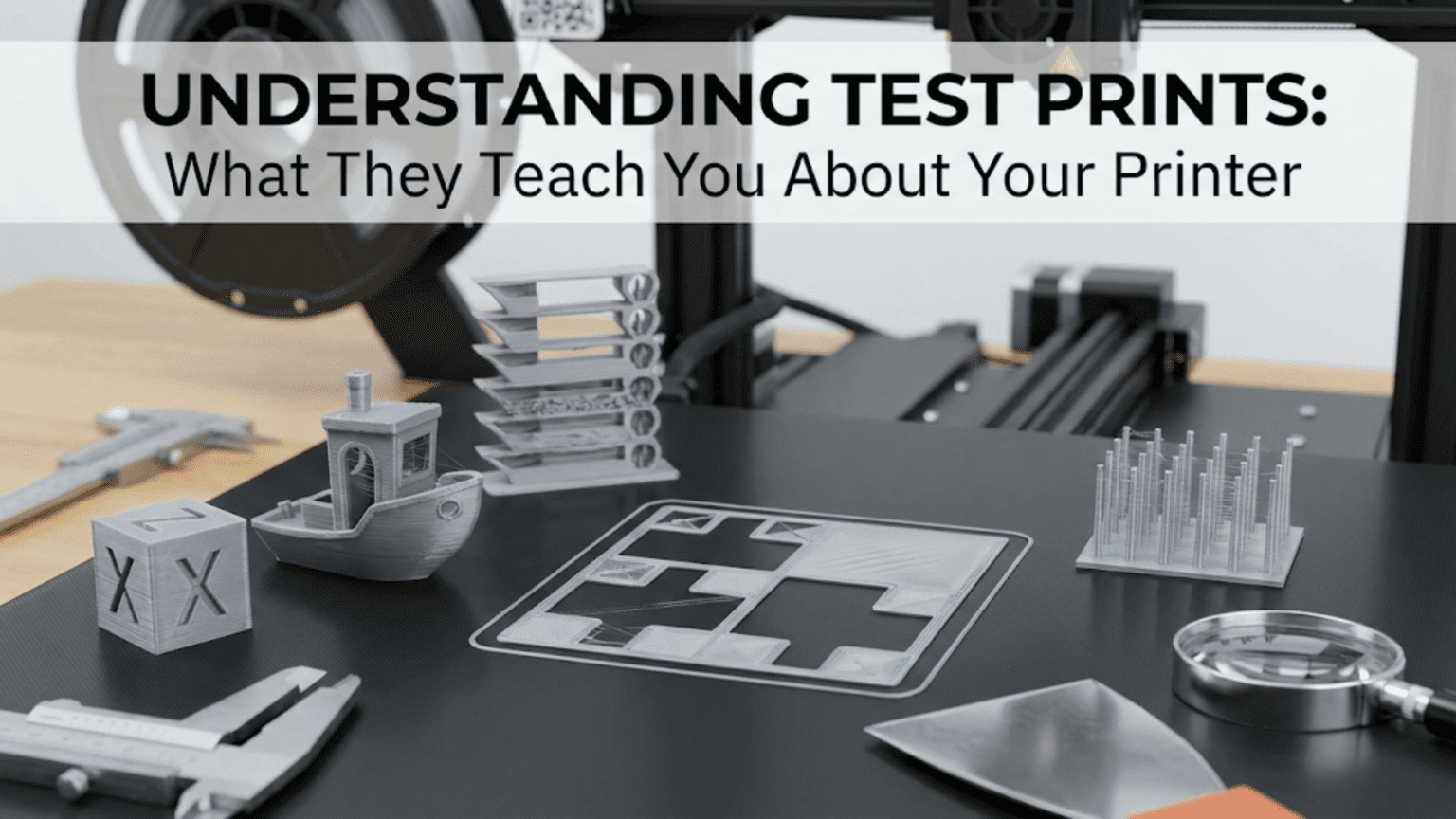
A 3D printer test print is a specially designed model that reveals specific information about your printer’s performance, calibration accuracy, and hardware condition. Unlike decorative or functional prints, test prints are diagnostic tools — each feature of the model is intentionally engineered to expose a particular aspect of printer behavior, from temperature and retraction to bridging ability, overhang limits, dimensional accuracy, and surface quality.
Introduction: Your Printer Is Always Telling You Something
Every print your 3D printer produces is a message. The smooth, shiny top surface of a well-tuned print says one thing. The stringy cobwebs of a retraction problem say another. The rippling waves of ringing artifacts speak about resonance and belt tension. The elephant-foot flare of a first layer that’s too close to the bed whispers about Z-offset.
The challenge for beginners — and even for intermediate users — is learning to read these messages accurately. What does a rough top surface mean? Is it a temperature issue, a flow rate problem, a cooling deficiency, or something else entirely? When your print has blobs on the surface, is that a retraction issue, a temperature issue, or a problem with your slicer’s seam settings?
This is exactly where test prints become invaluable. A well-designed test print doesn’t just reveal that something is wrong — it tells you specifically what is wrong and often points directly toward the solution. Rather than diagnosing your printer by intuition or trial and error, test prints give you a systematic, methodical way to understand your machine’s capabilities and limitations.
In this guide, you’ll learn about the major categories of 3D printer test prints, what each one is designed to reveal, how to interpret the results, and how to build a personal testing workflow that keeps your printer running at its best. This isn’t a guide about printing impressive objects — it’s a guide about understanding your machine at a deeper level than most beginners ever reach.
That understanding is what separates hobbyists who struggle constantly from those who print reliably, confidently, and well.
Why Test Prints Exist: The Diagnostic Philosophy
Before diving into specific test prints, it’s worth understanding why they exist and what philosophy underlies their design.
A 3D printer is a remarkably complex machine. It involves mechanical motion on three axes, a thermal system that must maintain precise temperatures within a few degrees, a material delivery system that must extrude consistent amounts of plastic, an electrical system controlling all of the above, and software — firmware and slicer — that orchestrates every movement. When something goes wrong, and in 3D printing something always eventually goes wrong, the failure can originate in any of these systems, individually or in combination.
The designers of test prints understood this complexity and created models where specific geometric features act as probes into specific systems. A bridge section tests the cooling system and print speed. A retraction tower probes the balance between retraction settings and temperature. A dimensional cube measures the accuracy of the motion system’s calibration. An overhang tower reveals the combined capability of cooling, speed, and layer adhesion.
The key insight is that you can isolate variables. By printing a test that specifically stresses one aspect of your printer’s performance while keeping everything else constant, you can identify exactly which parameter needs adjustment. This is the scientific method applied to maker practice, and it is extraordinarily effective.
Category 1: Dimensional Accuracy Tests
The 20mm Calibration Cube
The 20mm calibration cube is the foundational dimensional test. It checks whether your printer’s motion system is producing the correct dimensions in X, Y, and Z.
What it reveals:
- Steps-per-millimeter accuracy for all three axes
- Consistency of extrusion — over or under-extrusion affects outer dimensions
- Squareness of the printer frame (if X and Y dimensions differ unexpectedly)
How to read it: Measure all three dimensions with digital calipers. Target is 20.0mm ± 0.2mm for a well-calibrated machine. Deviations beyond this range indicate calibration issues that need to be addressed before trusting your printer for functional parts.
What to adjust:
- If all dimensions are off proportionally, check E-steps calibration
- If Z is specifically off, check Z steps-per-millimeter and layer height settings
- If X or Y specifically is off, check belt tension and XY steps-per-millimeter values
The Single-Wall Cube (Flow Calibration)
A variation on the standard calibration cube, the single-wall or hollow cube is printed with just one perimeter and no infill. This isolates the wall thickness to exactly one extrusion width, which should match your nozzle diameter — typically 0.4mm for a standard nozzle.
Measuring the wall thickness with calipers gives you a precise reading of your actual flow rate. If the wall measures 0.45mm but should be 0.4mm, your flow rate is approximately 12.5% too high. This test is one of the most accurate ways to calibrate your flow rate or extrusion multiplier setting.
What it reveals:
- Actual extrusion width versus intended extrusion width
- Flow rate accuracy
- Temperature effects on extrusion width
The Dimensional Accuracy Cylinder
Round objects reveal a different set of potential problems than cubes. A cylinder or ring test print checks whether your printer produces accurate circles, which can be affected by belt tension asymmetry, backlash in the motion system, or incorrect steps-per-millimeter values that differ between X and Y axes.
If your cylindrical test comes out oval rather than circular, your X and Y motion systems are not balanced, and you have a specific calibration issue to address.
Category 2: Temperature Tests
The Temperature Tower
The temperature tower is one of the most practically useful test prints a beginner can run. It’s a tall, multi-section structure where each section — typically 5–10mm tall — is printed at a different nozzle temperature, usually in 5°C decrements from top to bottom, covering a range of perhaps 220°C down to 180°C for PLA.
Because temperature affects almost every aspect of print quality — layer adhesion, stringing, bridging, surface finish, and overhangs — the temperature tower gives you a comprehensive overview of how a specific filament spool behaves across its temperature range.
What it reveals:
- Optimal temperature for layer adhesion and strength
- Temperature at which stringing becomes acceptable
- Temperature range for best surface quality
- Minimum temperature for adequate layer bonding
How to read it: After printing, examine each section carefully. At temperatures that are too hot, you’ll see excessive stringing between features, drooping overhangs, rough top surfaces, and possible discoloration. At temperatures that are too cold, poor layer adhesion causes layers to separate easily, surfaces appear rough and matte, and bridging collapses. The optimal zone balances all of these characteristics with clean surfaces, minimal stringing, good bridging, and smooth appearance.
The section that best balances all of these characteristics represents your optimal print temperature for that specific filament. Note that this temperature can vary between filament brands, colors, and even between different spools of the same product.
Slicer setup: Temperature towers require post-processing scripts or manual G-code editing to change temperature at specific layer heights. Both Cura and PrusaSlicer support this through post-processing scripts or modifier meshes. Printables hosts several ready-to-use temperature tower designs with accompanying instructions.
The Bed Temperature Test
Less commonly discussed but equally important, bed temperature affects first-layer adhesion, warping tendency, and the quality of the transition from the first few layers to the main body of the print. Some makers print a flat disc or series of patches at different bed temperatures to find the optimal setting for their specific bed surface and filament combination.
Category 3: Retraction Tests
The Retraction Tower
Retraction is the brief backward movement of the filament just before the nozzle travels across an open area. It’s designed to prevent the nozzle from oozing and leaving strings of plastic across your print. Getting retraction right is one of the most finicky aspects of FDM calibration, and it varies significantly between different printers, hotend designs, and filament materials.
The retraction test tower is similar in concept to the temperature tower: a multi-section model where each section is printed with a different retraction distance or retraction speed. By comparing sections, you can visually identify the optimal setting.
What it reveals:
- Optimal retraction distance (how far the filament is pulled back)
- Optimal retraction speed (how fast the filament is retracted)
- The relationship between temperature and retraction — hotter plastic oozes more and may need more retraction
How to read it: Too little retraction produces significant stringing between the tower’s features and blobs at travel start points. Too much retraction causes grinding of filament (especially on direct drive extruders), gaps at travel restart points, and possible nozzle clogs from repeatedly retracting past the melt zone. The optimal setting produces clean, minimal stringing with no gaps or grinding artifacts.
Important note: Retraction settings differ dramatically between Bowden and direct drive setups. Bowden systems typically need 4–7mm of retraction because the filament has to travel a long distance to relieve pressure in the nozzle. Direct drive systems typically need only 0.5–2mm because the extruder sits directly above the hotend.
The Ooze Test
A simpler retraction diagnostic, the ooze test consists of two or more towers or pillars separated by a gap. The nozzle must travel between them without extruding, and the quality of the travel — how clean the move is, whether strings appear — gives you immediate retraction feedback. This test is faster to print than a full retraction tower and is useful for quick validation after making retraction adjustments.
Category 4: Overhang and Bridging Tests
The Overhang Test Tower
Overhangs are surfaces that extend beyond the layer below them at an angle. Every FDM printer has a maximum overhang angle it can handle without support material — typically somewhere between 45° and 60° from vertical, though this varies by machine, settings, and material.
The overhang test tower is a stepped structure with walls at progressively increasing angles — typically 10°, 20°, 30°, 40°, 50°, 60°, 70°, and beyond — so you can visually identify at exactly what angle your printer begins to struggle.
What it reveals:
- Maximum unsupported overhang angle for your specific printer and settings
- The quality of your part cooling at overhang angles
- How print speed affects overhang quality
How to read it: Working up the tower from the most vertical section, identify the angle at which the surface begins to show drooping, sagging, or rough texture. The last clean section represents your practical overhang limit.
Improving overhang performance involves increasing part cooling fan speed, reducing print speed at overhang regions (most slicers have a dedicated overhang speed setting), reducing layer height so each layer has less distance to bridge, and reducing print temperature slightly so the plastic solidifies faster after deposition.
The Bridging Test
Bridging is a specific type of overhang — a completely horizontal span across an open gap, where the printer must extrude plastic through air with no underlying material for support. Think of the ceiling of a doorway in an architectural model.
Bridging test models consist of multiple gaps of increasing width — perhaps 20mm, 40mm, 60mm, 80mm, and 100mm — so you can identify your printer’s maximum reliable bridge length.
What it reveals:
- Maximum unsupported bridge length
- Optimal bridging speed
- Cooling effectiveness during bridging
How to read it: Examine the underside of each bridge span. Well-printed bridges should be clean, taut, and relatively smooth on their underside. Poor bridges sag, are rough on the underside, or collapse entirely.
Improving bridging performance centers on slowing down bridging speed — 30–40 mm/s is often effective — and maximizing part cooling during bridging moves to solidify the plastic quickly before it sags.
Category 5: Surface Quality and Motion Tests
The Ringing and Ghosting Test
Ringing (also called ghosting or rippling) appears as horizontal wave patterns on the vertical surfaces of your print, most visible on smooth walls near sharp corners or other features. It’s caused by vibrations in the printer frame and motion system — when the print head changes direction rapidly, the mechanical system oscillates, and these oscillations are recorded in the printed surface.
A ringing test model typically consists of a flat panel with a raised feature such as text or a geometric protrusion near the center, so the ringing waves that appear adjacent to the feature are clearly visible and measurable.
What it reveals:
- Resonant frequency of your printer’s motion system
- Severity of frame flex or motion system play
- Whether belt tension, print speed, or acceleration changes are needed
How to read it: Count the number of visible ringing waves and their amplitude. Fewer, smaller waves indicate better printer dynamics. High amplitude ringing typically points to loose belts, a wobbly frame, or excessive acceleration settings.
Improving ringing performance involves tightening belts until they are taut like a guitar string, reducing print speed and acceleration settings in firmware or slicer, adding frame bracing if your printer has flex in its structure, and enabling Input Shaping (resonance compensation) if your printer and firmware support it — this is the most effective solution for persistent ringing.
The Z-Banding Test
Z-banding appears as regular horizontal lines at consistent intervals on the vertical walls of your prints, creating a distinctive banding pattern that looks almost like wood grain. Unlike ringing, which is caused by X/Y axis vibration, Z-banding is caused by issues specifically in the Z-axis movement system.
Common causes include an uneven or slightly bent lead screw, a loose coupling between the stepper motor and lead screw, and vibration at specific Z-axis movement frequencies.
What it reveals:
- Health of the Z-axis mechanical system
- Quality of the Z-axis lead screw and coupling
- Whether Z-axis damping or hardware replacement is needed
Category 6: The All-in-One Torture Test
3DBenchy: The Community Standard
No guide to test prints would be complete without discussing 3DBenchy — the small tugboat-shaped model that has become the single most widely recognized diagnostic tool in the 3D printing world. Designed by Creative Tools, the Benchy is specifically engineered with a comprehensive set of challenging features compressed into a small, fast-printing package.
The Benchy typically prints in 1.5–3 hours at standard settings, making it practical as a regular diagnostic tool.
What each feature reveals:
| Benchy Feature | Printer Characteristic Tested |
|---|---|
| Hull curves | Smooth curved surface reproduction |
| Stern overhang | Overhang performance at moderate angles |
| Bow overhang | Steeper overhang performance |
| Cabin roof | Bridging over a closed space |
| Cabin windows | Small feature precision and bridging |
| Chimney stack | Tall thin feature printing and cooling |
| Chimney interior | Small hollow feature reproduction |
| Text on hull | Fine detail reproduction |
| Deck surface | Top surface quality and flow rate |
| Waterline ledge | Sharp horizontal feature precision |
| Interior cabin | Enclosed space ventilation and quality |
How to read your Benchy:
The Benchy is most useful when you examine it systematically, feature by feature, rather than making a general assessment. Common Benchy diagnoses include: stringy cabin windows pointing to retraction settings that need work; a drooping or sagging chimney indicating inadequate cooling or print speed too high for thin features; a rough deck surface suggesting flow rate issues or insufficient top layers; ringing visible on the flat hull sides pointing to belt tension or acceleration problems; and poor text legibility indicating layer height is too high for the detail level.
The Benchy is so widely used that there are dedicated online communities where experienced makers can often diagnose your printer’s issues from a clear photograph of your print alone.
Teaching Tech Calibration Workflow
One of the most comprehensive and methodical calibration workflows available for FDM printers combines a series of test prints used in a specific sequence. The workflow covers first layer calibration, extruder calibration, temperature tuning, flow rate calibration, retraction testing, and more — with interactive online tools that help you measure prints and calculate the exact setting adjustments needed. This systematic, engineering-minded approach is highly recommended for anyone who wants to move beyond guesswork.
Category 7: Tolerance and Fit Tests
The Tolerance Test
For anyone who wants to print parts that need to fit together — mechanical assemblies, snap-fits, press-fit inserts, or multi-part models — understanding your printer’s tolerance accuracy is essential. A tolerance test print consists of a series of features with progressively decreasing clearance gaps: typically 0.1mm, 0.2mm, 0.3mm, 0.4mm, 0.5mm, and 0.6mm gaps.
After printing, you test which gaps are free-moving, which are stuck but can be freed, and which are completely fused. This tells you the minimum reliable clearance gap for your printer — an essential parameter for designing functional assemblies.
What it reveals:
- Minimum clearance gap for freely moving parts
- Minimum clearance gap for press-fit connections
- Over or under-extrusion effects on small features
Typical findings: Most well-calibrated FDM printers achieve clean gaps at 0.3mm and above, with 0.2mm being tight but possible, and 0.1mm typically being fused. These values vary by printer, nozzle size, filament type, and extrusion accuracy.
The Hole Calibration Test
Printed holes are almost universally smaller than designed because the extrusion is deposited on the inside of the circle, reducing the diameter slightly. A hole calibration test prints a series of holes with diameters from perhaps 2mm to 20mm in 2mm increments. Measuring these holes reveals the systematic offset between designed and actual hole size — information that lets you compensate when designing parts that need to accept screws, bolts, or other inserts.
A Systematic Calibration Session: Putting It All Together
Understanding individual test prints is valuable, but knowing how to run a systematic calibration session turns that knowledge into a practical skill. Here is a recommended sequence for a full calibration session:
Step 1: E-Steps Verification Before any test print, verify your extruder is feeding the correct amount of filament. Mark your filament 100mm from the extruder entry point, command the printer to extrude 100mm, and measure how much was actually fed. If there is a discrepancy, calculate and update your E-steps value accordingly.
Step 2: Dimensional Cube Print the 20mm calibration cube. Measure all three dimensions. Adjust steps-per-millimeter values if needed and reprint until dimensions are within ±0.2mm.
Step 3: Single-Wall Flow Calibration Print a single-wall cube and measure wall thickness with calipers. Adjust flow rate or extrusion multiplier until wall thickness matches your nozzle diameter.
Step 4: Temperature Tower Print a temperature tower with your current filament. Identify the optimal temperature and record it in your filament settings profile.
Step 5: Retraction Tower Print a retraction test at your optimal temperature. Identify the retraction distance and speed that minimizes stringing without causing grinding or gaps.
Step 6: Overhang and Bridge Test Confirm your overhang angle limit and maximum bridge length. Adjust cooling and speed settings if results are poor.
Step 7: Benchy Print a Benchy as the comprehensive validation step. The Benchy confirms that all your individually calibrated settings are working well together as a system.
Step 8: Document Record all your settings in a calibration log. This becomes your baseline reference for this printer and filament combination.
Reading Your Prints: Quick Diagnostic Reference
The goal of working through these test prints is to develop pattern recognition that lets you look at any print and understand what it’s communicating. Here is a quick diagnostic reference for the most common symptoms:
| Symptom | Likely Cause | Test Print to Run |
|---|---|---|
| Stringy cobwebs between features | Retraction too low or temp too high | Retraction tower, temperature tower |
| Blobs on surface | Seam settings, over-extrusion | Retraction tower, single-wall cube |
| Rough or porous top surface | Under-extrusion, insufficient top layers | Single-wall cube, calibration cube |
| Drooping overhangs | Poor cooling, speed too high | Overhang tower |
| Sagging bridges | Poor cooling, bridge speed too high | Bridge test |
| Rippling on vertical walls | Ringing from printer vibration | Ringing test |
| Regular horizontal banding | Z-axis mechanical issue | Identify by visual inspection |
| All dimensions off proportionally | E-steps or steps/mm calibration | Calibration cube |
| Elephant foot flare at base | Z-offset too low, first layer squished | First layer test |
| Layer separation or delamination | Temperature too low, speed too high | Temperature tower |
| Grinding or clicking extruder | Over-retraction, clog, temp too low | Retraction tower, temperature tower |
The Ongoing Practice of Testing
Test prints are not just for initial setup — they should be part of your ongoing practice throughout the life of your printer. Any time you install a new nozzle, switch to a different filament brand or material, update your printer’s firmware, make hardware modifications, resume printing after an extended break, or notice a decline in print quality, you should run at minimum a calibration cube and a Benchy to verify your printer is still performing as expected.
Experienced makers often keep a folder of prepared test print G-code files ready to go, so running a calibration check takes just minutes to initiate. This readiness reflects a mindset shift that’s worth cultivating: treating test prints not as an interruption to “real” printing but as an integral part of maintaining a reliable, high-performing machine.
Building Your Personal Test Print Library
Over time, you will develop a personal library of test print files prepared and sliced specifically for your machine. A recommended starter collection divides naturally into three tiers.
Essential tests to run regularly: The 20mm XYZ calibration cube, single-wall hollow cube, temperature tower prepared for your primary filaments, retraction tower, and 3DBenchy. These five tests cover the most common calibration needs and should be your go-to diagnostic tools.
Periodic tests to run when changing hardware or materials: Overhang test tower, bridge test, tolerance test, and hole calibration test. These tests help you understand how changes to your setup affect specific print capabilities.
Diagnostic tests to run when specific symptoms appear: Ringing test for rippling surface artifacts, Z-banding analysis for horizontal banding, first-layer calibration grid for adhesion issues, and flow rate patch tests for extrusion consistency problems.
Where to Find the Best Test Print Files
Printables.com — Search each test print name and filter by the “Calibration” tag. Look for models with high download counts and detailed instructions in the description.
Thingiverse.com — The original home of many classic test prints, including the XYZ calibration cube and numerous temperature tower variants.
Teaching Tech Calibration Site — A comprehensive calibration workflow with downloadable files and interactive calculators that help you calculate exact setting adjustments based on your measurements.
3DBenchy.com — The official source for the Benchy STL file, with extensive documentation about interpreting results across different printer types and settings.
3D printing YouTube channels — Many prominent creators have developed their own test prints and calibration tools, made available for free download alongside tutorial videos.
Conclusion: Listening to Your Printer
The central lesson of this guide is also its simplest: your printer is always communicating with you. Every surface texture, every dimensional deviation, every blob or string or sag is information about what is happening inside your machine. Test prints give you the vocabulary to understand that information.
The temperature tower teaches you what “too hot” and “too cold” look like in physical form. The retraction tower teaches you the visual signature of over-retraction versus under-retraction. The overhang test teaches you precisely where your printer’s mechanical and thermal systems reach their limits. The Benchy synthesizes all of these lessons into a single comprehensive diagnostic.
As you work through more and more test prints, you develop something that no guide can fully provide: intuition. The ability to look at a print, recognize its patterns, and immediately know what to try next. That intuition is built one test print at a time, one calibration session at a time, one problem solved at a time.
The maker who understands their machine through systematic testing doesn’t fear failed prints. They treat them as data points, extract the lesson, make the adjustment, and try again with greater knowledge than before. That mindset, more than any specific setting or technique, is what makes a great 3D printer operator — and it begins with learning to listen to what your prints are telling you.